Helix Enterprise uses a variety of resources to analyze events. The analysis is then available in context to the event on the alert details page. Bringing this intelligence into the alert can help you evaluate the alert more quickly.
When this information is available for a given value in an event, an "i" appears in a colored circle in the Most Recent Event section of the alert details page. Circle colors indicate the threat level based on Trellix Intel knowledge and experience:
Circle color | Description |
|---|---|
Gray | Identifies an indeterminate event value. |
Blue | Identifies a benign event value. |
Orange | Identifies a suspicious event value. |
Red | Identifies a malicious event value. |
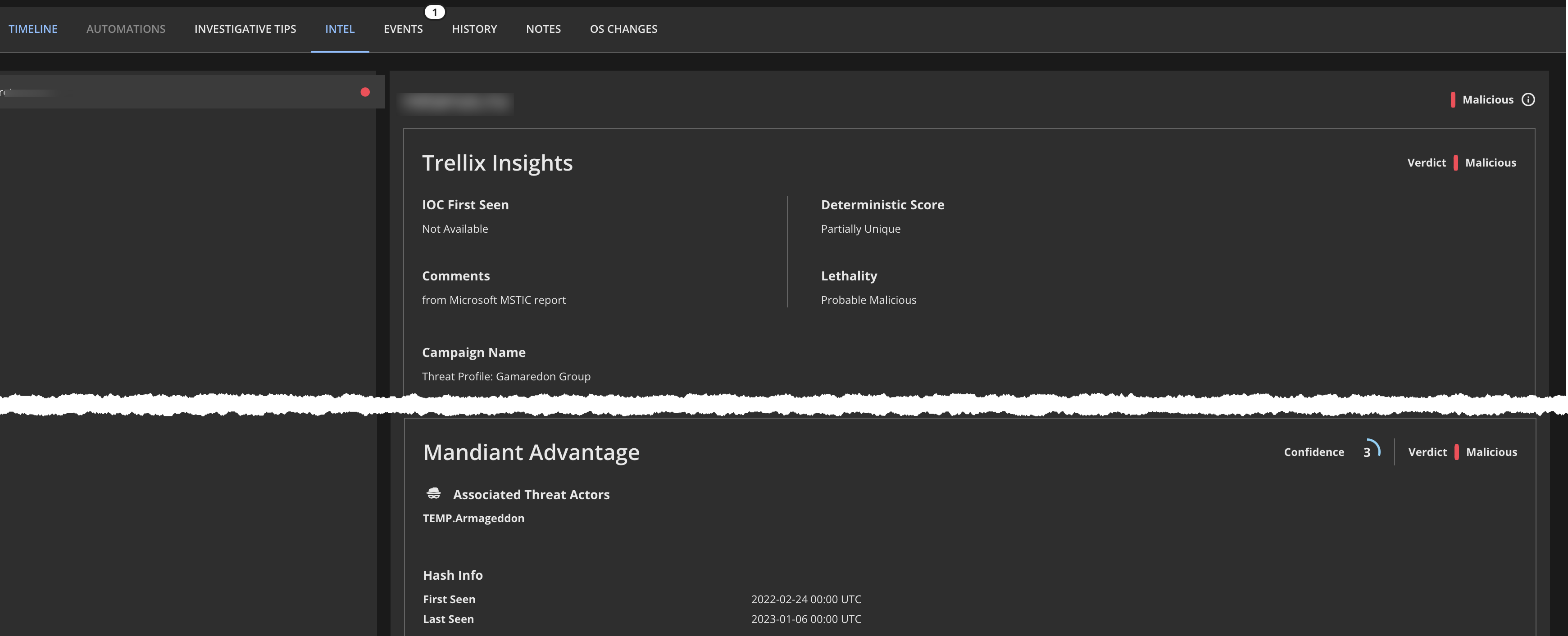
You can view intelligence details for an alert on the Intel tab in the alert details. You can select the Intel tab directly to see the intelligence details or you can pivot to the Intel tab from the Most Recent Event section in the alert details.
On the alert details page, scroll to the Most Recent Event section.
Locate an "i" icon for a field. Notice that the red "i" icons in the example below indicate that Trellix deems the hash values in the md5 and sha1 fields to be malicious.
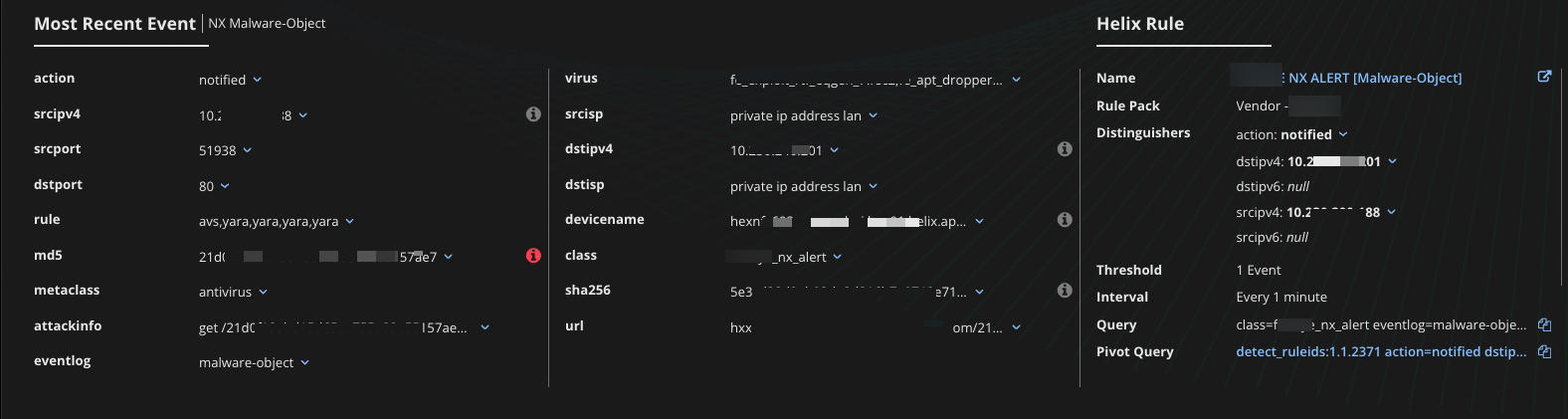
Click the "i" icon associated with a field. The Intel tab is automatically selected, highlighting the selected field.
In the example below, we clicked the red "i" associated with the md5 field. As a result, the Intel tab displays detailed information about this particular threat. This information is based on Trellix intelligence and experience and includes information such as threat attribution, hash information, and a description of what Trellix knows about this threat.
Review the available details to determine your next steps in dealing with the threat.