Follow these steps to view the alerts list.
Prerequisites
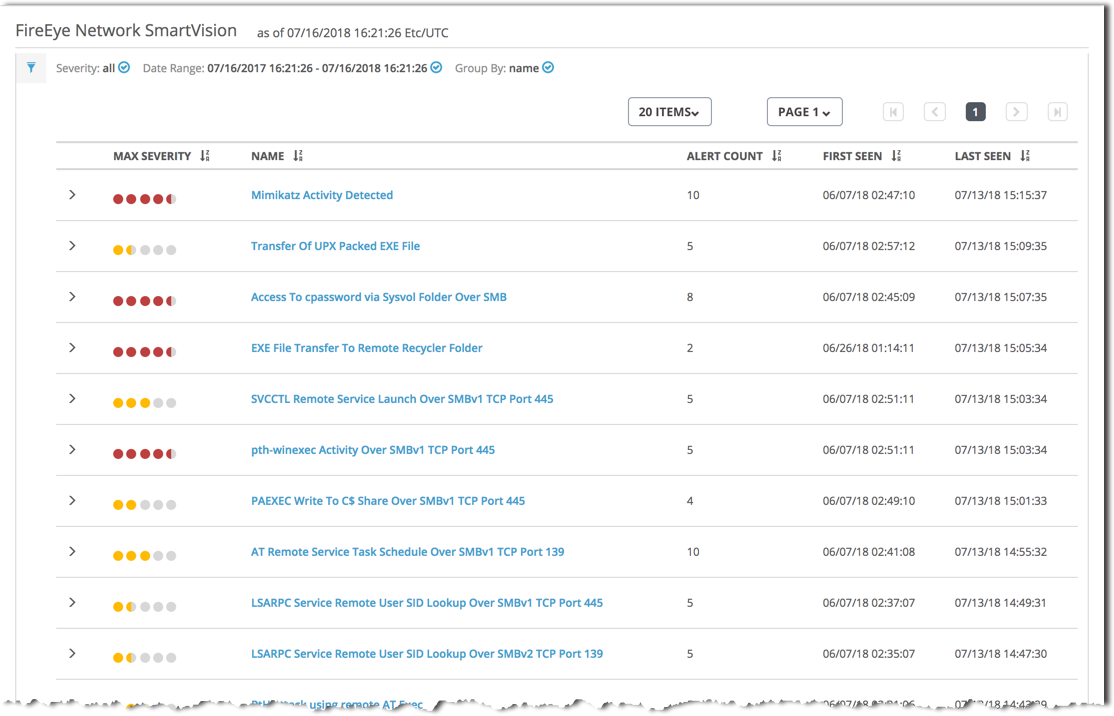
Log in to the appliance Web UI and select Alerts > SmartVision.
By default, the list shows SmartVision alerts of all severity levels, triggered over the last 24 hours and grouped by the SmartVision rule used to detect the malicious activity.
(Optional) Change the way alerts are grouped in the list: by rule name (Name, the default), by SmartVision event type (Type), or in a flat list (None).
Open the Filters panel by clicking the blue filter icon in the main window.

In the Group by field, select the alert-grouping criteria.
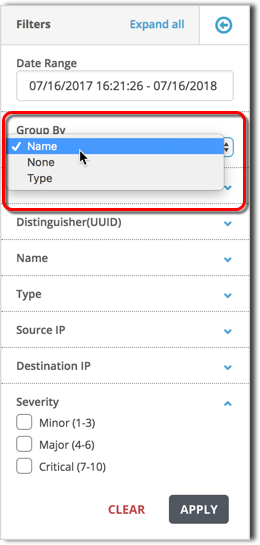
Click Apply, then close the Filters panel by clicking the blue arrow icon:

(Optional) Filter the alerts displayed in the list.
Open the Filters panel by clicking the blue filter icon in the main window.
Specify filtering criteria.
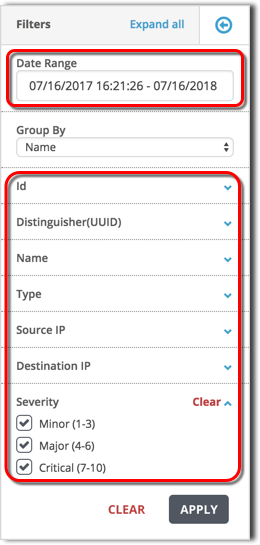
Click Apply, then close the Filters panel by clicking the blue arrow icon.
(Optional) Click a column heading to sort the list on that value You can sort the alerts on any column in the list except security content (SC Version).

(Optional) Click a rule name (in the Name column) to open an event description page. The page describes attack activity that Trellix SmartVision has detected using that rule.
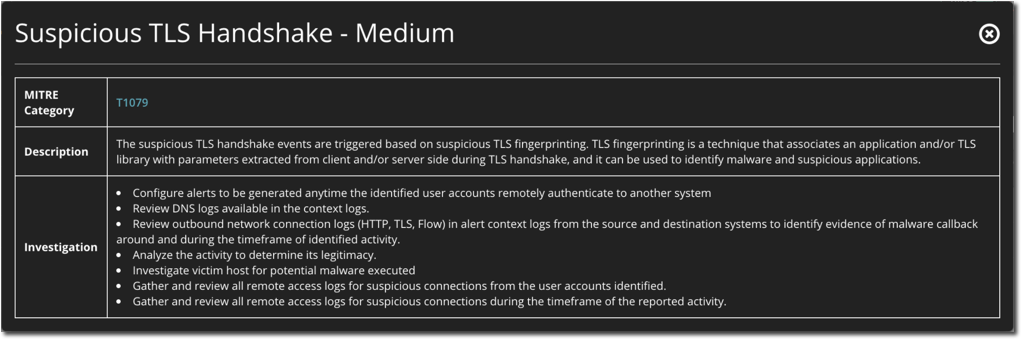
If the information is available, the attack description page includes steps to take to mitigate future attacks of this type. This information is provided by the Trellix Research Labs team, and the information is updated as the team learns more about the attack type.
To view more detailed information about a particular alert in the list, see Investigating a SmartVision alert.