Prerequisites
License requirements: You must have -
A valid Content-Update license to download the containers
An NDR Core or Enterprise license
Connectivity to DTI production: The appliance must be configured to reach the Trellix DTI production domain.
To work with docker detection plugins for anomaly detection, perform the following steps:
Verify licenses
Using the SSH protocol, log into the appliance as
npadmin.Enter privileged mode on the CLI.
npadmin@hostname> enableEnter configuration mode.
npadmin@hostname# configure systemType
Licenseand pressEnter.Verify that
CONTENT_UPDATESandNDRlicenses are valid and active.You can also use
show versionscommand to ensure that the Product Edition field shows Enterprise or Core. See License Management for more information.
Configure DTI Gateway to production domain
On configuration mode, type
dtigatewayand then pressEnterto open the DTI Gateway Configuration menu.Activated with appliance ID: 8629xxxxxxxC U. Update DTI activation code. S. Set DTI Gateway Configuration. ---------------------------------------- E: Exit Enter your choice:Type
Sto set the DTI gateway configuration.On the DTI configuration menu, type
1to update the DTI domain tocloud.fireeye.com:443. EnterUto save the configuration updates.DTI Server Status: OK DTI Gateway Configuration: 1. DTI Domain: cloud-production.fenet.fireeye.com:443 2. DTI Protocol: https 3. DTI Timeout: 600 (seconds) 4. Proxy Status: Disabled 5. Proxy Address: 6. Proxy Authtype: basic 7. Proxy Username: 8. Proxy Password: R. Reset DTI Gateway Configuration. ---------------------------------------- U: Update changes and go back C: Cancel changes and go back Enter your choice:
Check the container status
On configuration mode, type
show-docker-containerand pressEnter.Type
Sto view the container status.
CONTAINER ID
IMAGE
COMMAND
CREATED
STATUS
PORTS
NAMES
1602ea745ef9
dnst:v1.0.0
"/usr/local/bin/supe…"
8 minutes ago
Up 8 minutes
dnst-detection
f748d3e143b6
dga:v1.0.0
"/usr/local/bin/supe…"
8 minutes ago
Up 8 minutes
dga-detection
31dc0599c6c6
shared-plugins:v1.1.0
"/usr/local/bin/supe…"
8 minutes ago
Up 8 minutes
ndr-detection-plugins
891fda9c6a71
neurl:v1.1.0
"/usr/local/bin/supe…"
8 minutes ago
Up 8 minutes
neurl-detection
Check alerts on NDR
Once active and running, The plugins will start populating the Alerts dashboard if there is a match found in detection logic. To analyze these alerts -
Click
 icon and then under Investigation, select Alerts.
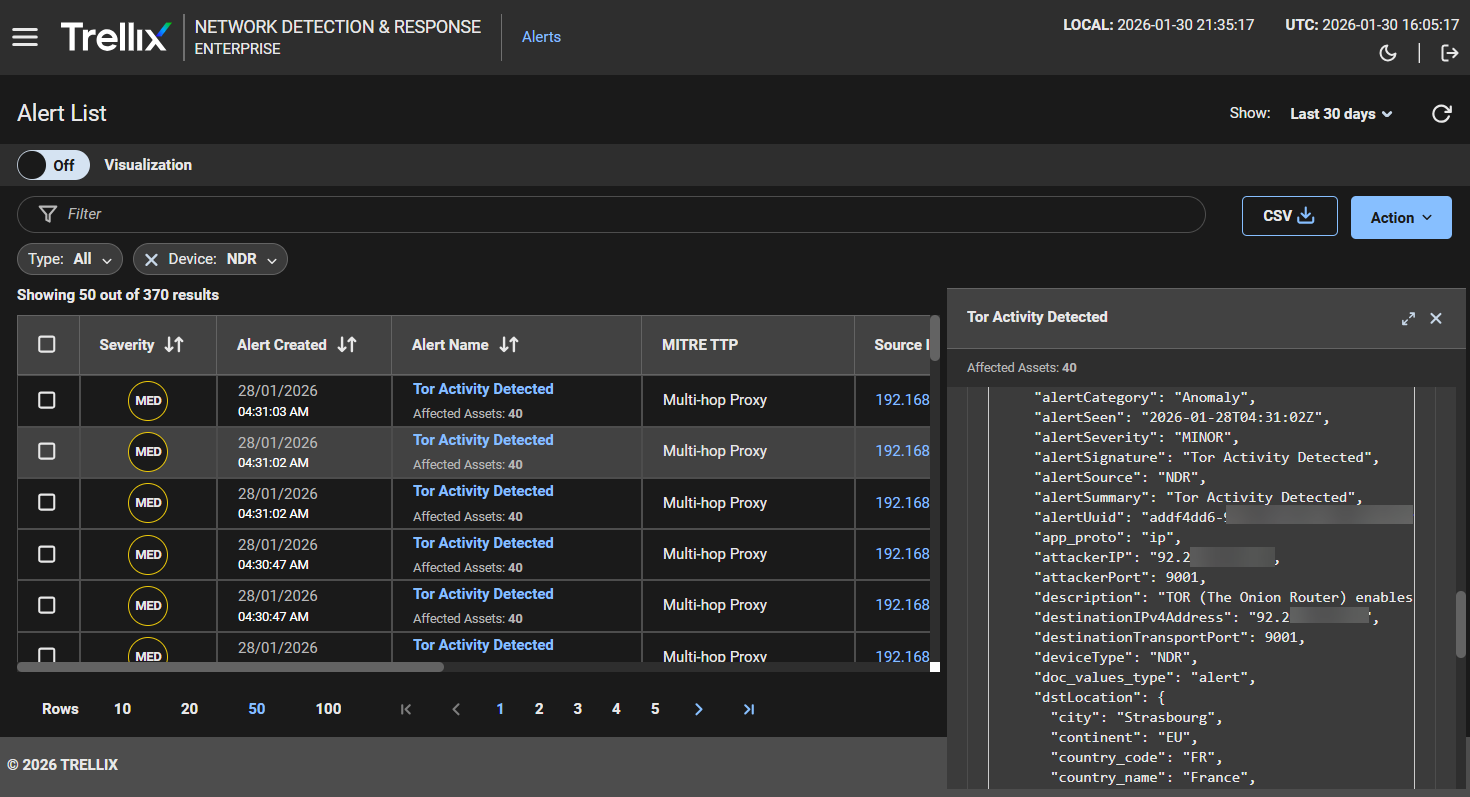
Use the Alert List table to look for specific alerts, such as newly registered domains, SSL anomalies or ICMP/DNS tunneling anomalies. These alerts look like native ML or signature-based alerts, so you can investigate everything in a centralized place.
Review the JSON file and other contextual data in the Alert Details page for further investigation. See Investigating alerts for more information.