You can perform an exhaustive search for conditions that include specific tokens. Some tokens require an exhaustive search. However, if any condition in an Enterprise Search does not support an exhaustive search, an exhaustive search is not performed. To determine which tokens allow exhaustive searches and which require exhaustive searches, see the Search token reference .
Note
To run an exhaustive search, you must have an Endpoint Security (HX) Power license.
Select Enterprise Search from the Investigate section of the main menu in the Endpoint Security (HX) Web UI.
Click the plus sign (+) on the left side of the search bar and select a token that allows an exhaustive search from the drop-down list. See Search token reference .
The drop-down list provides a filter area you can use to quickly locate your token. Start typing the token name. The tokens that match the characters you enter are shown.
Select an operator in the drop-down list. See Search condition operators .
Supply the token value or values for which you wish to search. No wild card characters are supported.
Remove any trailing spaces in the values you specify. Enterprise Search does not remove these trailing spaces and your search may fail because of them. (HXEP-9325)
Note
When Japanese or Chinese characters are entered in the Enterprise Search bar using a Japanese or Chinese Input Method Editor (IME) in Firefox or Internet Explorer 11, the cursor moves unexpectedly or starts the search before the search request is complete. (HXEP-6440)
When you click at the end of the search string in the search bar, a message appears indicating which types of host endpoints can run the search. (ENDPT-7844 partial)
Select Enable exhaustive search. The exhaustive search area expands.
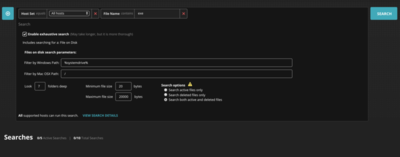
Optionally, supply values for exhaustive search options, described in Exhaustive search options.
After all optional exhaustive search options are specified, start the search. See Starting a search .
Exhaustive search options
The following possible exhaustive search options are available for some search tokens.
Option | Description | ||||||||||||||||||
|---|---|---|---|---|---|---|---|---|---|---|---|---|---|---|---|---|---|---|---|
Filter by macOS Path | Specify the macOS path in which you want the search to be performed. | ||||||||||||||||||
Filter by Windows path | Specify the Windows path in which you want the search to be performed. The environment variable
| ||||||||||||||||||
Filter by Registry Hive | Specify the registry hive in which you want the search to be performed. | ||||||||||||||||||
Look <nn> folders deep | Specify the folder depth that should be searched, where <nn> is the folder depth. Valid values are positive integers, 0, and -1.
| ||||||||||||||||||
Maximum file size | Specify the maximum file size, in bytes, that should be included in the search. Valid values are integers greater than or equal to -1 (negative 1). Specifying If the size (in bytes) of an Enterprise Search exceeds the maximum file size of the exhaustive search, the search is still created. (HXEP-6042) In macOS environments, an exhaustive Enterprise Search that specifies 0 for the Maximum file size option does not correctly search for files with sizes of zero. (ENDPT-517 and XAGT-1818) | ||||||||||||||||||
Minimum file size | Specify the minimum file size, in bytes, that should be included in the search. Valid values are integers greater than or equal to -1 (negative 1). Specifying |