Select Data Acquisition Scripts from the Configure section in the main menu of the Endpoint Security (HX) Web UI.
Click Import Script. The Import Script dialog appears.
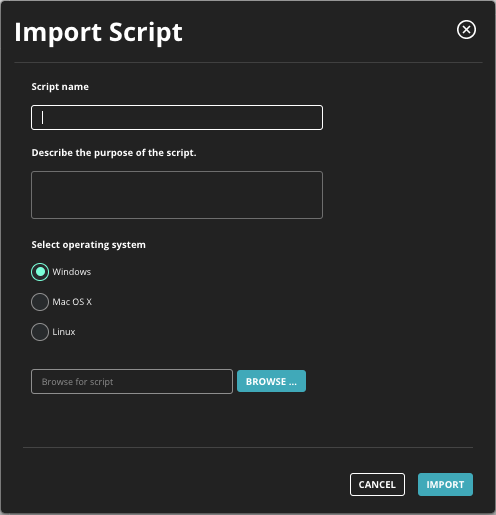
In the Script Name field, enter a name for the new script.
Optionally, enter a description of the script.
Select the operating system of the script you are importing. You can only select a single operating system on the Import Script dialog. However, if a script applies to more than one operating system, you can add operating systems after the script is created. See Changing script operating systems .
Click Browse to locate and the script you want to import.
Select the script you want to import and click Open. The script is added to the Import Script dialog.
You can remove the script from the Import Script dialog by clicking the
 icon next to its name. You might need to do this if, for example, you accidentally selected the wrong script to import.
If none of the audits in the selected script are supported by the operating system you have selected, the error "The selected file contains only unsupported audits" appears and you are prompted to select a different import script.
If you have selected the wrong operating system of the script you are importing, but some of the audits apply to the operating system you have selected, the audits that cannot be imported are removed from the script during the import and reported in an error text file.
When the correct script is selected, click Import to import the script.
If the Endpoint Security (HX) has problems interpreting the script or does not recognize an audit in the script, a message appears.

Select Download the list of import issues to download a text file containing a list of what was not imported.
If you have selected the wrong operating system of the script you are importing, the audits that cannot be imported are removed from the script and reported in the error text file. If none of the audits can be imported, you are notified on the Import Script dialog before the import occurs.
Some audits in a script cannot be imported. When this happens, the audits that cannot be imported are removed from the script and reported in the error text file. See Audits that cannot be imported .
If the import goes well, the Data Acquisition page adjusts so only the script section associated with the imported script appears. You can identify the operating system by the icon displayed to the left of the script name: Windows (
 ), OS X (
 ), or Linux (
 ).
).Click Create to create and save the script in Endpoint Security (HX). You can create a script with unresolved import issues.
Importing a script into a new script
- Published on Aug 26, 2026
- 2 minute(s) read
To import a script into a new data acquisition script:
Was this article helpful?