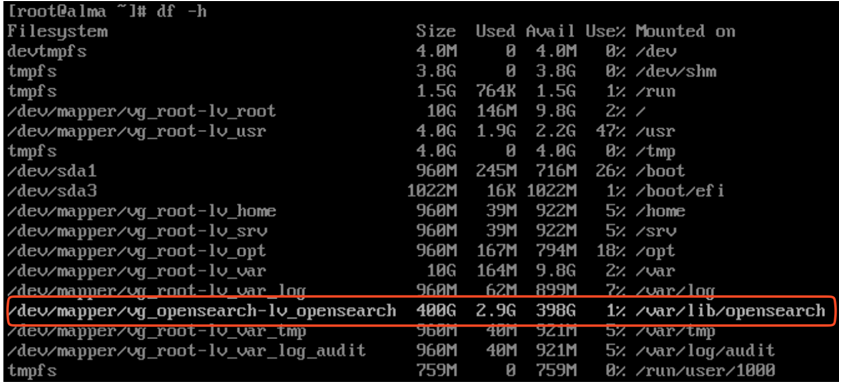
When the available storage on the EDR Telemetry Store virtual appliance becomes insufficient, you can increase capacity by extending the existing data disk.
Important
We recommend that you take a backup of the virtual machine in the hypervisor to ensure data recovery.
The high-level steps include:
Extend the hard disk in the hypervisor
Shut down the virtual machine.
Delete all existing snapshots.
Open the hardware configuration settings for the virtual machine in your hypervisor management console.
Locate the second hard disk, which contains the OpenSearch data directory.
Increase the disk capacity to the required size, and then save your changes.
Convert the MBR partition table to GPT
Master Boot Record (MBR) partition tables do not support disks that exceed 2 TB. If the new disk size exceeds 2 TB, you must convert the partition table to GUID Partition Table (GPT) to ensure the system recognizes the additional capacity.
If the disk size is 2 TB or less, proceed to Resize the partition.
Power on the EDR Telemetry Store virtual appliance and log in as an administrator.
ssh admin@<IP_address>
Enter privileged mode:
enable
Enter your password when prompted.
Access the shell:
shell
Install the
gdiskutility:dnf install -y gdisk
Stop the OpenSearch service:
systemctl stop opensearch
Unmount the OpenSearch data directory:
umount /var/lib/opensearch
Deactivate the volume group to safely modify the partition table:
vgchange -a n vg_opensearch
Run
gdiskto convert the MBR table to GPT:gdisk /dev/sdb
Write the new GPT data:
Type
wand press Enter.Type
Yand press Enter to confirm.
Force the kernel to read the new partition table:
partprobe /dev/sdb
Reactivate the volume group:
vgchange -a y vg_opensearch
Remount the OpenSearch data directory:
mount -a
Resize the partition
Power on the EDR Telemetry Store virtual appliance and log in as an administrator.
ssh admin@<IP_address>
Enter privileged mode:
enable
Enter your password when prompted.
Access the shell:
shell
List block devices:
lsblk
The OpenSearch data directory (
/var/lib/opensearch) is located on partitionsdb1of disksdb.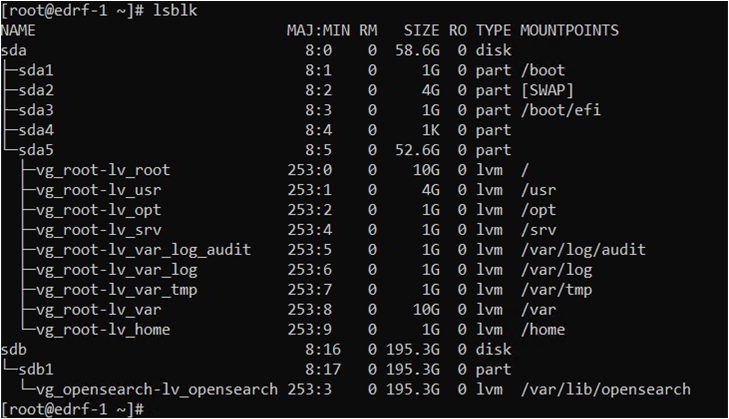
Display partition information:
parted -s -a opt /dev/sdb "print free"
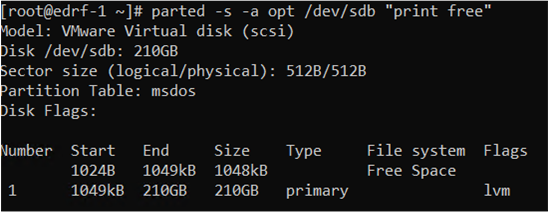
Confirm that free space is available after partition 1.
Resize partition 1 to occupy the full disk:
parted -s -a opt /dev/sdb "resizepart 1 100%"
Verify the updated partition layout:
parted -s -a opt /dev/sdb "print free"
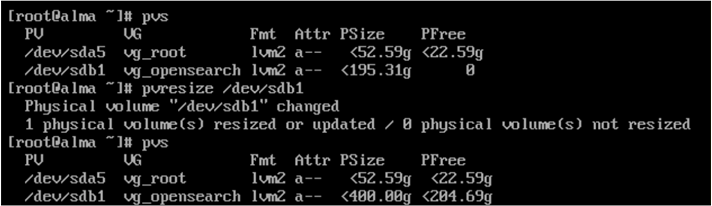
Resize the physical volume
Display current physical volumes:
pvs
Resize the physical volume:
pvresize /dev/sdb1
Verify the updated size:
pvs
Resize the logical volume and file system
Display logical volumes:
lvs
Extend the logical volume and file system to use all free space:
lvextend -l +100%FREE -r /dev/vg_opensearch/lv_opensearch
Verify the updated logical volume size:
lvs
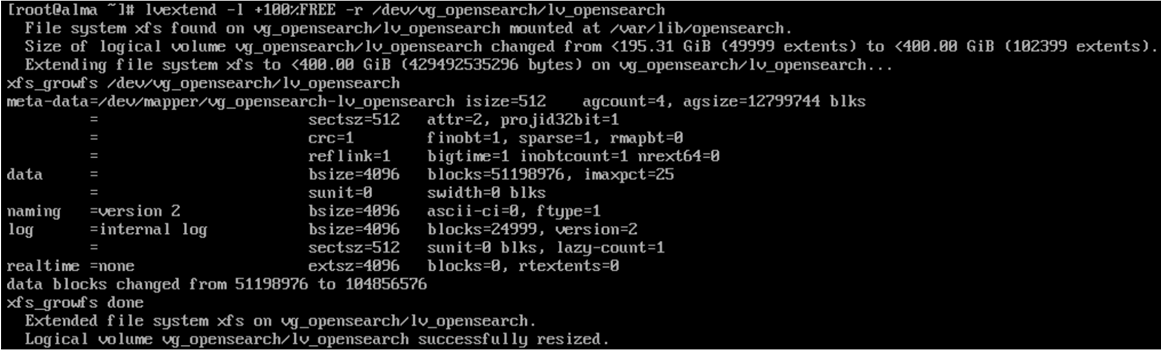
Result
The additional disk space is now available for use by the EDR Telemetry Store virtual appliance.
You can confirm the increase using:
df -h