After you install DXL and Trellix EDR extensions, you must configure the ePO - SaaS Cloud Bridge to establish a connection between the ePO - On-prem environment and Trellix EDR Cloud. You use a token to establish this connection.
Note
Use this procedure to connect ePO - On-prem to the EDR workspace. This applies to hybrid environments.
Obtain a cloud token using XConsole
Log in to XConsole.
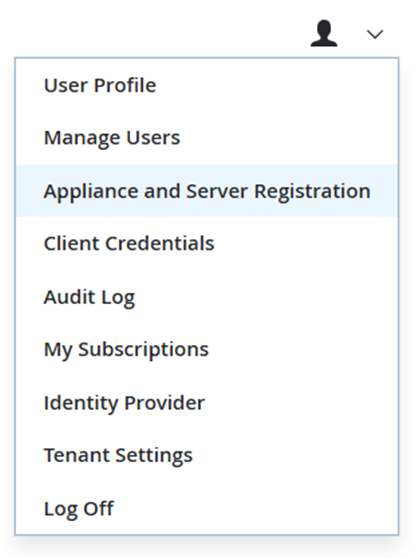
Select the profile icon and click Appliance and Server Registration.
Click Add.
Select Trellix ePolicy Orchestrator - SaaS client type and enter 1 under Number of clients.
Click Save.
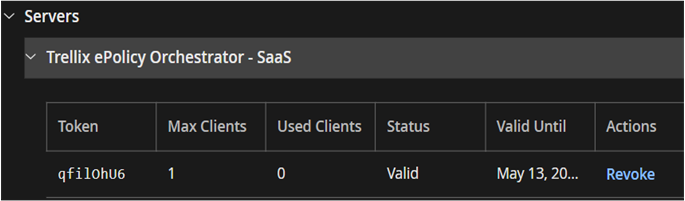
Once you expand the Trellix ePolicy Orchestrator - SaaS section, the token required to establish a connection between ePO - On-prem and Trellix EDR Cloud is displayed.
Note
The Appliance and Server Registration settings can also be accessed from ePO - SaaS menu.
Add the cloud token to the ePO server
Log in to ePO - On-prem.
Navigate to Menu → Configuration → Server Settings. Under Setting Categories, search for ePO - SaaS Cloud Bridge.
Click Edit and paste the token obtained earlier from step 6 in the Registration Token field.
Click Restore default URL in the ePO Logon URL field.
Click Save.
The Status displays This server is linked.
To verify ePO server settings, search for Trellix EDR Settings under Server Settings.
View the connection status under Trellix EDR Cloud Services.
Now the DXL on ePO - On-prem server is connected with the ePO - SaaS Cloud Bridge.
To view the connected servers in Trellix ePO - SaaS, go to Menu → Configuration → Appliance and Server Registration.
Click Trellix ePolicy Orchestrator - SaaS under Servers.
The Used Clients column displays the number of clients connected to ePO - SaaS.
Important
If your tenant is hosted in US-West, US-East, Frankfurt, Sydney, Canada, or Asia Pacific South data center, go to ePO - On-prem and navigate to Menu → Configuration → Server Settings → DXL Cloud Databus and add the URL based on the data center location where your tenant is hosted.
US-West data center —
https://api.soc.trellix.com/cloudproxy/databus/produceUS-East data center —
https://api.soc.us-east-1.trellix.com/cloudproxy/databus/produceSydney data center —
https://api.soc.ap-southeast-2.trellix.com/cloudproxy/databus/produceCanada data center —
https://api.soc.can-central-1.trellix.com/cloudproxy/databus/produceAsia Pacific South data center —
https://api.soc.ap-south-1.trellix.com/cloudproxy/databus/produce
An incorrect URL configuration in the DXL Cloud Databus causes EDR workspace features to become non-functional or display incomplete data.
If you are unsure of your data center location, contact Trellix Support and provide your tenant ID.