Endpoint Detection and Response with Forensics (EDRF) > Detect and handle potential threats with EDRF > Configure EDRF to detect potential threats > Managing alerts, quarantined files, and false positives > Viewing and managing alerts > Managing the alerts table
Endpoint Detection and Response with Forensics (EDRF) > Detect and handle potential threats with EDRF > Configure EDRF to detect potential threats > Managing alerts, quarantined files, and false positives > Viewing and managing alerts > Managing the alerts table
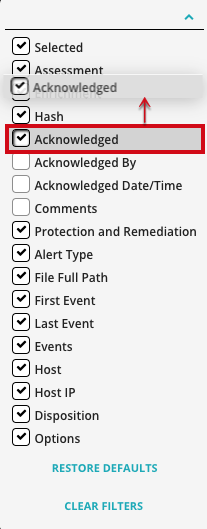
 ) icon to open the list of table columns.