You can acquire files from hosts using the Endpoint Security (HX) Web UI. Multiple file acquisitions can be requested simultaneously from a single endpoint.
In addition, you can select multiple hosts and request file acquisitions from them, as long as the hosts are running the same platform. For example, you cannot select an macOS and a Linux host and request file acquisitions for them in the same acquisition request. However, you can request file acquisitions from the macOS and Linux hosts individually.
Note
Attempts to acquire a deleted file may not work. You cannot acquire a deleted file if the system resources assigned to the file were reused since the file was deleted.
File acquisitions may not be performed for temporary files.
Important
Acquisitions of files whose compressed size is greater than 3 GB may not return an accurate download size.
Select Hosts in the Endpoint Security (HX) Web UI.
Select one or more hosts.
In the Actions menu, select Acquire: File.
Click Go.
The Acquire file from nnn host dialog box appears.
Enter the necessary information. See Acquire File from nnn Host dialog box.
Click Acquire.
You can also acquire files from thehost alert details and host details sections of the Hosts page.
Select Hosts in the Endpoint Security (HX) Web UI.
Request host details by clicking on the Expand icon (
 ) associated with a host.
In the Acquire menu, select File.
The Acquire file from nnn host dialog box appears.
Enter the necessary information. See Acquire File from nnn Host dialog box.
Click Acquire.
You can monitor the status of the file acquisition on the Acquisitions page, in the Status column on the Acquisitions grid. The status changes from Requested, to Acquiring, and then to Acquired when the acquisition is ready.
Select Hosts in the Endpoint Security (HX) Web UI.
Select one or more hosts.
In the Actions menu, select Acquire: Multiple Files.
Click Go.
The Acquire Multiple files from nnn hosts dialog box appears.
Enter the necessary information. See Acquire File from nnn Host dialog box.
Click Acquire.
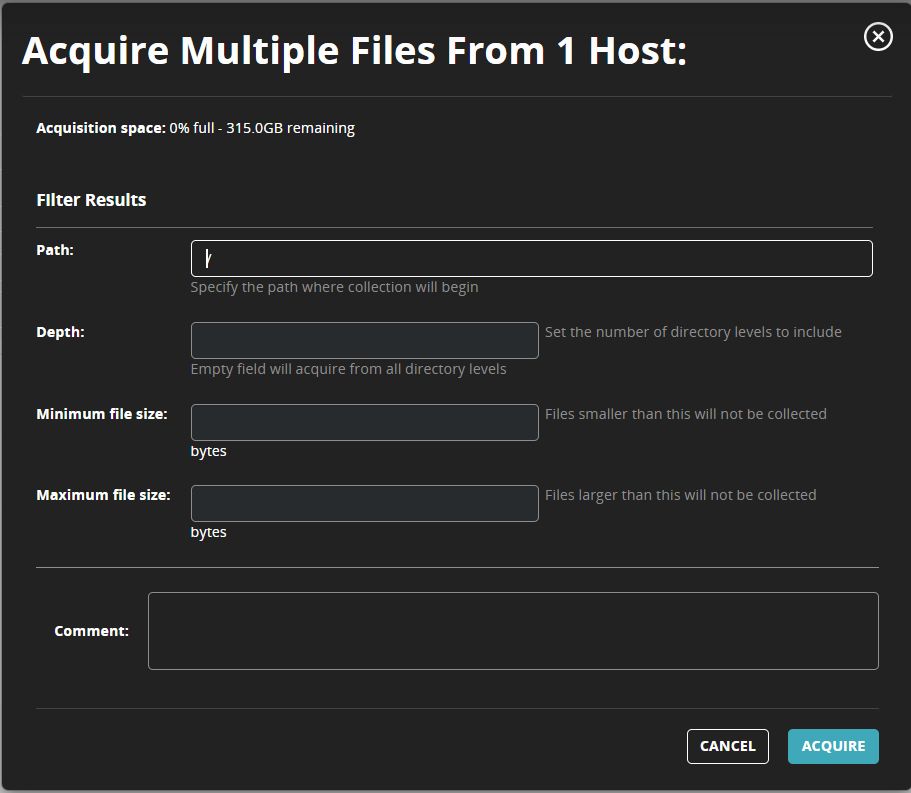
Acquire Multiple Files from nnn Host dialog box
Acquire File from nnn Host dialog box
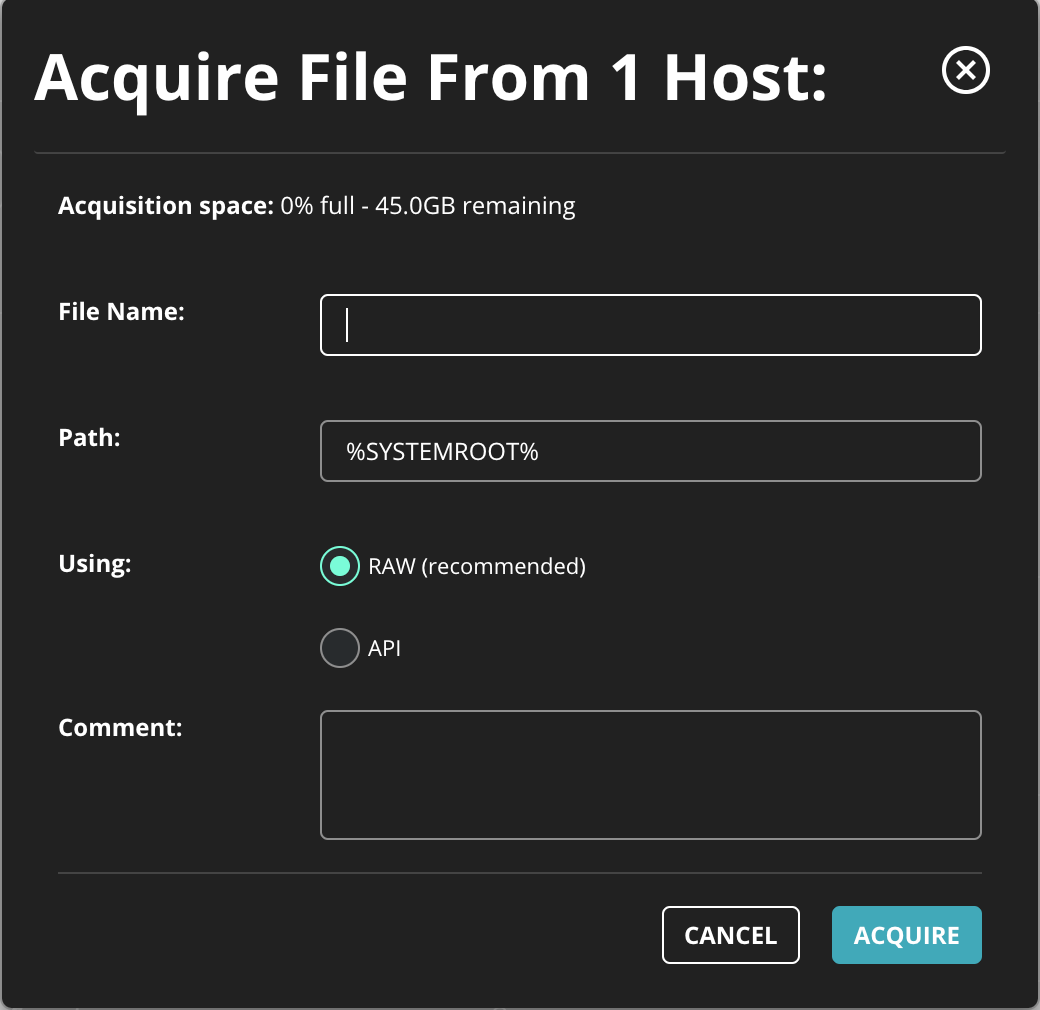
The Acquire file from nnn host and Acquire multiple files from nnn host dialog boxes contain the following fields:
Field | Description |
|---|---|
File Name | Enter the name of the file you want to acquire. The original file name is stored in the downloadable When you save an acquired file with double-byte characters in the file name, the file is saved but the double-byte characters are replaced with underscores. All file names in the |
Path | Enter the full path where the file should be stored. Specify a precise path name or another appropriate path-based Windows environment variable. For example, the default environment variable used in this panel is You must specify the drive letter or path names. Different endpoints may have different drive mappings. If you explicitly specify a folder name, you can end the path with a backslash. However, the final backslash is not mandatory. Be careful when specifying system environment variables in folder paths. The expanded paths of system environment variables specified in folder paths vary based on the installed version of Windows. For complete information about Windows environment variables, refer to your Windows documentation (Microsoft TechNet). User-specific environment variables (those that include the user name in their expanded path) are not supported. Because you cannot specify the user to which an environment variable applies, the expanded environment variable is not necessarily the user logged on to the endpoint host. |
Using (Windows only) | Select either RAW or API. Trellix recommends using the RAW (default) setting. Although RAW audits can be slow, and they may fail on some RAID or encrypted devices, they can retrieve locked and deleted files that API audits may not find. If a RAW acquisition request fails, you can then try acquiring the file again using API. A fatal error can be returned if raw mode is requested and the file path cannot be found. This option is not available for macOS and Linux endpoints because only the API option is valid. |
Depth | If you did not select Include all directory levels, specify the folder depth that should be included in the file listing. |
Minimum File Size | Specify the minimum file size. Files smaller than this will not be collected. |
Maximum File Size | Specify the maximum file size. Files greater than this will not be collected. |
Comment | Optionally, enter the reason you want to acquire the file. |