Cloud MVX Analysis in BCC/OOB mode provides passive (out of band) analysis of incoming email to identify advanced threats. Malicious email is not blocked.
Important
Failure to properly complete the following steps may result in disruption of message deliveries or loss of messages.
In your MTA, configure your MTA to the BCC email address of your selected domain. Locate the email address in the Mode field of the General settings of the domain. Note that the BCC address may be different for each domain.
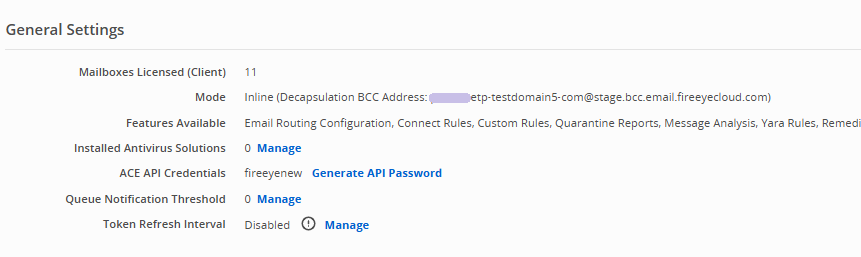
USA: bcc.us.email.fireeyecloud.com
USGOV: bcc.us.etp.fireeyegov.com
EMEA: bcc.emea.email.fireeyecloud.com
APJ: bcc.ap.email.fireeyecloud.com
CA: bcc.ca.email.fireeyecloud.com
In your MTA, configure your firewall to allow incoming TCP traffic on port 25 to your MTA from the following IP addresses, depending on the Email Security — Cloud region of your account:
USA:
34.223.36.0/24
3.93.93.0/24
USGOV:
15.200.32.0/24
EMEA:
3.123.5.0/24
63.34.218.0/24
APJ:
3.112.99.0/24
3.112.100.0/24
CA:
3.97.207.0/24
In your MTA, disable any SPF, DKIM, DMARC, RBL, DHAP, and PTR record checks, GeoIP checks, antispam engines, antivirus engine, and mail throttling rules for messages received from the following IP addresses, depending on the Email Security — Cloud region of your account:
USA:
34.223.36.0/24
3.93.93.0/24
USGOV:
15.200.32.0/24
EMEA:
3.123.5.0/24
63.34.218.0/24
APJ:
3.112.99.0/24
3.112.100.0/24
CA:
3.97.207.0/24
In the Email Security - Cloud Web portal, create a message analysis policy for the domain using the instructions in Configuring message analysis policy settings.