Important
The following procedure needs to be completed in Google Workspace. Log in to your Google Workspace account.
The instructions provided are for G-Suite super admins. G-Suite admins can complete most of the following steps without super admin permissions, but step 5 requires a super admin.
Refer to the Google Workspace documentation for the following steps. Google configuration steps are subject to change.
Follow Step 1: Create a Project.
Follow Step 2: Turn on the APIs for the service account. The service account will be created in Step 4.
Enable Admin SDK and Gmail API from the list.
Under Step 3: Set up the OAuth consent screen.
Choose a recognizable name such as “Email Security - Cloud Authorization” for the application name.
Select a user support email from the drop-down menu. The support address must be a user in your Google Workspace organization.
Add supply developer contact information. A helpdesk or IT mailbox is recommended.
Follow Step 4: Create the service account.
For Service Account Name, choose a recognizable name such as "Email Security - Cloud Remediation Service account".
For Service Account Description, a description is not required.
Before closing, make note of the Client ID.
Note
Only the Project Creator has rights to manage this project. It is recommended that you grant at least one other person the role of Project Owner.
(Super-admin required) Grant the necessary scopes to the service account. The required scopes are different for SMTP mode and Native integration mode. Please review the respective lists carefully based on your deployment setup. Confirm the logged in account permissions if you do not see domain-wide delegation page.
Go to the domain-wide delegation page in your Google admin console.
Click Add New.
Enter the Client ID created in step 4.
In the OAuth scope, list the scopes matching your deployment mode as a comma separated value.
SMTP https://mail.google.com https://www.googleapis.com/auth/admin.directory.group.readonly https://www.googleapis.com/auth/admin.directory.user.readonly https://www.googleapis.com/auth/admin.directory.group.member.readonly Native https://mail.google.com https://www.googleapis.com/auth/pubsub https://www.googleapis.com/auth/admin.directory.group.readonly https://www.googleapis.com/auth/admin.directory.user.readonly https://www.googleapis.com/auth/admin.directory.group.member.readonly
Click Authorize.
For Native scanning, you must enable push notifications in Google Workspace before authorizing the app in Email Security. For more information, see Gsuite push notifications.
If the account used to create the service account was not a super-admin then see Assign specific admin roles for assigning roles to a user, a list of users or groups as an admin.
To verify an authorization:
Go to the Authorization Configuration page of your authorization.
Under Status, select Manage.
For Google Workspace authorizations, enter the admin email and upload the credentials file.
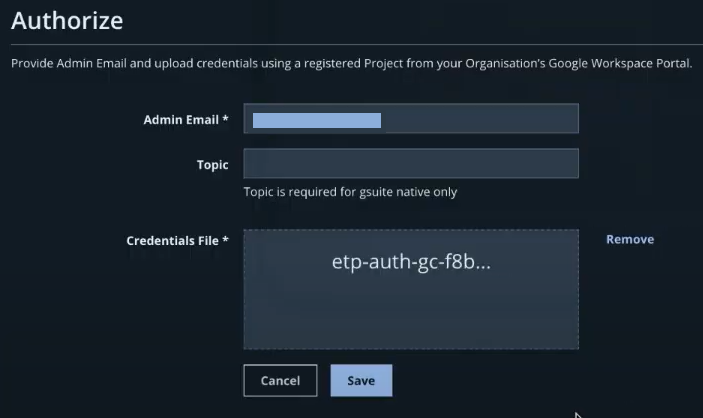
Click Save. If the information provided is invalid or missing, the details will appear in the page.
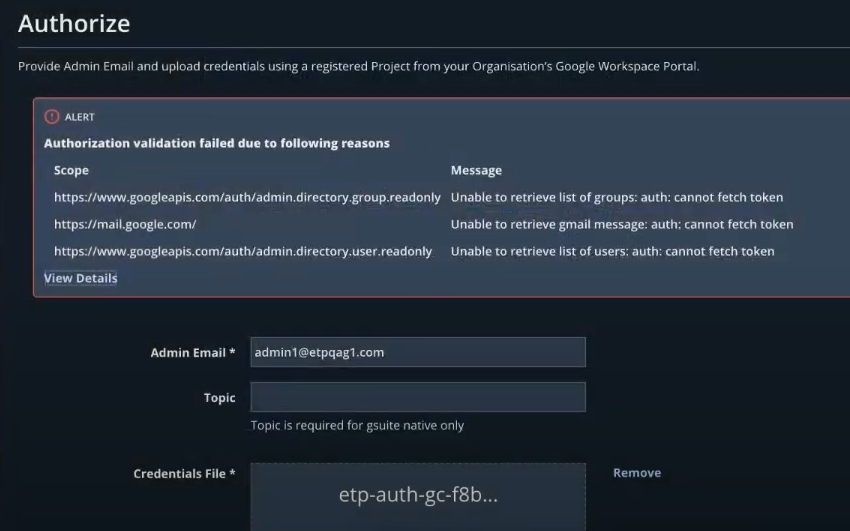
Click View Details to view more details. The following pop-up will show the reasons for failed validation.
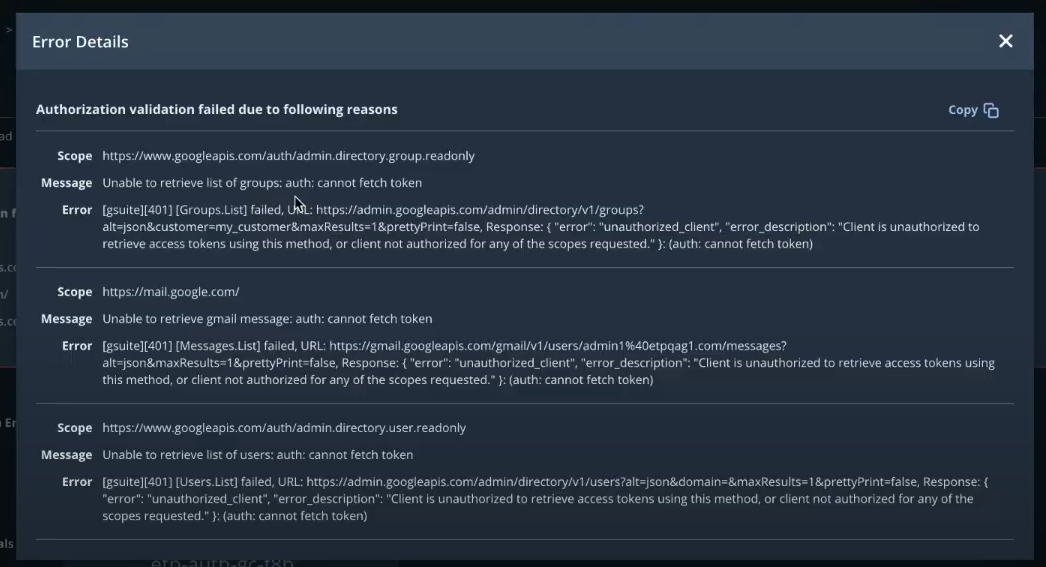
You can correct the details and save again.