The Portal Access page lets administrators manage the following tasks:
Session idle timeout
Administrator portal access
On-Demand quarantine/quarantine-digest access
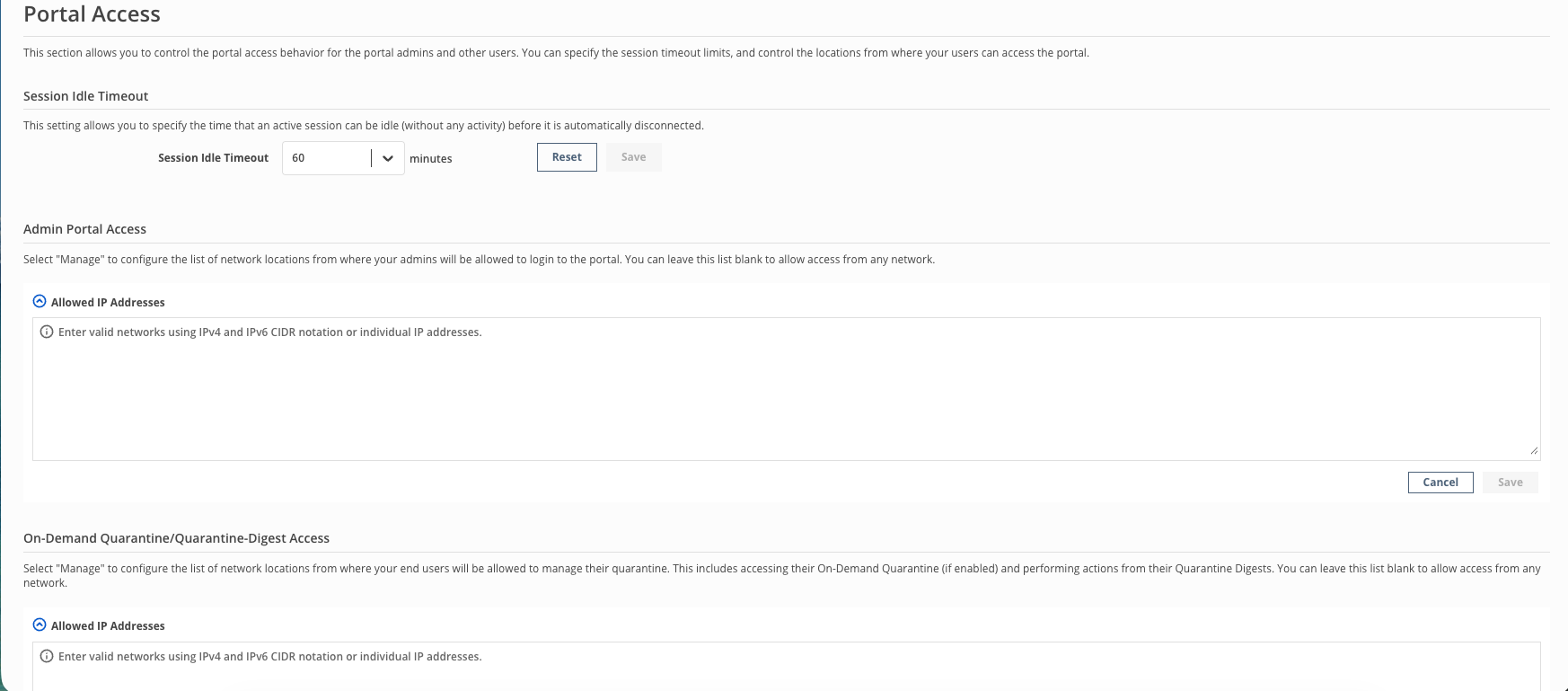
Session idle timeout
Your login session of Email Security — Cloud will end automatically after a set time of user inactivity. You can configure the time after which your portal login session will disconnect if there is no activity. Select from the options of 10, 20, 30 or 60 minutes from the dropdown menu. The default is 10 minutes.
Select a timeout value from the Session Idle Timeout dropdown menu.
Click Save to save your changes. Click Reset to set it to the last saved value.
Admin portal access
This feature allows you to configure the network locations from which the administrators can access the portal. If the allowed IP address list is blank or 0.0.0.0/0, then administrators can access portal from all locations.
To configure allowed IP addresses:
Click Manage next to Allowed IP Addresses. Add each value in separate lines. You need not add any punctuation (comma or hyphen) to separate the values. You can add both IPv4 and IPv6 values.
If your values are in a CSV file, copy the column of required values and paste in the field.
Note
The Edit and Copy buttons will appear when the space is filled with a list of values.
You can use the Copy button to copy the list of entries.
Click Save.
On-demand quarantine/quarantine-digest access
This feature allows you to configure the network locations from which the end users can manage their quarantine. If the allowed IP address list is kept blank or 0.0.0.0/0, then users can access and manage their quarantines from all locations.
To configure allowed IP addresses:
Click Manage next to Allowed IP Addresses. Add each value in separate lines. You need not add any punctuation (comma or hyphen) to separate the values. You can add both IPv4 and IPv6 values.
If your values are in a CSV file, copy the column of required values and paste in the field.
Note
The Edit and Copy buttons will appear when the space is filled with a list of values.
You can use the Copy button to copy the list of entries.
Click Save.