The Alert Notifications tab has two sections:
SMTP
The SMTP tab allows users to configure additional users, other than portal administrators, to receive alert notifications.
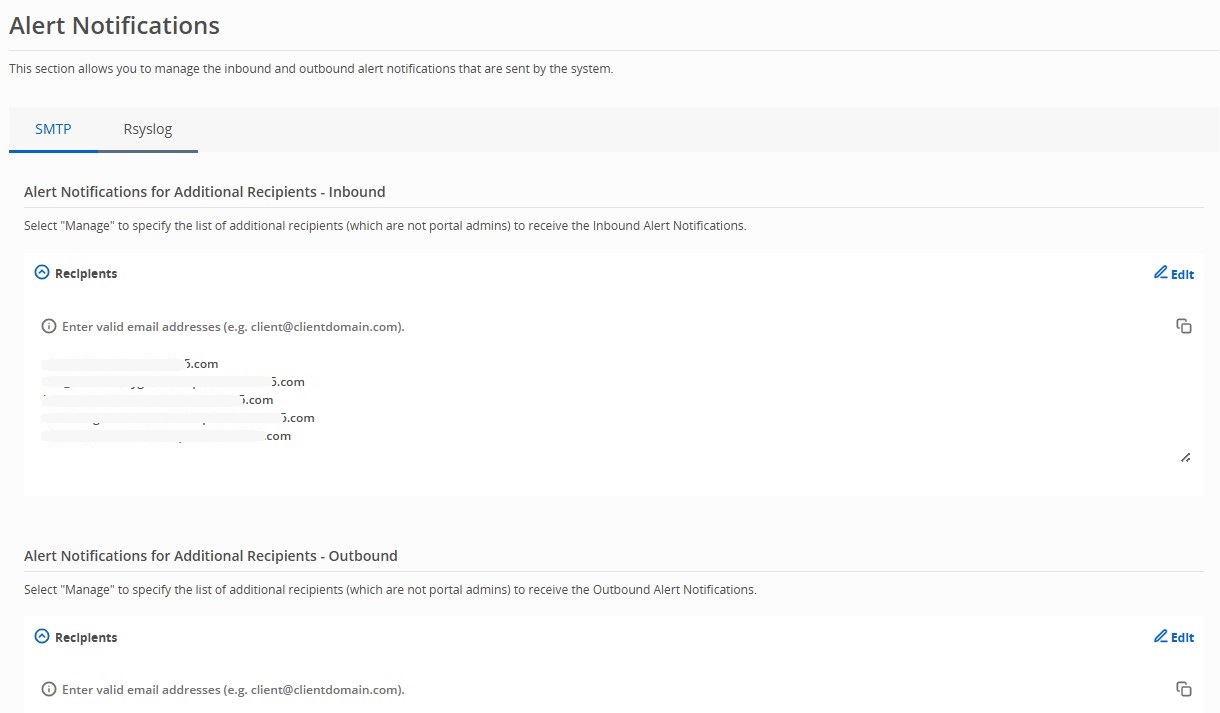
To specify additional email addresses:
Click Manage next to Recipients. Add each value in separate lines. You need not add any punctuation (comma or hyphen) to separate the values.
If your values are in a CSV file, copy the column of required values and paste in the field.
Note
The Edit and Copy buttons will appear when the space is filled with a list of values.
You can use the Copy button to copy the list of entries.
Click Save.
Rsyslog
In the Rsyslog tab, users can configure rsyslog servers to send alert notifications to remote servers. Users can also add, delete, enable, and disable servers.
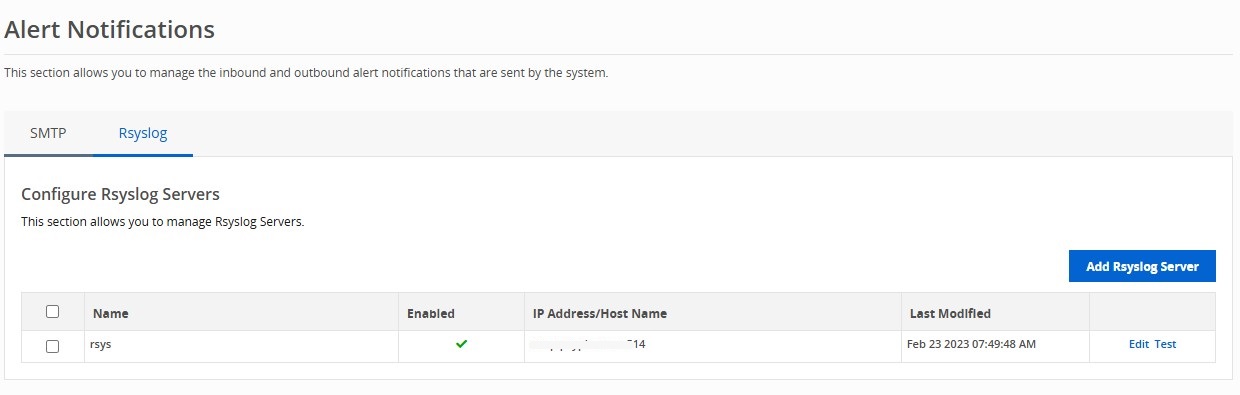
You can configure up to 5 rsyslog servers. If both SMTP and Rsyslog notifications are configured, you will receive notifications for both.
You may need to allow the Email Cloud IP ranges corresponding with your region in your firewall configuration to receive alert notifications via rsyslog. Use the test functionality to check connectivity after updating the firewall.
Email Cloud region | IPv4 addresses | IPv6 addresses |
|---|---|---|
USA | 34.223.36.0/24ㅤㅤㅤㅤ 3.93.93.0/24 | 2600:1f18:2b14:4e00::/56 2600:1f14:1785:ab00::/56 |
EMEA | 3.123.5.0/24 63.34.218.0/24 | 2a05:d014:1e0e:ce00::/56 2a05:d018:1380:3d00::/56 |
APJ | 3.112.99.0/24 3.112.100.0/24 | 2406:da14:528:f500::/56 |
USGOV | 15.200.32.0/24 | 2600:1f12:8c0:9f00::/56 |
CA | 3.97.207.0/24 3.97.208.0/24 | 2600:1f11:778:1700::/56 |
To add a rsyslog server:
Click Add Rsyslog Server.
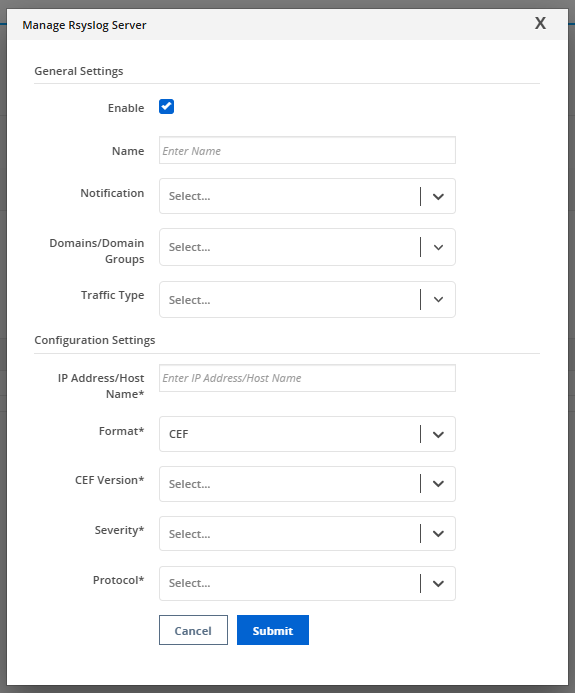
The server is enabled by default.
Enter a Name for the server.
Select a Notification from All Events, Malware Object, or Riskware Object from the dropdown menu.
Select a Domain(s)/Domain Group(s).
Set the Traffic Type as Inbound, Outbound, or Select All from the traffic type dropdown menu.
Enter an IP Address/Host Name and port in the format
IP address:port.Format is enabled as CEF by default. For more details about CEF, refer to the section below.
Select a Severity level.
The chosen severity level applies to the header of every syslog message sent. For example, if you select Informational, every single message sent to their syslog server will be labeled as Informational.
Select a UDP or TCP Protocol from the drop-down menu. Refer to the table below for all the options available.
If you selected TCP, enable TLS (optional). If TLS is enabled, select a TLS Version: Auto, 1.2, or 1.3.
Protocol
Description
UDP
Dualstack UDP protocol - attempt to connect to IPv6 first then fallback to IPv4
TCP
Dualstack TCP protocol - attempt to connect to IPv6 first then fallback to IPv4
UDP4
UDP IPv4 only
TCP4
TCP IPv4 only
UDP6
UDP IPv6 only
TCP6
TCP IPv6 only
Click Submit.
To edit a server, click the Edit button in the last column.
To test if the rsyslog server is reachable from Email Security - Cloud, click the Test button in the last column. The connection test runs and the result appears.
To enable, disable, or delete a rsyslog server, select the checkbox next to the server name(s). Click Enable, Disable, or Delete.
Common Event Format (CEF)
Common Event Format (CEF) is an interoperability standard for event- or log-generating devices. If your product doesn't support a specific vendor or model, follow this standard to deliver CEF-formatted events to your Email Security - Cloud.
The message is formatted using a common prefix composed of fields delimited by a bar (|) character. The prefix is mandatory and all specified fields must be present. Additional fields are specified in the extension. The format is:
CEF:Version|Device Vendor|Device Product|Device Version|deviceEventClassId|Name|Severity|Extension
The extension part of the message is a placeholder for additional fields. Following are definitions for the prefix fields:
Version— Integer that identifies the version of the CEF format
Event consumers use this information to determine what the fields represent. Currently only version 0 (zero) is established in the above format.
Device Vendor, Device Product, and Device Version — Strings that uniquely identify the type of sending device
No 2 products can use the same device-vendor and device-product pair. Event producers ensure that they assign unique name pairs.
DeviceEventClassId — Unique identifier per event-type (can be a string or an integer)
Each signature or rule that detects certain activity has a unique deviceEventClassId assigned. This is a requirement helps correlation engines deal with the events.
Name — String describing the event, such as Port scan
Severity — Integer (between 0-10, where 10 indicates the most important event) that reflects event importance
Extension — Collection of key-value pairs, where the keys are part of a predefined set
Events can contain any number of key-value pairs in any order, separated by spaces. If a field contains a space, such as a file name, this is okay and can be logged on exactly that manner. For example:
fileName=c:\Program Files\ArcSight is a valid token.
This sample message shows appearance:
Sep 19 08:26:10 zurich CEF:0|security|threatmanager|1.0|100|worm successfully stopped|10|src=10.0.0.1 dst=2.1.2.2 spt=1232
If you use NetWitness, configure your device to send the CEF to the Receiver. By default, the CEF format when using NetWitness looks as follows:
CEF:0|Netwitness|Informer|1.6|{name}|{name}|Medium | externalId={#sessionid} proto={#ip.proto} categorySignificance=/Normal categoryBehavior=/Authentication/Verify categoryDeviceGroup=/OS categoryOutcome=/Attempt categoryObject=/Host/Application/Service act={#action} deviceDirection=0 shost={#ip.host} src={#ip.src} spt={#tcp.srcport} dhost={#ip.host} dst={#ip.dst} dport={#tcp.dstport} duser={#username} dproc=27444 fileType=security cs1={#did} cs2={#password} cs3=4 cs4=5 cn1={#rid} cn2=0 cn3=0
The correct format requires you to change dport above to dpt.