The Trace Streaming tab allows users to configure rsyslog servers to send email trace logs to remote servers. Users can also add, delete, enable, and disable servers.
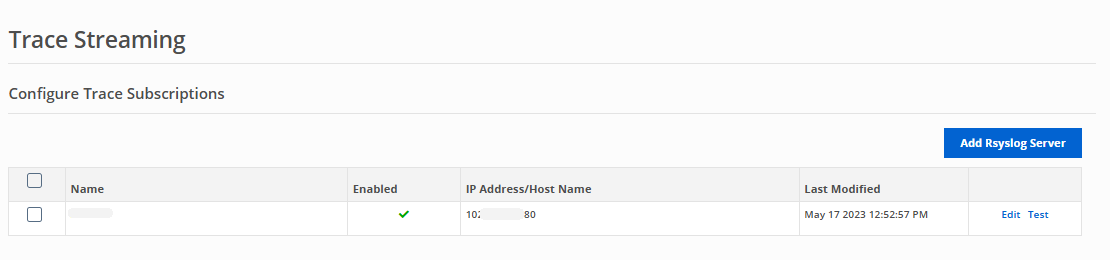
You can configure up to ten rsyslog servers, but only one rsyslog server can be enabled at a time. Log delivery to remote servers will be delayed by about 5 minutes.
You may need to allow the Email Cloud IP ranges corresponding with your region in your firewall configuration to receive logs via rsyslog. Use the test functionality to check connectivity after updating the firewall.
Email Cloud region | IPv4 addresses | IPv6 addresses |
|---|---|---|
USA | 34.223.36.0/24ㅤㅤㅤㅤ 3.93.93.0/24 | 2600:1f18:2b14:4e00::/56 2600:1f14:1785:ab00::/56 |
EMEA | 3.123.5.0/24 63.34.218.0/24 | 2a05:d014:1e0e:ce00::/56 2a05:d018:1380:3d00::/56 |
APJ | 3.112.99.0/24 3.112.100.0/24 | 2406:da14:528:f500::/56 |
USGOV | 15.200.32.0/24 | 2600:1f12:8c0:9f00::/56 |
CA | 3.97.207.0/24 3.97.208.0/24 | 2600:1f11:778:1700::/56 |
To add a rsyslog server:
Click Add Rsyslog Server to open a popup form.
The server is enabled by default. Uncheck the box to disable the server.
Enter a name for the server.
Select Inbound, Outbound, or Select All in the traffic type drop-down.
Enter the Format and the Severity from the respective drop-down menus.
The chosen severity level applies to the header of every syslog message sent. For example, if you select Informational, every single message sent to their syslog server will be labeled as Informational.
Select a UDP or TCP Protocol from the drop-down menu. Refer to the table below for all the options available.
Protocol
Description
UDP
Dualstack UDP protocol - attempt to connect to IPv6 first then fallback to IPv4
TCP
Dualstack TCP protocol - attempt to connect to IPv6 first then fallback to IPv4
UDP4
UDP IPv4 only
TCP4
TCP IPv4 only
UDP6
UDP IPv6 only
TCP6
TCP IPv6 only
If you selected TCP, enable TLS (optional). If TLS is enabled, select a TLS Version: Auto, 1.2, or 1.3.
Click Submit.
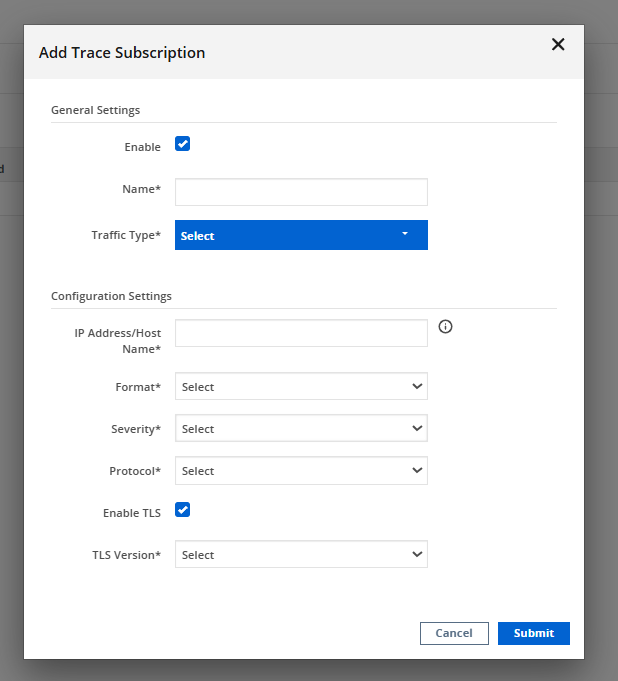
To edit a server, click the Edit button to the right of the server name. The Edit Rsyslog Server pop-up appears.
To test if the rsyslog server is reachable from Email Security - Cloud, click the Test button to the right of the server name. The connection test runs and the result appears.
To enable, disable, or delete a rsyslog server, select the checkbox next to the server name(s), click Enable, Disable, or Delete.
Syslog stream information
The log data is in JSON format. A single message can have multiple logs. The logs can be grouped together using the "etp_msg_id" field in the JSON log.
If the destination server is not reachable, the logs are retried for a short period of time. If the server is still not reachable, the logs are dropped.
The following mandatory fields are always present in the log:
Field | Description | Example |
|---|---|---|
etp_msg_id | ETP message ID |
|
accepted_timestamp | UTC timestamp when the message was received by Email Security - Cloud | 2020-01-01T23:59:59 |
timestamp | UTC timestamp of the event log. Use as the timestamp to visualize the logs | 2020-01-01T23:59:59.999Z |
traffic_type | Traffic type of the message | inbound, outbound |
The following fields are optional:
Note
Some fields are available for specific domain modes only. This list is subject to change. New fields may be added or removed at any time.
Field | Description | Example |
|---|---|---|
action_yara | Action associated with the YARA policy matched against the message | no match, monitor, monitor_alert, block |
attachment_count | Number of attachments in the message | 2 |
country_code | ISO Alpha-2 country code of the country derived from the sender IP | us, au, ie, cn, and so on |
delivery_msg | Response of the downstream MTA when the message was successfully delivered by Email Security - Cloud | N/A |
delivery_timestamp | UTC timestamp when the message was delivered by Email Security - Cloud | 2020-01-01T23:59:59 |
email_rejection_reason | Email Security - Cloud error code for messages that are rejected | N/A |
email_size | Message size in bytes | N/A |
header_cc | List of recipients in the CC header | N/A |
header_from | From header | N/A |
header_to | List of recipients in the To header | N/A |
original_msg_id | Original message ID of the message when Email Security - Cloud received it | N/A |
rcpt_rejection_reason | Email Security - Cloud error code for recipient rejections during SMTP | N/A |
remediation_type | Remediation type | native, manual, auto |
retroactive_action | Retroactive remediation action applied to the message | monitor, quarantine, move, delete, failure |
riskware_rules | List of riskware rule IDs that matched against the message | N/A |
sender_ip | Sender IPv4 from which Email Security - Cloud received the message | N/A |
smtp_from | SMTP mail from address | N/A |
smtp_to | List of SMTP rcpt to address | N/A |
status | Status of the message | accepted, quarantined, delivered, dropped, permanent failure, scanned, and so on |
subject | Subject of the message | N/A |
tags | Special events associated with the message | native_remediation, impersonation, manual_remediation, retro_remediation, url_click_blocked |
verdict_as | Antispam evaluation verdict | pass, fail |
verdict_at | Advanced threat analysis verdict | pass, fail |
verdict_av | Antivirus evaluation verdict | pass, fail |
verdict_pv | Policy evaluation verdict | pass, fail |
verdict_yara | YARA policy evaluation verdict | pass, fail |
Example log received on a destination server:
Jan 1 23:59:59 usw2-etp-notification-forwarder-01 stream-rsyslog-worker[2102]: {"accepted_timestamp":"2020-01-01T23:59:59","etp_msg_id":"3yINNFS-1126329-026806248E4180836c458cd40","timestamp":"2020-01-01T23:59:59.999Z","traffic_type":"inbound","smtp_from":"user@senderdomain.com","smtp_to":["user1@domain1.com","user2@domain2.com"],"header_from":"user@senderdomain.com","header_to":["user1@domain1.com","user2@domain2.com"],"country_code":"us","email_size":1820,"original_msg_id":"\u003c20221125141807.021507@SDF-SDLKSDFNJ1-12JKN12KJN\u003e","sender_ip":"101.10.10.10","subject":"Subject","status":"delivered","verdict_yara":"pass","verdict_av":"pass","verdict_as":"pass","verdict_pv":"pass","verdict_at":"pass"}
Note
The
"timestamp"field in the JSON log should be used as the log time, not the syslog timestamp at the beginning of the sample log.