You can create or clone up to five new dashboards or exec summaries in Email Security - Cloud. Within a custom dashboard or exec summary, you can add, reorder, rename, resize, and delete widgets. You can also rename and delete custom pages. The default dashboard and exec summary cannot be customized.
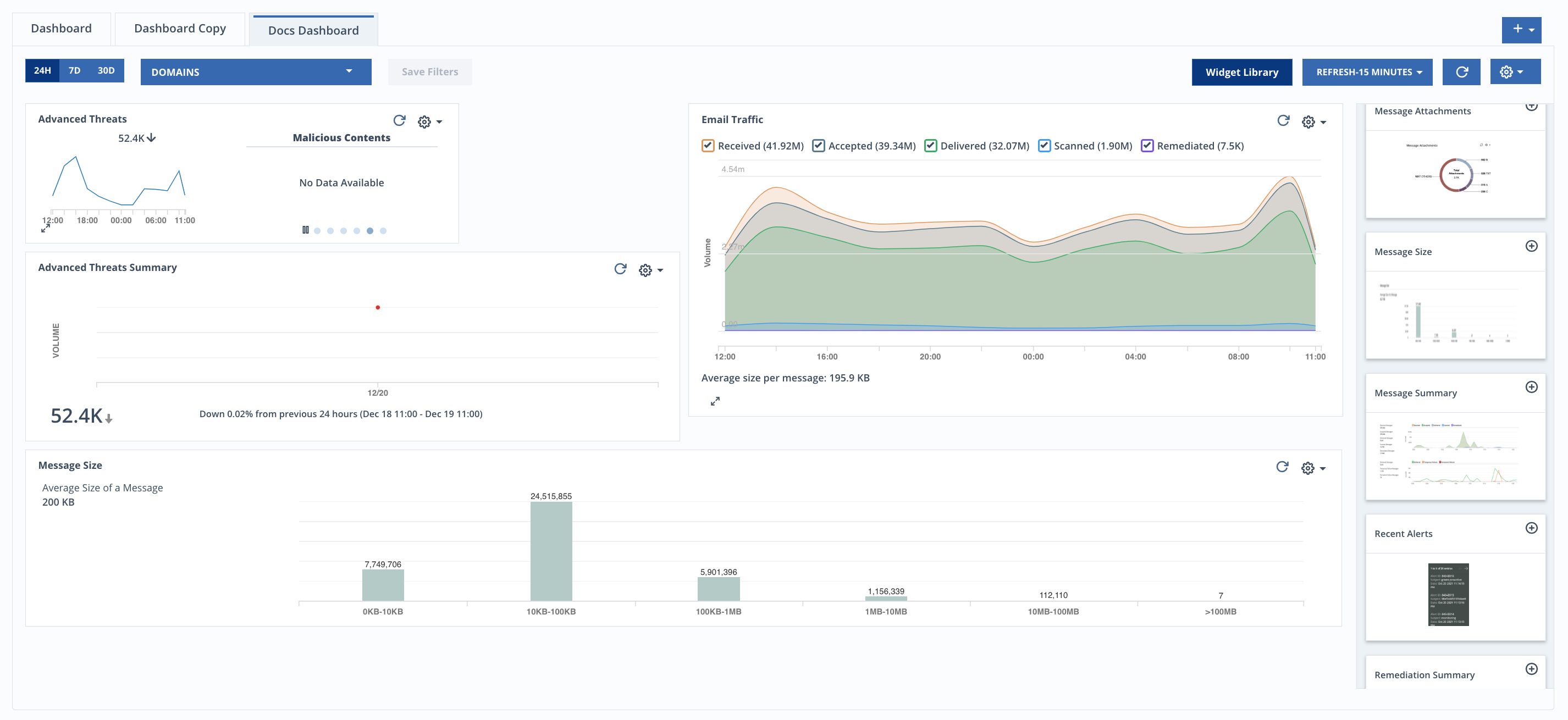
Cloning a dashboard/exec summary, creating a dashboard/exec summary, and adding widgets to your dashboard/exec summary
To clone a dashboard/exec summary:
Select the dashboard or exec summary you want to clone.
Click the
 drop-down in the top right corner.
Click Clone Dashboard.
Enter a name.
Click Save.
If the dashboard you are cloning has saved filters for date range, domains, and refresh time, your cloned dashboard will inherit the filters.
To create a new dashboard/exec summary:
Select the dashboard or exec summary.
Click the
drop-down in the top right corner.Click New Dashboard.
Enter a name.
Click Save.
Your new dashboard is created and you can now add widgets.
To add widgets to a dashboard/exec summary:
Click Widget Library.
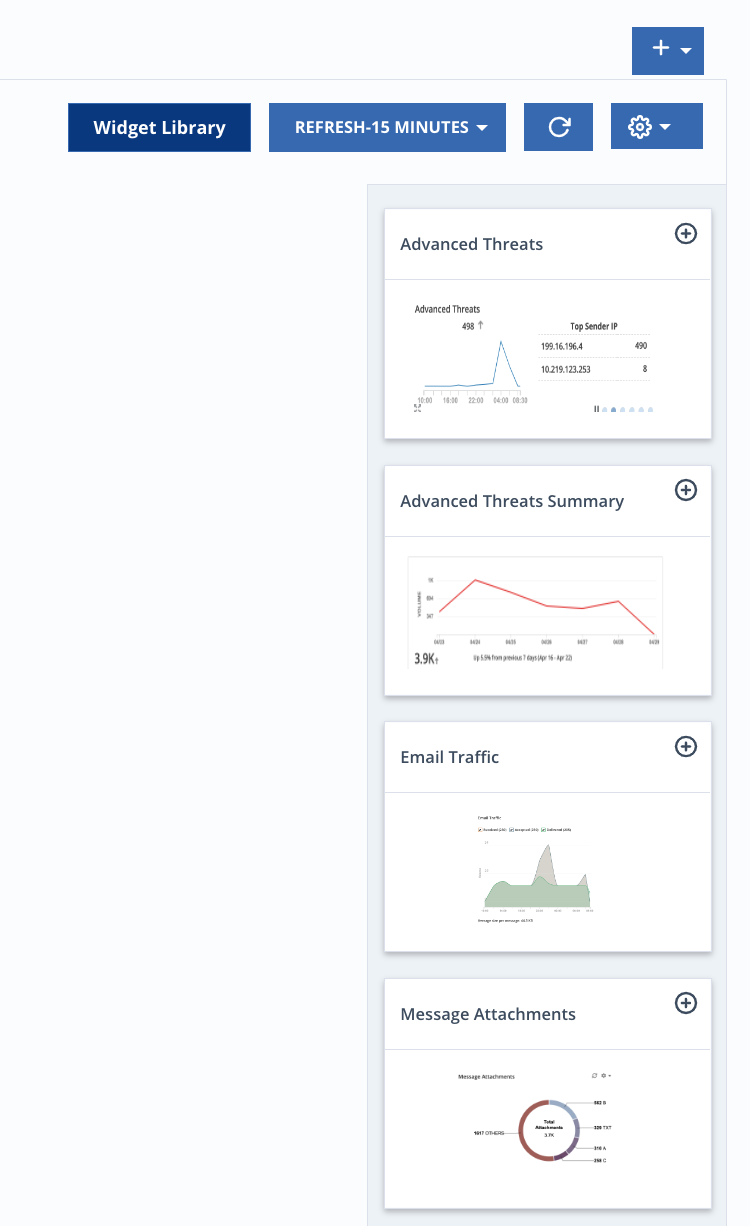
Click the + in the top right corner of a widget to add it.
Click Widget Library to go back to your dashboard/exec summary.
If you are adding widgets to a dashboard/exec summary that has other widgets in it, the new widgets will appear beneath the widgets that are already there.
Editing your dashboard/exec summary and widgets
From the  drop-down in the top right corner of your dashboard you can reorder widgets, rename your dashboard, and delete your dashboard.
To reorder your widgets:
Click the
drop-down in the top right corner of your dashboard.Select Reorder Widgets.
Click on a widget and drag it where you want it.
Click Save Layout.
To change the size of a widget:
Click the
drop-down in the top right corner of your dashboard.Select Reorder Widgets.
Click on the lower right corner of a widget and drag it to your desired size.
Click Save Layout.
To rename a dashboard/exec summary:
Click the
drop-down in the top right corner of your dashboard.Select Rename Dashboard.
Enter a name.
Click Save.
To delete a dashboard/exec summary:
Click the
drop-down in the top right corner of your dashboard.Select Delete Dashboard.
Click Yes, Delete Dashboard.
From the settings drop-down in the top right corner of a widget you can rename a widget or delete a widget.
To rename a widget:
Select the settings drop-down in the top right corner of the widget.
Click Rename Widget.
Enter a name.
Click Save.
To delete a widget from a dashboard/exec summary:
Select the settings drop-down in the top right corner of the widget.
Click Delete Widget.
Click Yes, Delete Widget.
Adding a customizable header
You can add customizable headers to custom dashboards/exec summaries.
To add a customizable header:
Select the custom dashboard or exec summary you want to add the header to.
Select Widget Library.
Click the + in the top right corner of the Header Title widget.
Click the settings cog in the Header Title banner.
Ender a header name.
Click Save.