You can now integrate your Email Security - Cloud with the Trellix DLP platform or Trellix Data Loss Prevention Network Prevent.
With this integration, you can continue to configure the Trellix DLP rules in the ePO - On-prem or ePO - SaaS platform, provide details of the Trellix DLP deployment in Email Security - Cloud - Trellix DLP policy and then assign it to domains in the Email Security - Cloud.
Note
Trellix Data Loss Prevention policy is available only for Outbound mode.
Trellix DLP
Trellix DLP is an API-driven cloud data loss prevention service that uses Trellix DLP to scan content for potential data leaks. It consolidates DLP features like text abstraction, OCR, classification, and fingerprinting into a single service for SaaS, on-premises, and hybrid environments.
Note
The Trellix DLP is an add-on feature. You need to buy a license to remove the limitations.
This integration is available only in the US and EU regions.
To use the Trellix DLP integration, you must be a Trellix IAM customer. If you are a FireEye IAM customer, you need to migrate to Trellix IAM to enable this feature.
The Trellix DLP scans will be skipped for emails larger than 100 MB.
Trellix DLP Prevent
You can deploy Trellix Data Loss Prevention Network Prevent on your on-prem hardware or ESX, or your AWS account. It is advisable to place the Trellix Data Loss Prevention Network Prevent deployment close to Email Security - Cloud to minimize network latency.
When you deploy the Trellix Data Loss Prevention Network Prevent appliance, the firewall need to be opened to allow Email Security - Cloud IPs mentioned below to access port 941. Email Security - Cloud will connect to the Trellix DLP via the Trellix DLP Prevent API to fetch the Trellix DLP rule match information and then take the corresponding actions as defined in the Trellix DLP policy.
Email Cloud region | IP addresses |
|---|---|
USA | 34.223.36.0/24 3.93.93.0/24 |
EMEA | 3.123.5.0/24 63.34.218.0/24 |
APJ | 3.112.99.0/24 3.112.100.0/24 |
USGOV | 15.200.32.0/24 |
CA | 3.97.207.0/24 |
Note
It is recommend to use a separate Trellix Data Loss Prevention Network Prevent appliance to receive traffic from Email Security - Cloud.
The Trellix DLP Prevent API is available with Trellix Data Loss Prevention Network Prevent release 11.10.700 and onwards.
Configuring Trellix Data Loss Prevention policies
To configure the Trellix DLP policies:
Click on the policy name in the Policies table.
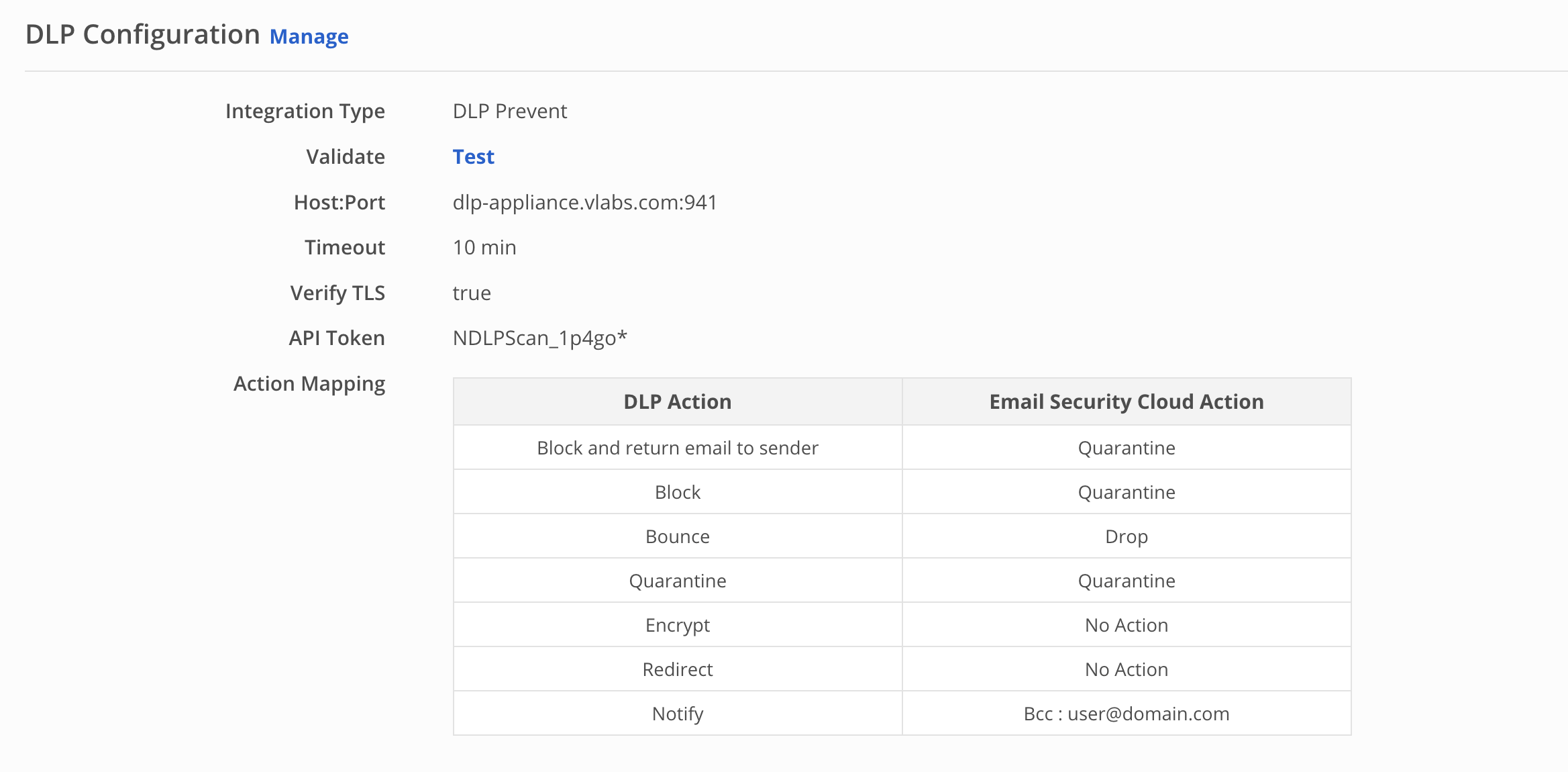
In the policy settings page, go to DLP Configuration section and click Manage.
Integration Type: Select the integration type as Trellix Data Loss Prevention Network Prevent for on-premise or Trellix DLP for SaaS platform.
Note
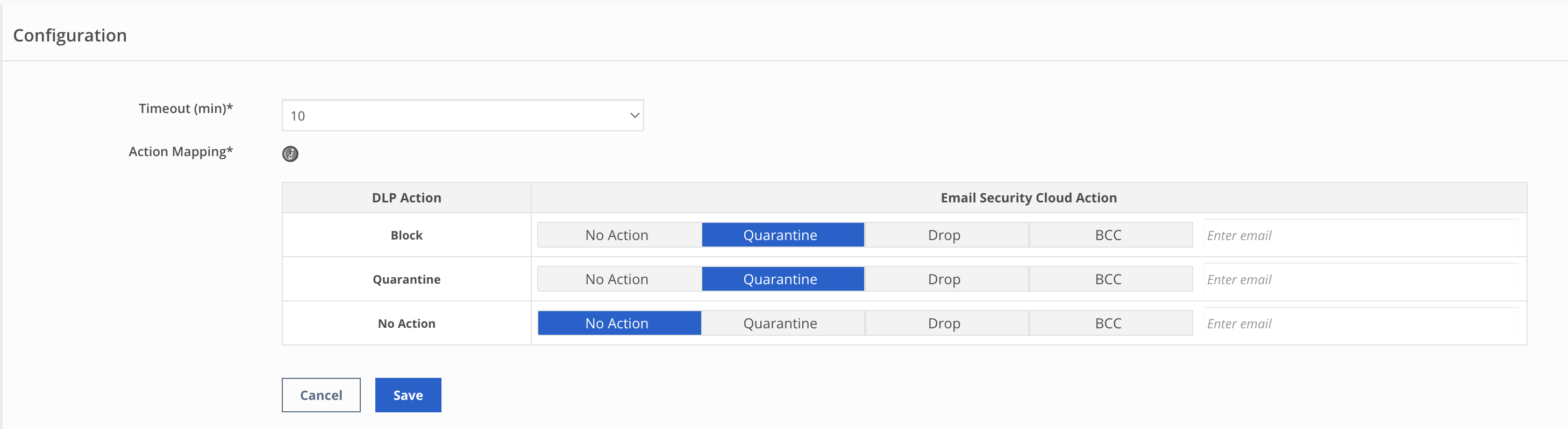
For Trellix DLP integration, you only need to configure the Timeout value and Action Mapping. You can ignore the remaining fields mentioned below.
Hostname:
Enter the IP/Hostname corresponding to your Trellix DLP appliance. Email Security - Cloud will use this hostname and the port below to use Trellix DLP Prevent API and connect to the Trellix DLP appliance.
If you have multiple appliances, you can configure a load balancer and use the hostname/IP corresponding to the load balancer.
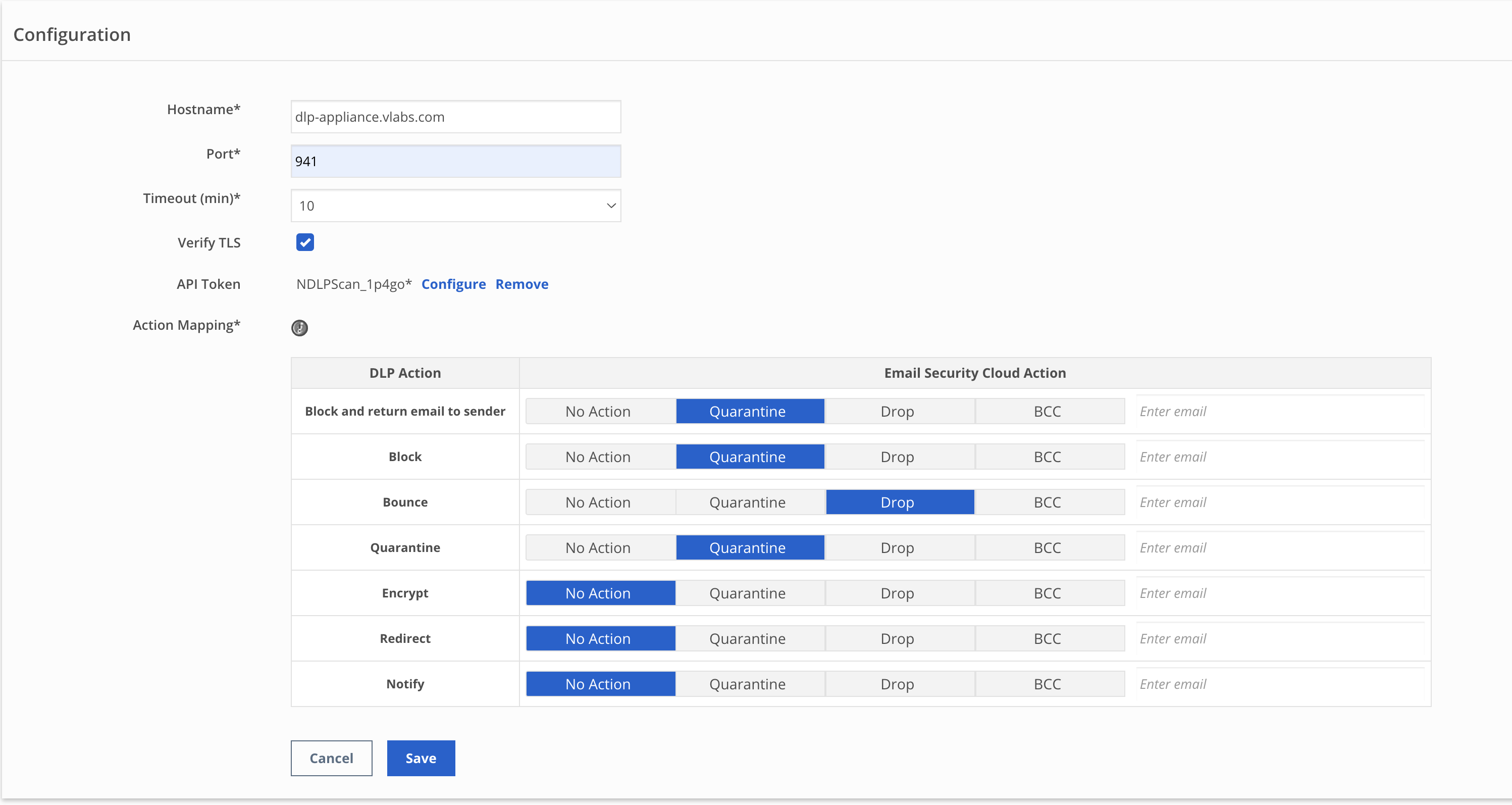
Port: The default value for Port is 941.
Timeout:
Select the Timeout value in minutes. The default value is 10 minutes. If Trellix DLP responds before timeout, the Email Security - Cloud action will be applied based on the response.
If the Trellix DLP host is unreachable or returns error, Email Security - Cloud will attempt to connect three more times at intervals of 2 minutes.
If the Trellix DLP does not respond before timeout, the Trellix DLP policy evaluation will be skipped to avoid further email delivery delays. A report of failed attempts will be added to email trace events.
Verify TLS:
Select Verify TLS to enable TLS certificate verification for Email Security - Cloud using the Email Security - Cloud - Trellix DLP communication. Enabling this option ensures enhanced security.
If you are using self-signed certificates on the Trellix Data Loss Prevention Network Prevent, you can disable this option.
API Token:
Click Configure to add or modify the API token for authentication. A pop-up window appears in which you can enter the required API token. Select Save to save the API token.
Note
The API Token based authentication is only supported for Trellix DLP versions 11.11.0 and above. API token is not required for older versions.
All DLP versions behind the load balancer should be the same to avoid authentication issues.
Once the policy is saved with the API token, the token will not be visible later and only first few identifying characters of the API Token will be shown in the policy configuration page.
Action Mapping:
The Action Mapping section enables you to select an Email Security - Cloud action with respect to the action specified in the Trellix DLP Policy Rules.
For Trellix DLP integration, the actions available are: Block, Quarantine, No Action.
The following Trellix DLP actions are the corresponding header values to X-RCIS-Action header in the Reaction section of the Trellix DLP rule in the Trellix Data Loss Prevention Network Prevent portal: Block, Bounce, Quarantine, Encrypt, Redirect, Notify.
In the Trellix DLP, if multiple rules are triggered, only the highest priority action will be applied to the message.
Note
Email Security - Cloud custom rules has priority over Trellix DLP policies. Trellix DLP policy will not be evaluated if the Email Security - Cloud custom rule action is Deliver or Drop.
If Email Security - Cloud Action is selected as Drop or Quarantine for an email, the email will be marked for policy violation in the email trace events. You can search for these emails in the Email Trace page using the Policy Action filter.
Select Save to save your changes. Select Cancel to revert to previous settings.
Go back to the DLP Configuration page and click the Test button to verify the license and connectivity to Trellix DLP or your DLP Prevent appliance. Ensure that the validation test has passed before associating the DLP policy with a domain.
Configure your DLP rules and assign those to policies and enable them in the Trellix ePO - SaaS platform before you test/associate the DLP policy with a domain. See Configuring DLP - SaaS rules for the instructions to prepare Trellix DLP for this integration.
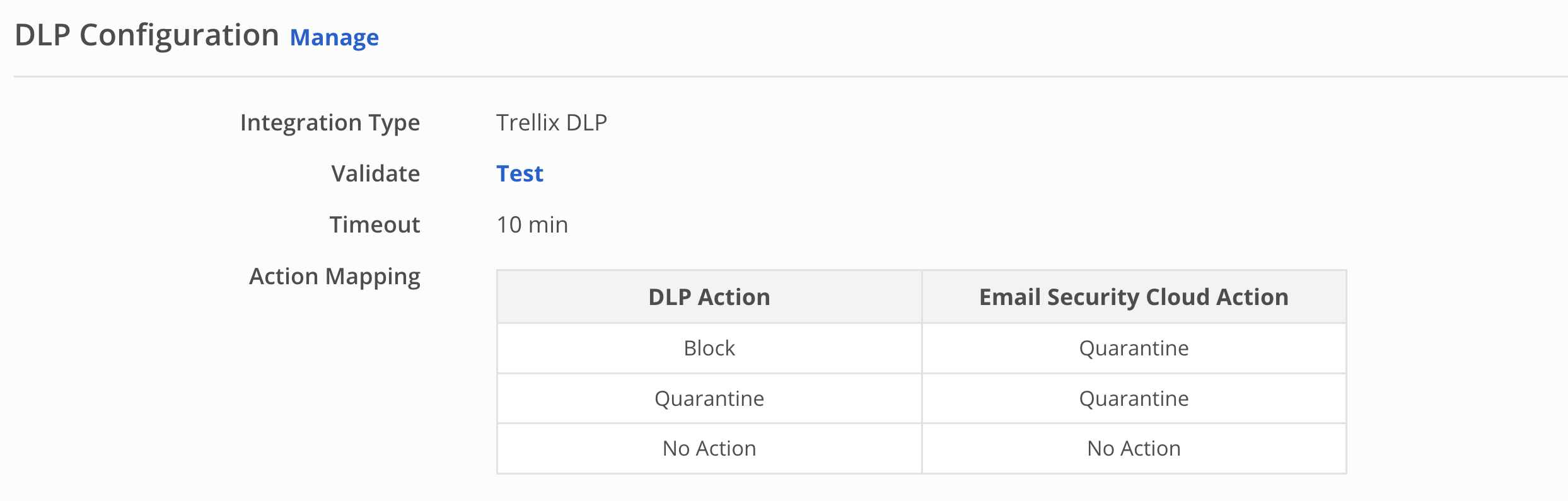
If the Trellix DLP appliance hostname/IP on configured port is reachable from the Email Security - Cloud and a successful TLS connection is established with the host, the following notification appears.

For Trellix DLP, if you don't have the add-on license, you will not be able to associate the DLP policy with a domain and you will receive the following error.

If you are using a self-signed TLS certificate on the Trellix DLP appliance or the TLS certificate validation is failing, you will receive the following notification

If the Email Security - Cloud is unable to establish a TLS connection with the configured Trellix DLP appliance, you will receive the following notification.
In this scenario, recheck the configured hostname/port and review the network firewall changes as mentioned in step 3.

If the entered API token is invalid, expired, revoked or deleted, corresponding API token related error will be shown.


Email trace filters
You can go to Email Trace > Add More Filters and select DLP Policy Action to search for emails based on the Email Security - Cloud actions implemented as per the Trellix DLP policy configuration.
You can also search using the text-based filters, DLP Rule Name and DLP Classifications.
You can also use these two filters in the Email trace and Advanced search API requests.
DLP Policy Action widget
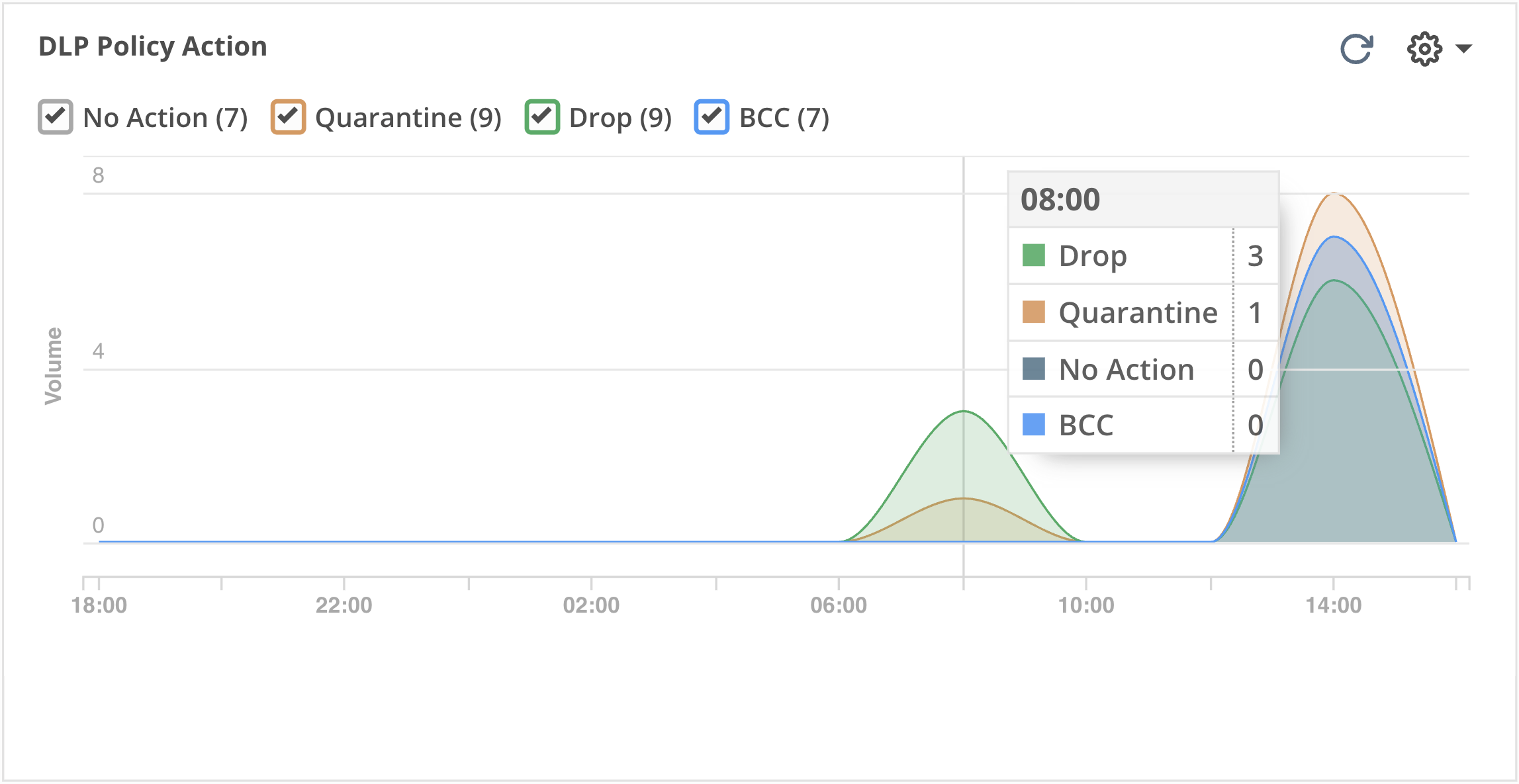
The DLP Policy Action widget has a graph which displays the number of Email Security - Cloud actions implemented as per the Trellix DLP policy configuration over a period of time. The Email Security - Cloud actions tracked are No Action, Quarantine, Drop and BCC.
You can select the DLP Policy Action widget from the widget library and add it to your custom dashboard. See Customizing your dashboard for adding a widget.