Domain-based Message Authentication, Reporting, and Conformance (DMARC) is an email authentication protocol that protects domains from email spoofing and phishing. Trellix Email Security analyzes DMARC aggregate reports to provide visibility into email authentication status and domain compliance.
A DMARC aggregate report is an XML file generated by receiving mail servers. These reports provide critical insights into how your domain is being used across the email ecosystem.
To generate these aggregate reports, configure the Reporting URI for Aggregate reports (RUA) in your domain DMARC record. Ensure the domain in the RUA email address is also configured in Trellix Email Security - Cloud. This configuration allows Trellix Email Security - Cloud to receive, analyze, and display DMARC report data on the dashboard.
The report includes the following data:
Source IP addresses — Identifies the IP addresses sending emails on behalf of the domain.
Authentication results — Details SPF (Sender Policy Framework) and DKIM (DomainKeys Identified Mail) alignment outcomes.
Message counts — The volume of messages that passed or failed authentication checks.
Policy actions — The actions taken by the receiving server based on the DMARC policy (none, quarantine, or reject).
Note
This feature is not applicable for OOB domain mode and decapsulation (inline domain mode).
DMARC compliance
An email is considered DMARC compliant when it passes authentication checks for both SPF and DKIM and achieves alignment. Alignment ensures that the domain evaluated for SPF or DKIM matches the envelope From domain.
Emails fall into the non-compliant category if:
The source fails DMARC checks due to invalid SPF or DKIM settings.
The source is unauthorized and potentially sending malicious emails on behalf of your domain.
Viewing DMARC report in the Email Security - Cloud portal
You can view DMARC reports under Investigate > DMARC Report.
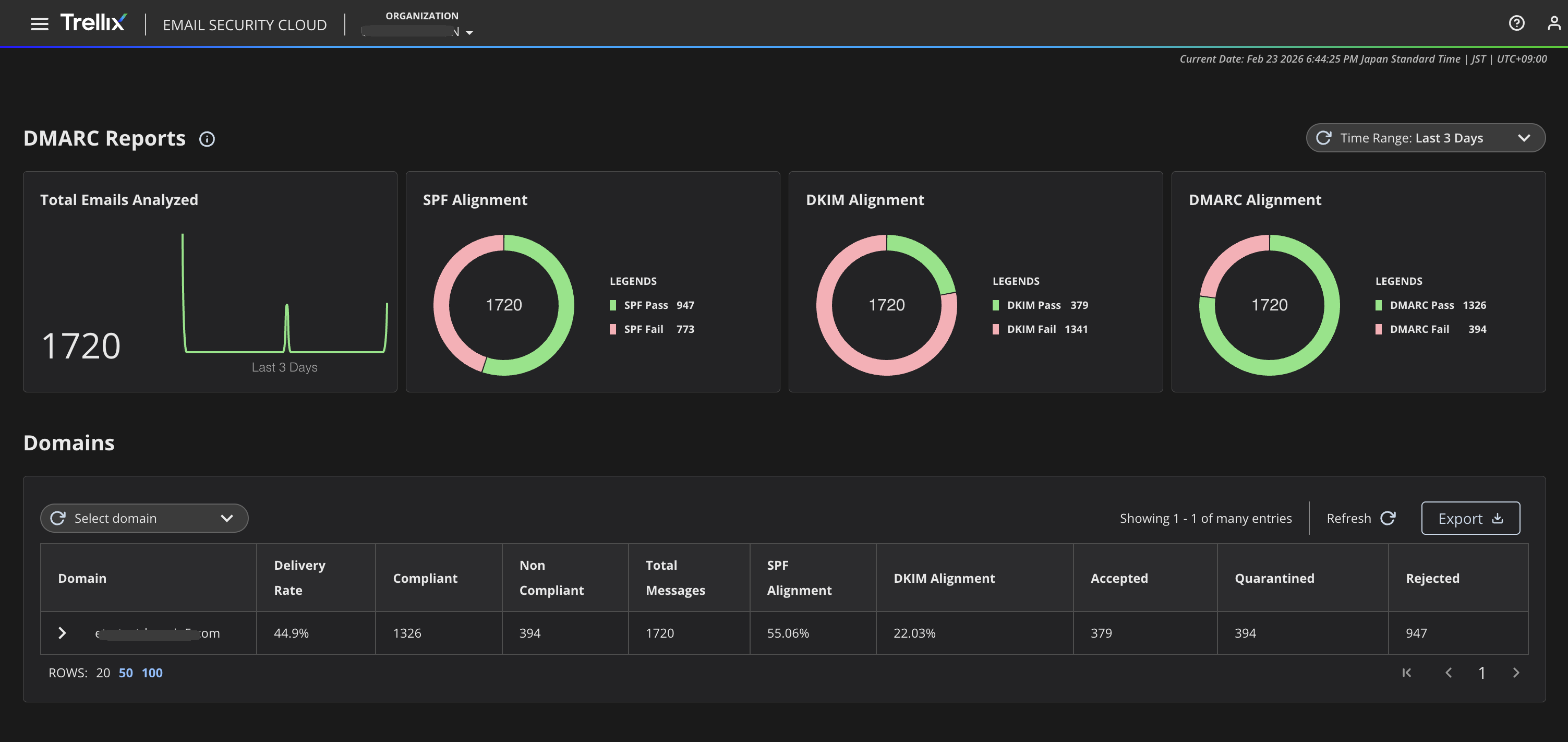
The report displays the following widgets:
Select a time range from the drop-down menu.
Total emails analysed
SPF Alignment: The percentages of emails that passed or failed SPF alignment
DKIM Alignment: The percentages of emails that passed or failed DKIM alignment
DMARC Alignment: The percentages of emails that passed or failed DMARC alignment
The Domains table shows all the parent domains and the relevant details for each domain.
You can perform the following actions in the Domain table:
Select a specific domains from the drop-down menu.
Select a time range.
Click on a parent domain to view details about all the child domains.
Click the refresh button to refresh the page and obtain the latest data.
Export domain details as a .csv file using the Export button.
Domain table columns | Column description |
|---|---|
Domain | The parent domain. Click on a parent domain to view details about all the child domains
|
Delivery Rate | Number of emails accepted by the recipient server |
Current Policy | This column appears in the sub domain table |
Enforcement Level | Action taken based on the DMARC report found in the email. The values are reject, quarantine or no action |
Percentage | Percentage of emails analysed for DMARC report attachments |
Compliant | Number of emails that passed DMARC authentication |
Not Compliant | Number of emails that failed DMARC authentication |
Total Messages | Number of messages for which DMARC reports were received |
SPF Alignment | The percentages of emails that passed SPF alignment |
DKIM Alignment | The percentages of emails that passed DKIM alignment |
Accepted | The number of emails which are not rejected or quarantined based on the DMARC report. |
Quarantined | The number of emails which are quarantined based on the DMARC report. |
Rejected | The number of emails which are rejected based on the DMARC report. |
DMARC domain details
On clicking a child domain, you will be redirected to Domain Details page. The page has details divided in 3 tabs:
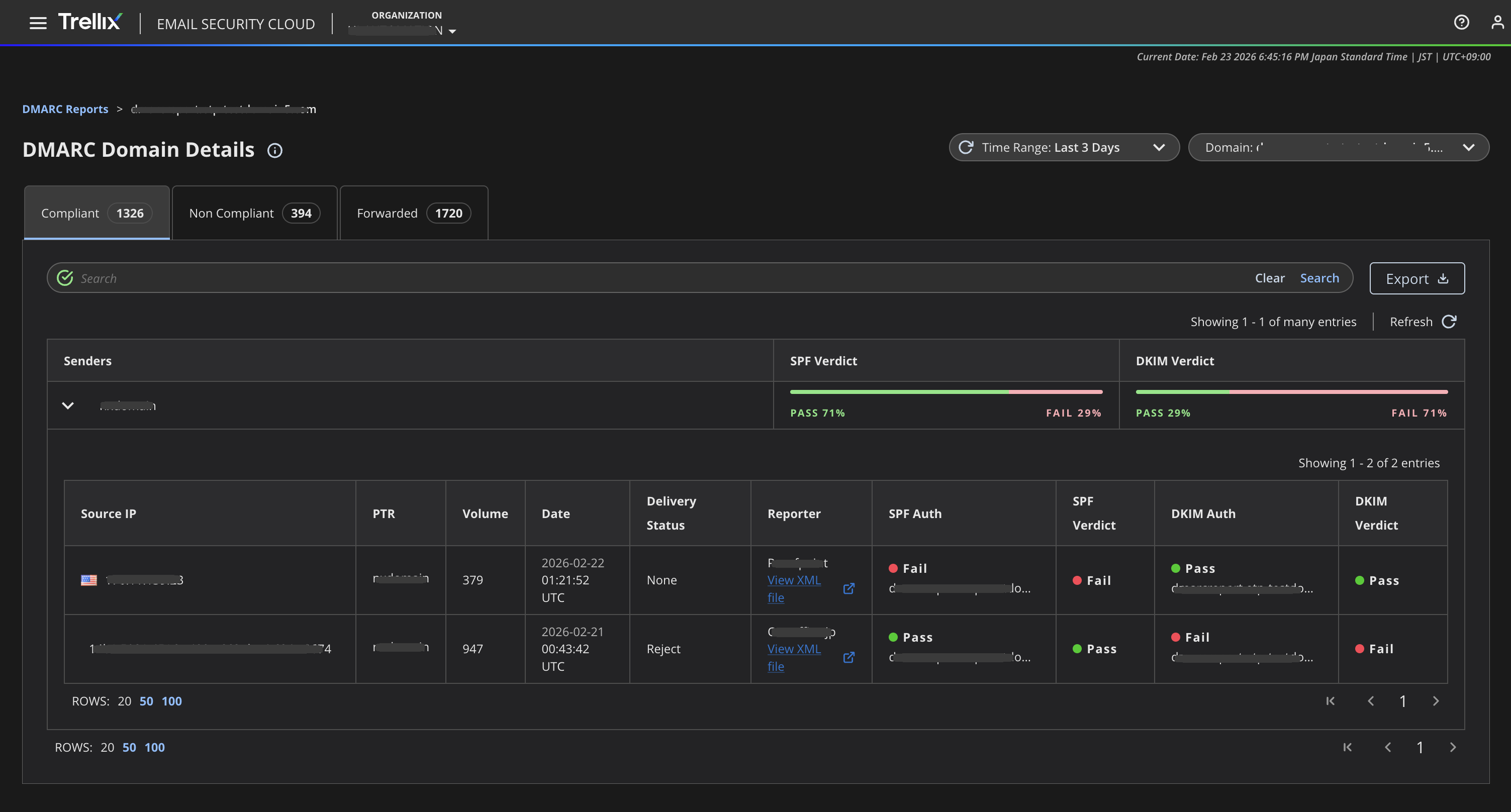
Compliant: List of emails that passed DMARC alignment.
Non compliant: List of emails that failed DMARC alignment.
Forwarded domains: List of emails that passed DKIM alignment but failed SPF alignment.
Each tab has three columns:
Sender: Sender of the email.
SPF Verdict: The percentages of emails that passed or failed SPF alignment
DKIM Verdict: The percentages of emails that passed or failed DKIM alignment
You can perform the following actions in the Domain Details page:
Select a specific domains from the drop-down menu.
Select a time range.
Click the refresh button to refresh the page and obtain the latest data.
Export domain details as a .csv file using the Export button.
View and download XML files for each sender record using the View XML file button in the Reporter column.
Use the Advanced Search bar to search for domains based on the details available in the three columns (Sender, SPF Verdict, DKIM Verdict).
Sender Details
Click on a sender ID to view more details.
Sender details columns | Description |
|---|---|
Source IP | The IP address and country of the sender. You can also download an XML file containing further details. |
PTR | Reverse DNS lookup, [hostname associated with the source IP]. |
Volume | Number of emails send by the source IP. |
Date | Date when the email was received. |
Delivery Status | Delivery status of the email. |
Reporter | The link to view and download XML files for each sender record. |
SPF Auth | Whether the email passed or failed SPF authentication. |
SPF Verdict | The overall percentage of emails that passed or failed SPF alignment. |
DKIM Auth | Whether the email passed or failed DKIM authentication. |
DKIM Verdict | The overall percentage of emails that passed or failed DKIM alignment. |