An email routing configuration policy defines the connection settings for accepting and delivering emails for your domains. After you create an email routing configuration policy you must configure it.
From the Email Routing Configuration page, you can:
Configure connection-setting details
Configure incoming server addresses
Configure outgoing server addresses
Assign Domains and Groups
Configure journaling server addresses. For more information, see Email journaling
Disable non-delivery reports, see Disabling non-delivery reports
Incoming server addresses
Email Security — Cloud requires messages received for the domain set to Inline modes to go through an existing anti-spam or virus solution. Only those which are considered clean should be forwarded to Email Security — Cloud. List the IP addresses and subnets from where your messages will be delivered from. Optionally, define the TLS requirements for messages coming in for the domain.
Note
When set to TLS Enforce mode any message injection not complying with the requirements will be rejected.
TLS Enforce is not available for inline with Hygiene domains. The mode is set to opportunistic by default.
Microsoft O365 | A list of Microsoft O365 IP addresses with TLS set to opportunistic. Email Security — Cloud accepts mail even if O365 forwards mail to it without TLS encryption. |
Google Mail | A list of Google mail IP addresses with TLS set to opportunistic. Email Security — Cloud accepts mail even if Google forwards mail to it without TLS encryption. |
Custom | User can specify a list of IP addresses/CIDR and set the TLS mode to opportunistic or Enforce. When enforced, unencrypted messages are rejected by Email Security — Cloud. |
Outgoing server addresses
List the destination servers to where you are delivering your messages. Enter the IP address or FQDN, optionally followed by the port to where the connection is established. Omit the port if the destination server is listening on port 25. Subsequently, define the type of the entry. For IP address and FQDN, select A record. When using FQDN, you can also select type MX record. By selecting MX record, Email Security — Cloud would perform an MX query to identify the destination server. You can also set the rule priority.
Note
The priority listed in the MX records is ignored in this setup.
Google Mail | Email Security — Cloud can deliver messages to this list of defined Google server A records. |
Drop | Messages identified as clean are dropped by Email Security — Cloud. Dropped messages are not delivered to their destination. |
Custom | Email Security — Cloud can deliver messages to custom destination servers using specific IP addresses, A records, or MX records. To specify a custom destination, use the input:
A colon is required between hostname and port as a delimiter. If no port is specified, Email Security — Cloud will attempt to establish a connection on port 25. TLS mode can be set to Opportunistic or Enforce. |
BCC/OOB mode
Incoming server addresses
Microsoft O 365 | A list of Microsoft O365 IP addresses with TLS set to opportunistic. Email Security — Cloud accepts mail even if O365 forwards mail to it without TLS encryption. |
Google Mail | A list of Google mail IP addresses with TLS set to opportunistic. Email Security — Cloud accepts mail even if Google forwards mail to it without TLS encryption. |
Custom | User can specify a list of IP addresses/CIDR and set the TLS mode to opportunistic or Enforce. When enforced, unencrypted messages are rejected by Email Security — Cloud. |
Outgoing server addresses
In OOB mode, there are not outgoing server addresses.
Inline with Hygiene mode
Incoming server addresses
Microsoft O 365 | This cannot be selected, as Email Security — Cloud is the first hop for all mail in this mode. |
Google Mail | This cannot be selected, as Email Security — Cloud is the first hop for all mail in this mode. |
Custom | IP Address/CIDR is pre-configured to 0.0.0.0/0, meaning Email Security — Cloud will accept e-mails from all IPs. |
Outgoing server addresses
Google Mail | Email Security — Cloud can deliver messages to this list of defined Google server A records. |
Custom | Email Security — Cloud can deliver messages to custom destination servers using specific IP addresses, A records, or MX records. TLS mode could be set to opportunistic, enforce, or unencrypted. |
Creating an email routing policy
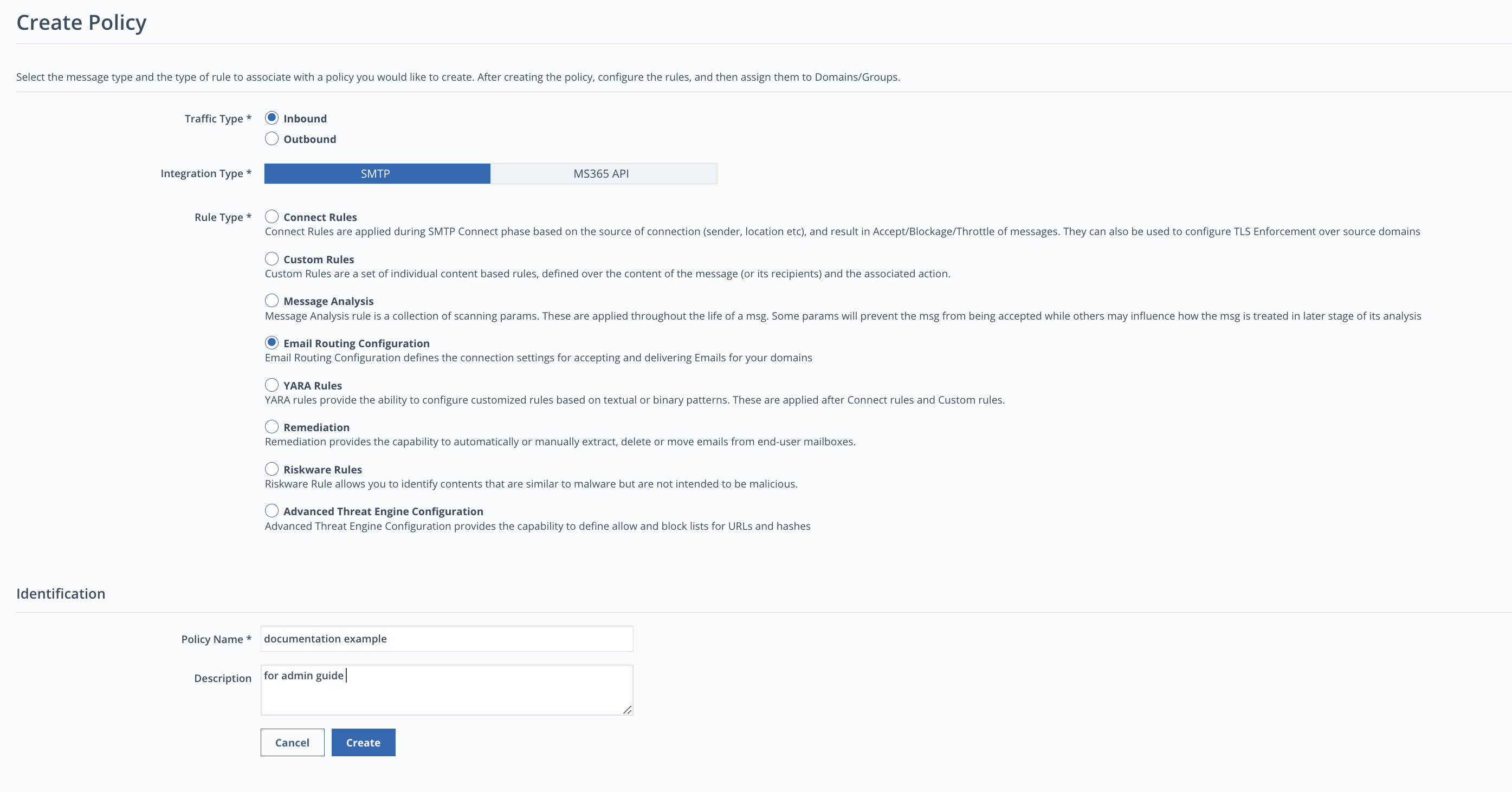
You can create a new email routing configuration policy by selecting the email configuration policy rule. Add a unique name and a description and click Create. If a non-unique name is provided, an error is thrown.
After a policy is created, the policy details screen will display.
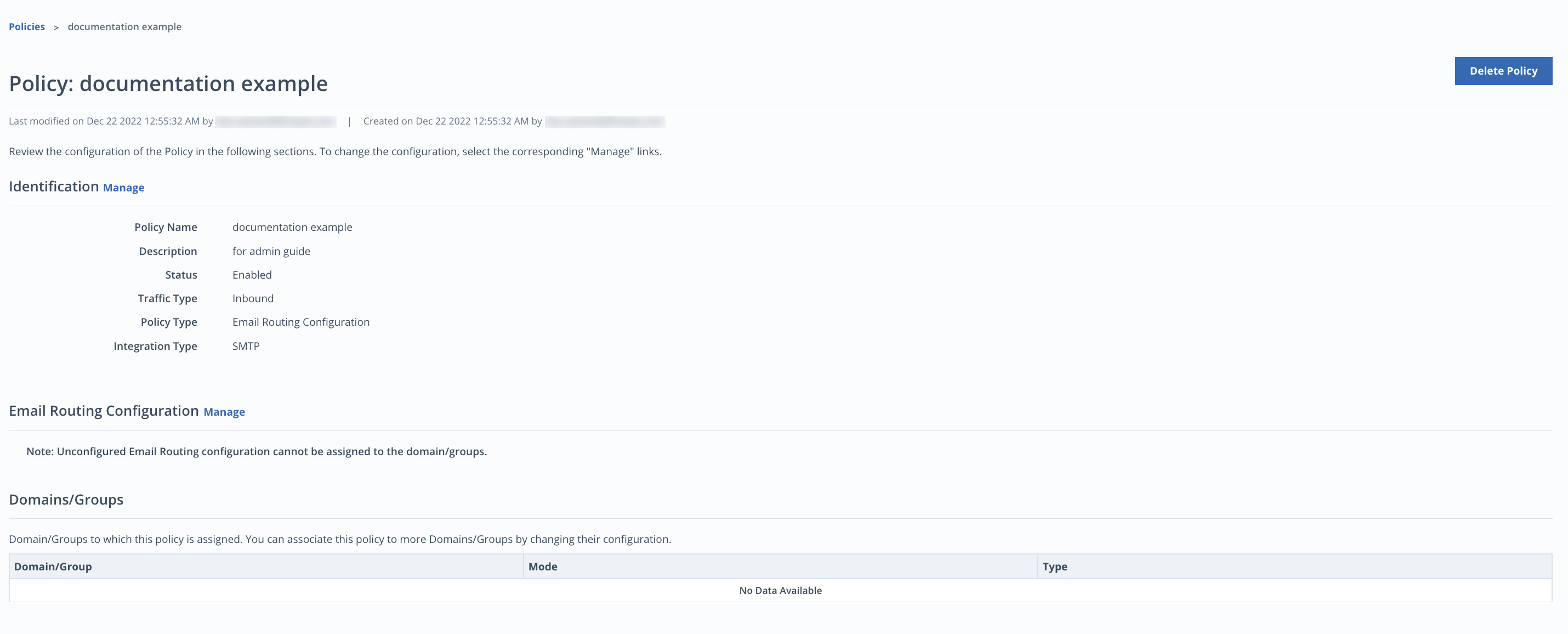
Click the Manage link next to the Email Routing Configuration to configure the routing policy.
Managing email routing configuration policies
Select the email routing configuration that will be applied to the domain. Note this will override the email routing configuration associated with the parent group (if any).
To manage which email routing configuration policy is associated with a domain:
On the Domains page, click the name of a domain.
Under Policies, click the Manage link next to email routing configuration policy.
The subsequent screen displays the email routing configuration policy, if any, associated with this domain or inherited from the domain group.
Click the Manage link to specify a policy, or Change if a policy is already associated with the domain. Only one email routing configuration can be associated with a domain.
Select a policy, or None.
Click OK.
Click Save.
To manage the email routing configuration:
Select the Manage link to set the email routing settings.
Choose the subscription mode.
Choose the Incoming Server Addresses.
Select the email type: Microsoft 365, Google Mail, or Custom.
Select Details to view the IP addresses in the TLS mode. In Custom mode, you can add the IP addresses.
Choose the Outgoing Server Addresses.
Select the email type: Google Mail, or Custom.
Select Details to view the type, record, TLS mode, and priority. In Custom mode, you can add the settings.
Select Save.