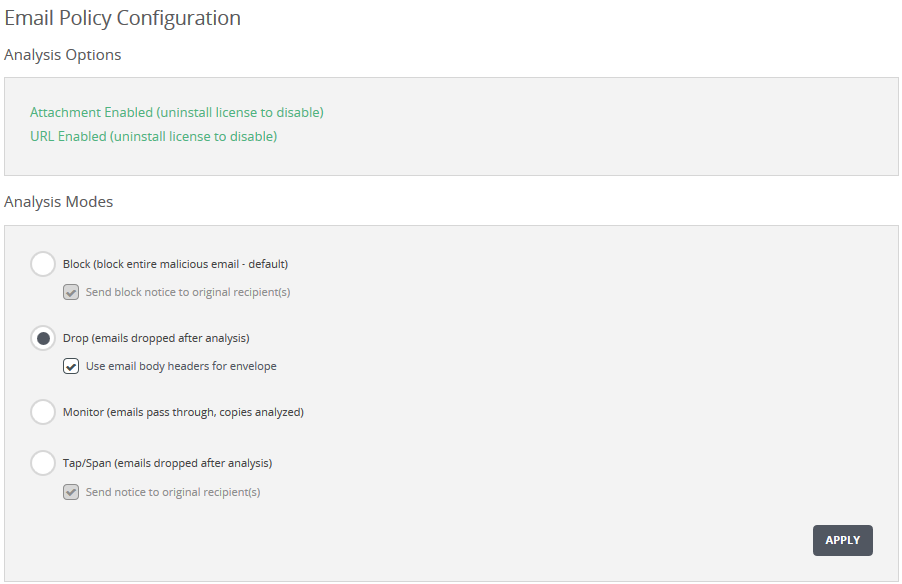
Use the Analysis Modes section of the Email Policy Configuration page to enable the analysis mode for your Email Security — Server appliance.
Click the Settings tab.
Click Email Policy on the sidebar.
Specify the analysis mode:
Click Block for Block mode. Select the checkbox if you want to allow the Email Security — Server appliance to send another email to notify the intended recipients that malicious emails were blocked and not delivered to them. You can also select the option to send a retroactive email to notify the recipient of a malicious email that was previously undetected as malicious and was missed. By default, Send missed notice to original recipent(s) is enabled. (To customize the notice text, see Configuring Notices Using the Web UI .)
Click Drop for Drop mode. Select the checkbox if you want to show the original email To: and From: header envelope information in the eAlerts and eQuarantine pages. (See the Email Security — Server User Guide for details about this feature.)
Click Monitor for Monitor mode.
Click Tap/Span for Tap/Span mode. Select the checkbox if you want to allow the Email Security — Server appliance to send another email to notify the recipient if a malicious email was detected.
Click Apply to save your changes.
Reboot the appliance:
Log in to the Email Security — Server CLI.
Enable the CLI configuration mode:
hostname > enable hostname # configure terminal
Reboot the appliance:
hostname (config) # reload