Follow these steps to flush one email or all emails from the email queue.
To flush a single email from the queue:
In the Web UI, choose Search Emails > Queued Emails.
The page lists the emails that have already been received and held in the email queue.
Select the checkbox next to the email entry you want to flush. You can select multiple entries or all entries at one time.
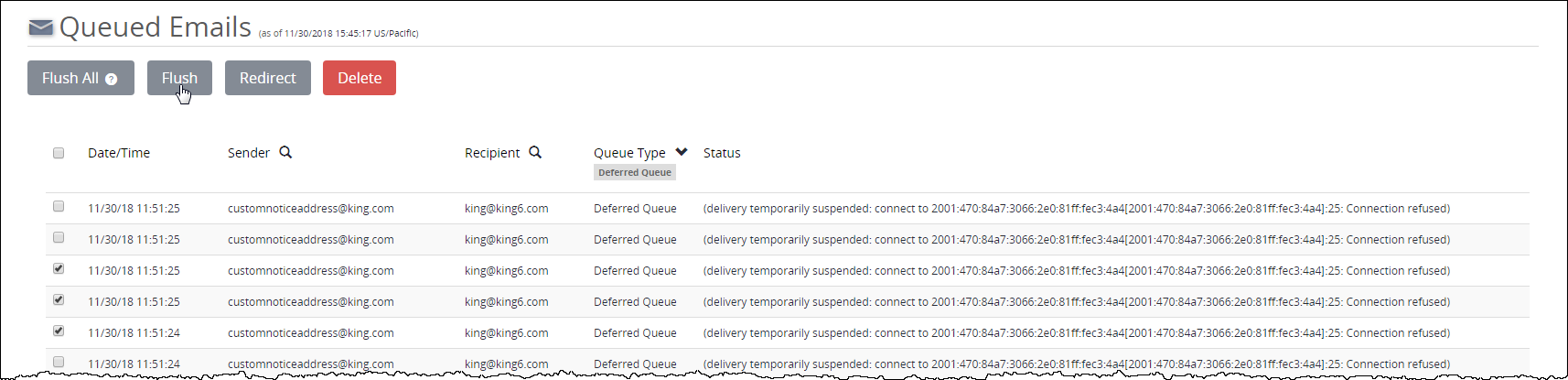
Click Flush. The email is flushed from the email queue.
To flush all emails from the email queue:
In the Web UI, choose Search Emails > Queued Emails.
The page lists the emails that have already been received and placed in the email queue.
Click Flush All. A prompt for confirmation is displayed.
Click OK.
All the emails are flushed from the email queue.