Important
There are two versions of IAM. If the URL you use to access the IAM UI ends with
fireeye.com, this document pertains to you. If the URL you use to access the IAM UI ends withtrellix.com, see the Trellix IAM Guide for information regarding IAM.
It is required that when you invite IAM administrators and users to your organization, you provide them appropriate role combinations. This will be described in the following section.
You can invite IAM admins with full privileges or read-only privileges to your organization operations.
To invite IAM admins:
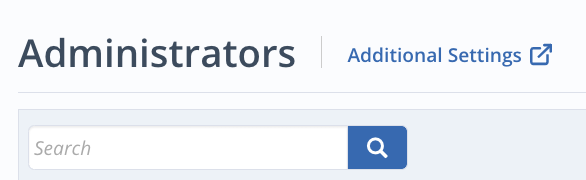
On your Email Security — Cloud dashboard, click Organization, then click Administrators. From there, select Additional Settings.
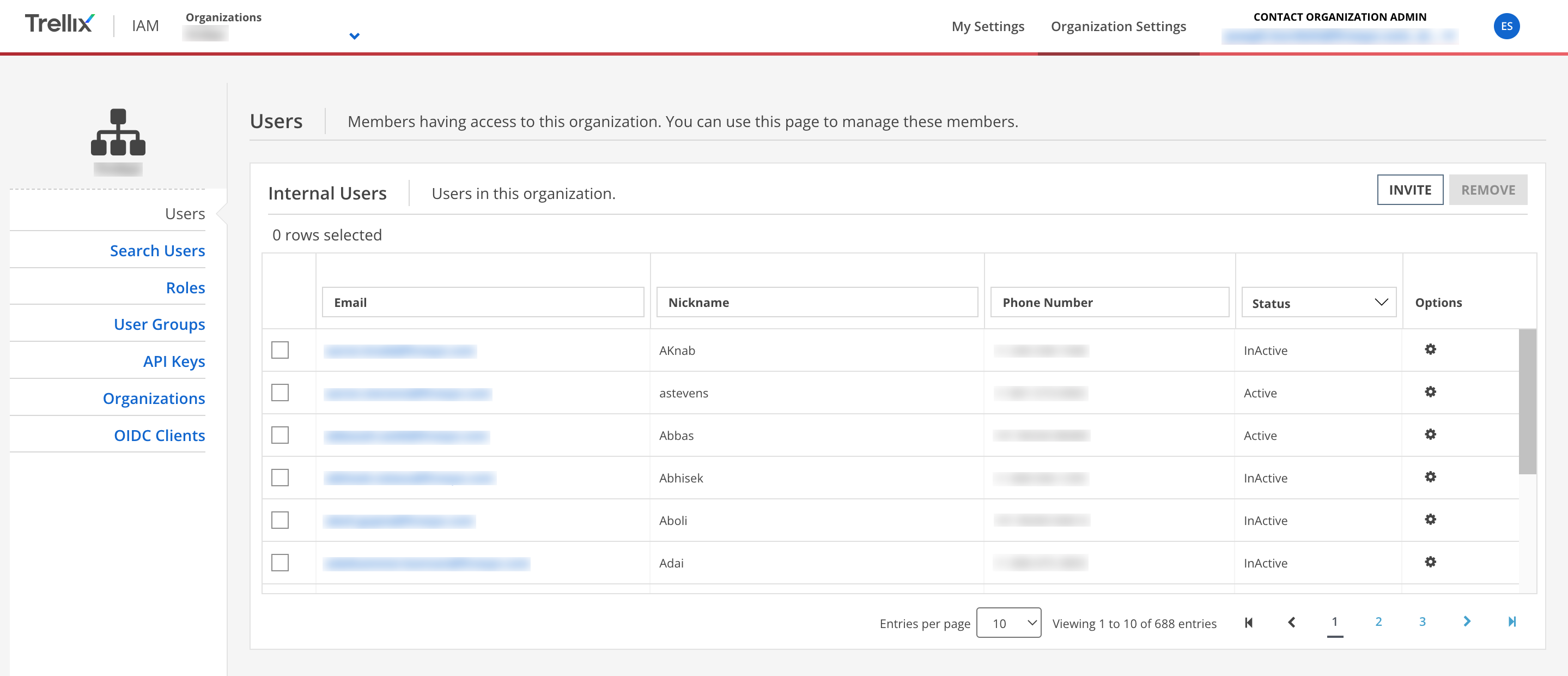
You can initiate an invitation by clicking Invite in the Users section.
In the invite workflow, provide the email address of the new admin and select the products and roles assigned to them.
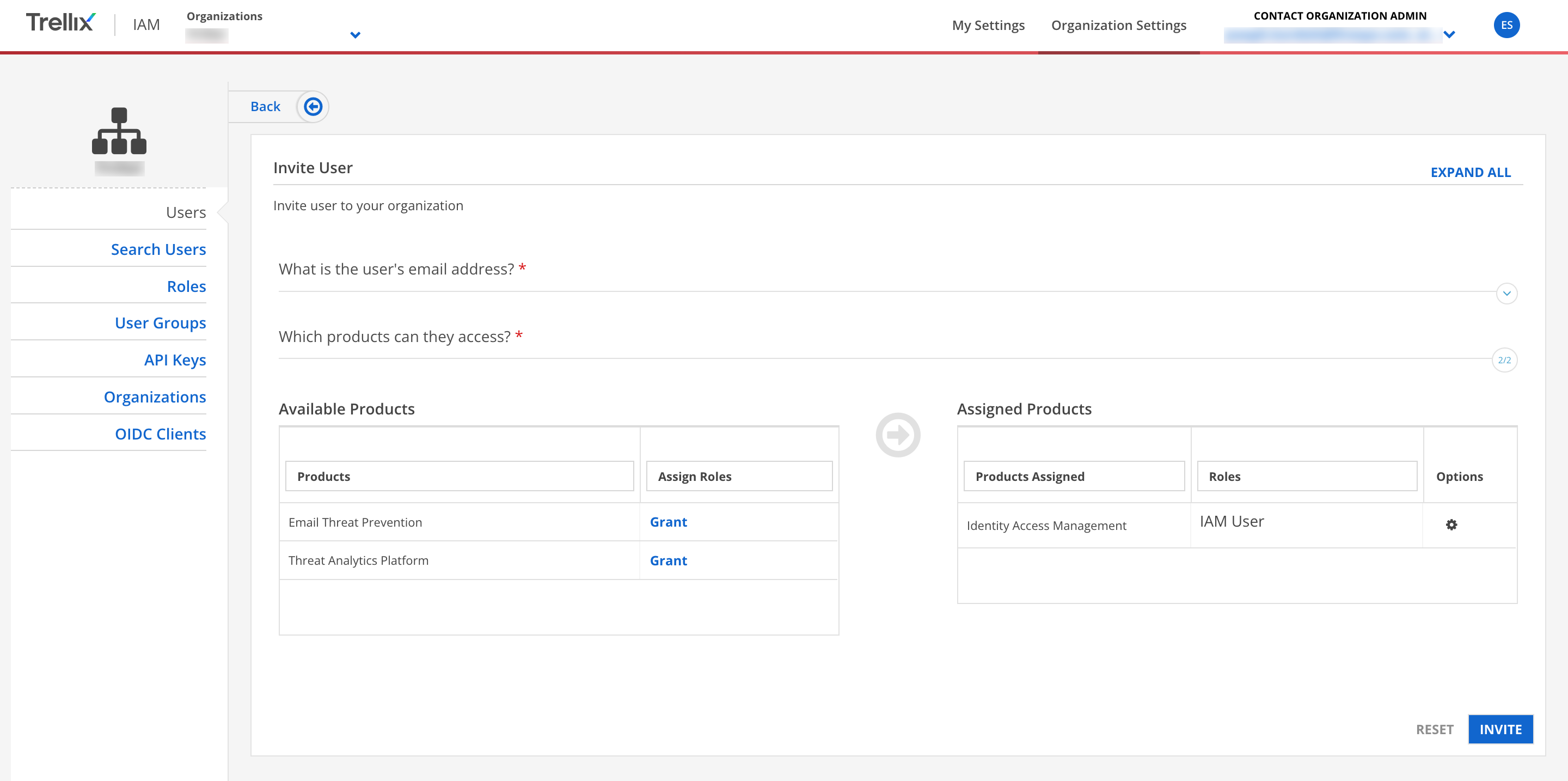
To give an admin full access:
Click Grant next to Identity Access Management. Select IAM Admin for the user. Click Assign.
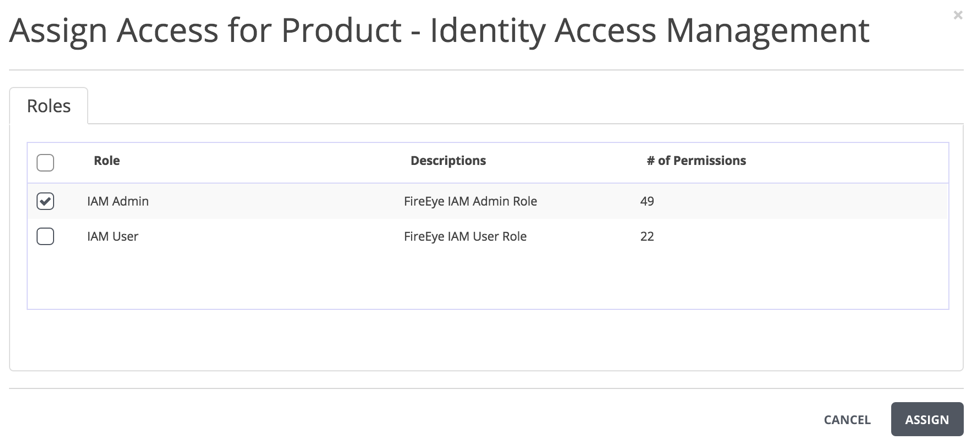
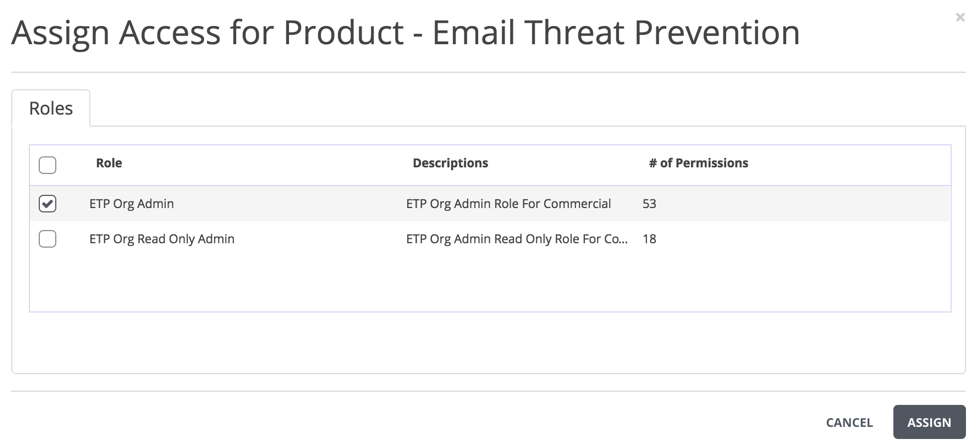
Click Grant next to Email Threat Prevention. Select ETP Org Admin for the user. Click Assign.
To give an admin Read Only access:
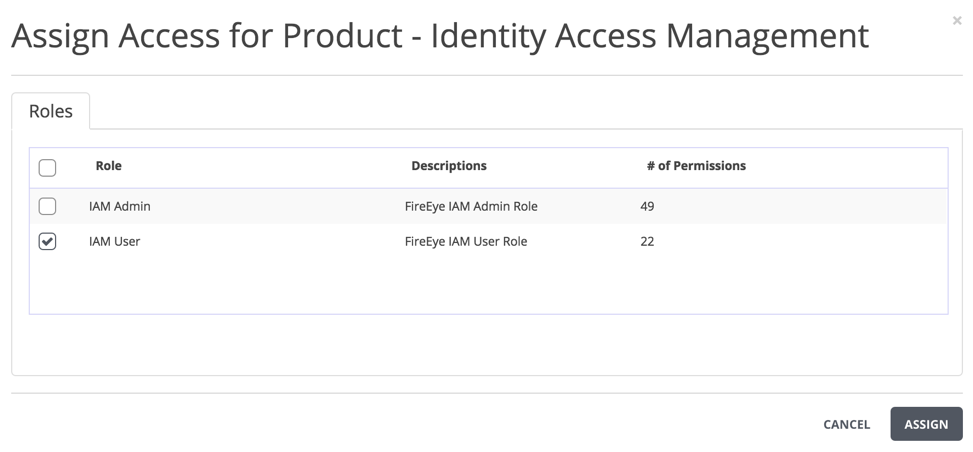
Click Grant next to Identity Access Management. Select IAM User for the user. Click Assign.
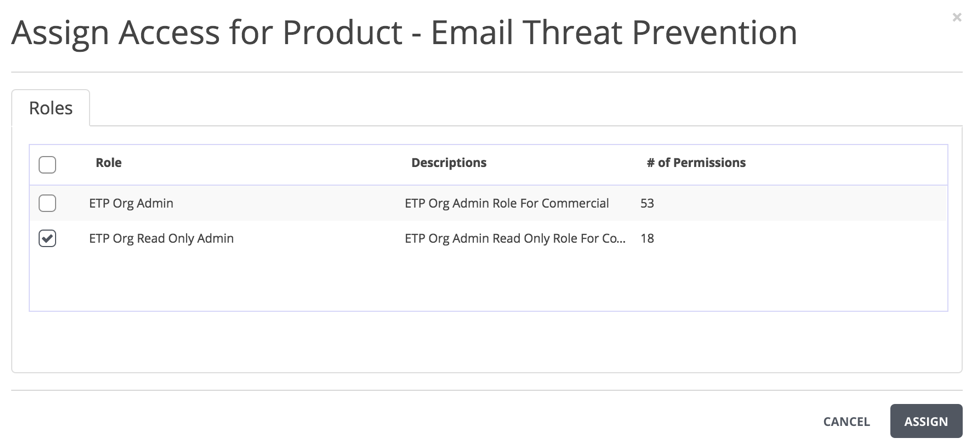
Click Grant next to Email Threat Prevention. Select ETP Org Read Only Admin for the user. Click Assign.
After granting the appropriate roles and products, click Invite to send the invitation to the email address provided. Through the email invitation, the recipient will enroll and become an admin.