Each Native domain provisioned in your Email Cloud organization has mailbox settings that can be viewed and configured.
To view a domain's mailbox settings:
Select Domains from the Configuration menu in the top navigation bar.
In the Domains page, click on the name of a domain. Mailbox Settings appears below General Settings.
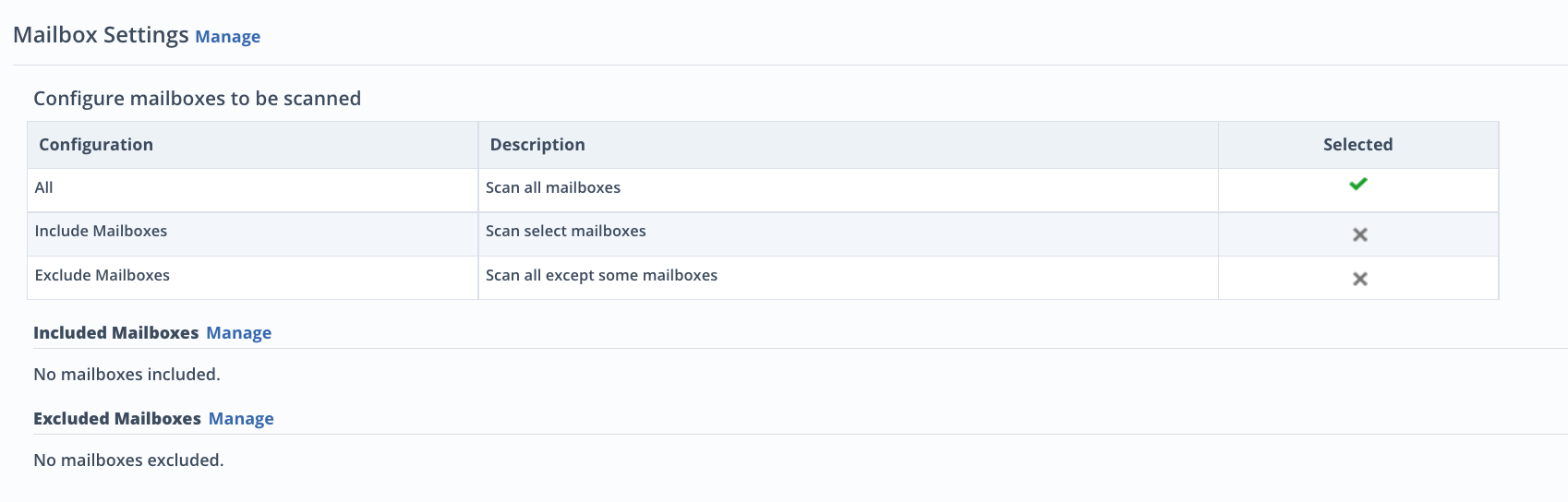
You can configure all mailboxes to be scanned, select mailboxes to be scanned, or exempt select mailboxes from being scanned. By default, scanning is enabled for all mailboxes associated with the domain, except shared mailboxes of native domains.
You can enable scanning of shared mailboxes if the number of shared mailboxes is 20% or less than the number of total licenses.
To add included mailboxes:
Under Mailbox Settings, click the Manage link next to Included Mailboxes.
Click in the Add new entry box.
Manually enter mailbox addresses.
Click Save.
Note
Included mailbox settings will only be triggered if Include Mailboxes is selected in Mailbox Settings.
To add excluded mailboxes:
Under Mailbox Settings, click the Manage link next to Excluded Mailboxes.
Click in the Add new entry box.
Manually enter mailbox addresses.
Click Save.
Note
Excluded mailbox settings are only triggered if Exclude Mailboxes is selected in Mailbox Settings.
To manage mailbox settings:
Next to Mailbox Settings, click Manage.
Select All, Include Mailboxes, or Exclude Mailboxes.
Click Save.