Advanced threat engine configuration policies allow you to add URLs and MD5 or SHA256 hashes to allowed and blocked lists and to specify vendor domains.
Mail that contains a URL or attachment hash specified in the allowed list is considered non-malicious and will not be rewritten. Mail that contains a URL or attachment hash specified in the blocked list is considered malicious. An alert will be generated and the mail is not delivered.
If a URL or attachment hash in an email matches an entry configured in the allowed or blocked list, further Advanced Threat Engine analysis for the matching URL or attachment hash will be skipped. If the mail contains other URLs and attachment hashes not specified on the allowed or blocked list, those URLs and attachment hashes are evaluated normally.
If the same entry exists in both the allowed and blocked list, the allow list will take priority and the mail will be delivered.
You can also specify vendor domains to prevent supply chain impersonation. Emails from attackers disguised as vendors are identified as advanced threats and an alert is generated. You can enter up to 1000 domains. You can filter for vendor impersonation attempts in the advanced threat alerts page by selecting "custom vendor impersonation" from the Threat Type dropdown.
To associate an advanced threat engine configuration policy with a domain:
On the Domains page, click the name of a domain.
Under Policies, click the Manage link next to Advanced Threat Engine Configuration Policy.
If an advanced threat engine configuration policy is already associated with this domain or inherited from the domain group, it is displayed.
Click the Manage link to specify a policy, or Change if a policy is already associated with the domain.
Select a policy, or select None to remove a policy.
Click OK.
Click Save.
Only one advanced threat engine configuration policy can be associated to a domain or domain group. It is not mandatory to have this policy defined for a domain or a domain group.
To add URLs to the allowed list or blocked list:
Select an advanced threat engine configuration policy.
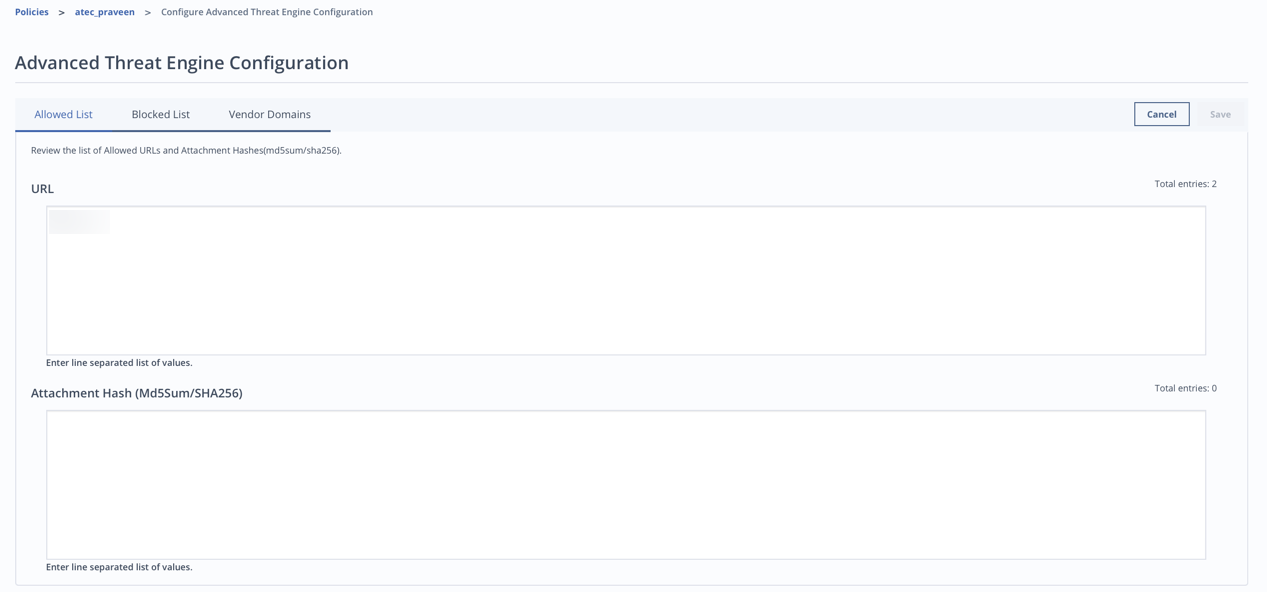
Next to Configuration, select Manage.
Select Allowed List or Blocked List.
Enter URLs in the URL entry box.
You can enter up to 1000 URLs. The character limit for each URL is 2000. Enter each URL on a separate line.
Note
Your entry should be the full URL or only the hostname. Partial URLs or URLs with wildcard characters will not be accepted.
Click Save.
The following table explains the URL matching behavior:
Allow/block URL list entry | Matches | Does not match |
|---|---|---|
example.com | example.com http://example.com https://example.com www.example.com www2.example.com www.example.com/dir1/abc.html www.sub.example.com example.com:80/dir1/abc.html www.sub.example.com/dir1/abc.html www.sub2.sub1.example.com/dir1/abc.html | ftp://example.com www.example.one.com http://example.com:8001/dir1/abc.html |
www.example.com | www.example.com www.example.com/dir1/abc.html | example.com http://example.com https://example.com ftp://example.com www.sub.example.com www2.example.com |
http://www.example.com | http://www.example.com http://www.example.com/dir1/abc.html | http://example.com https://www.example.com http://www.sub.example.com |
http://example.com | http://example.com http://example.com/dir1/abc.html | http://www.example.com https://example.com ftp://example.com http://sub.example.com |
20.20.20.20 | http://20.20.20.20 http://20.20.20.20/dir1/abc.html https://20.20.20.20/dir2/abc.html http://336860180 (decimal version of IP) https://336860180/dir1/abc.html | 20.20.20.20 ftp://20.20.20.20 www.20.20.20.20 |
localhost | http://localhost https://localhost http://localhost:80 http://localhost/dir1/abc.html https://localhost/dir1/abc.html | ftp://localhost http://127.0.0.1 |
Note
For URLs that have non-ascii special characters, Email Cloud allows admins to input the URL in a URL-encoded format.
For Internationalized Domain Names (IDN), such as
ουτοπία.δπθ.gr, Email Cloud allows admins to input the URL as a punycode encoded URL (for example,xn--kxae4bafwg.xn–pxaix.gr). Punycode URLs must be input along with protocol (for example,http://xn--kxae4bafwg.xn–pxaix.gr) to be detected as a match.
To add hashes to the allowed list or blocked list:
Select an advanced threat engine configuration policy.
Next to Configuration, select Manage.
Select Allowed List or Blocked List.
Enter MD5 or SHA256 hashes in the Hash entry box.
You can enter up to 1000 hashes. Enter each hash on a separate line.
Click Save.
To add domains to the vendor domains list:
Select an advanced threat engine configuration policy.
Next to Configuration, select Manage.
Select Vendor Domains.
Enter vendor domains. Values must be line separated.
Click Save.