Creating a template
To create a new template, click Create Template on the top-right of the Templates page. You will be redirected to the Create Template wizard.
Template Design: You can create a new template or reuse an existing template.
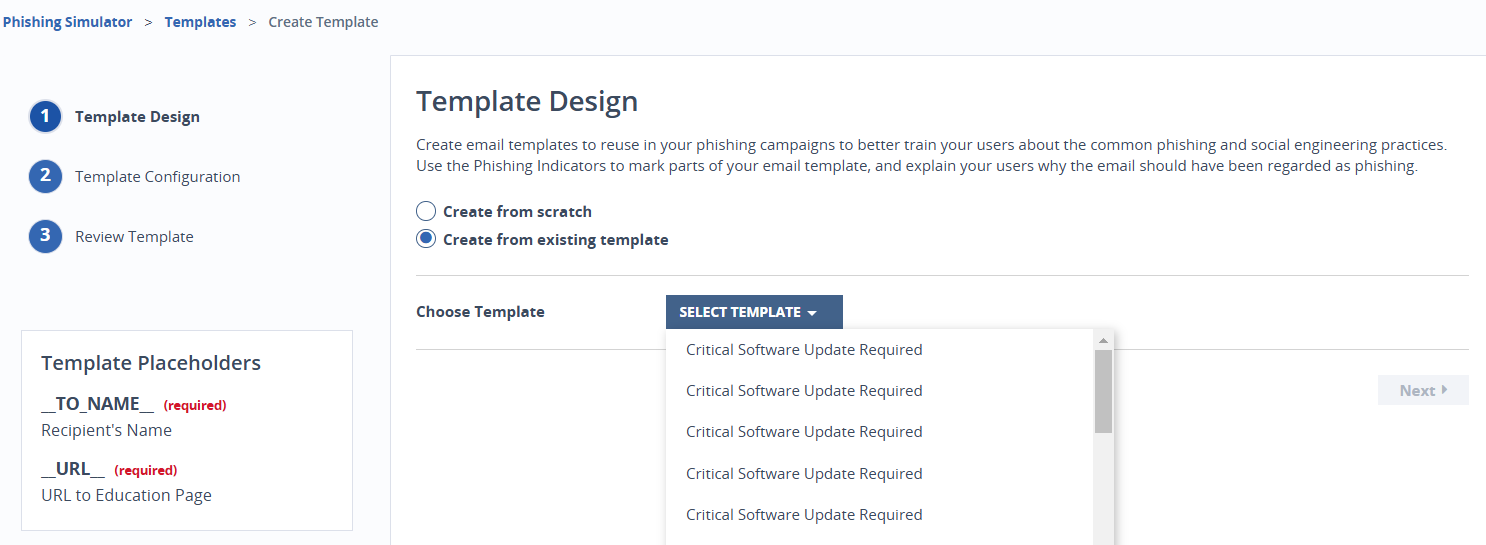
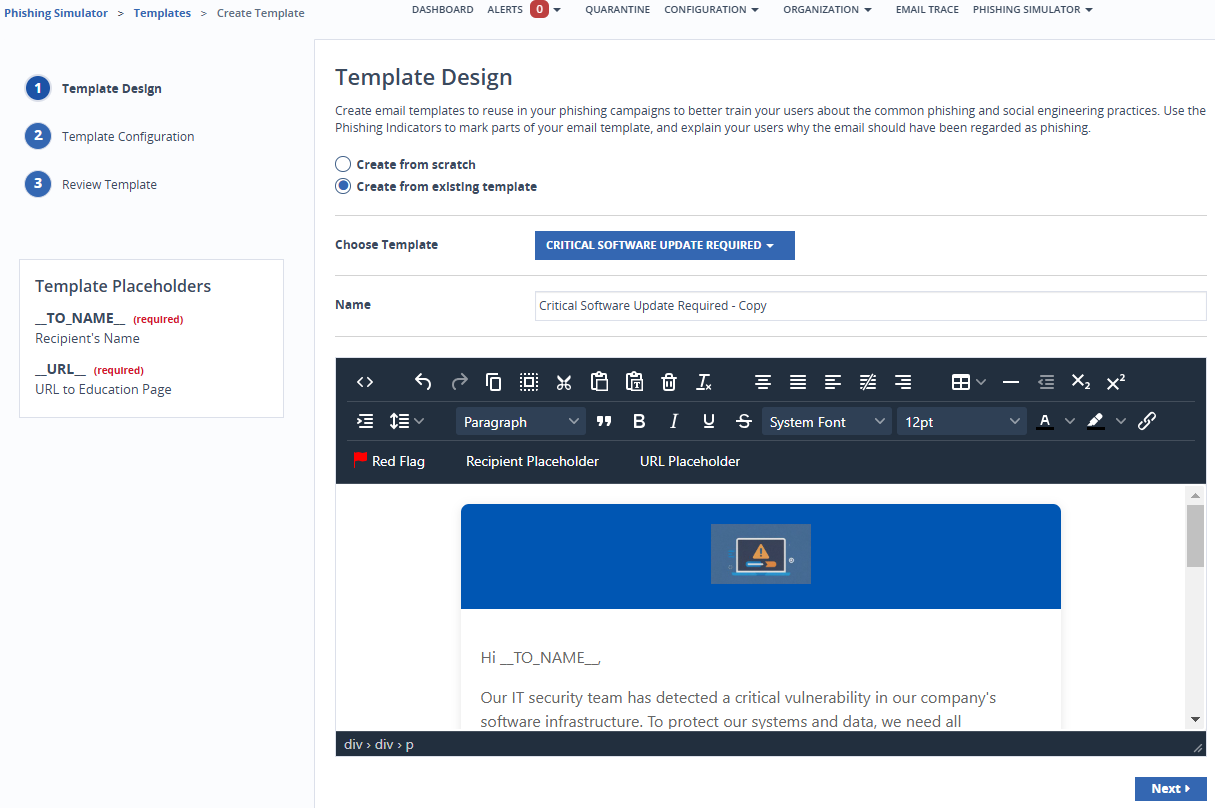
To create from an existing template, select Create from existing template. Select a template from the drop-down menu. The changes you make will be saved as a separate copy. The existing template will remain unaffected
To create a new template select Create From Scratch. You will be redirected to the Template Design page with a blank canvas and editing tools.
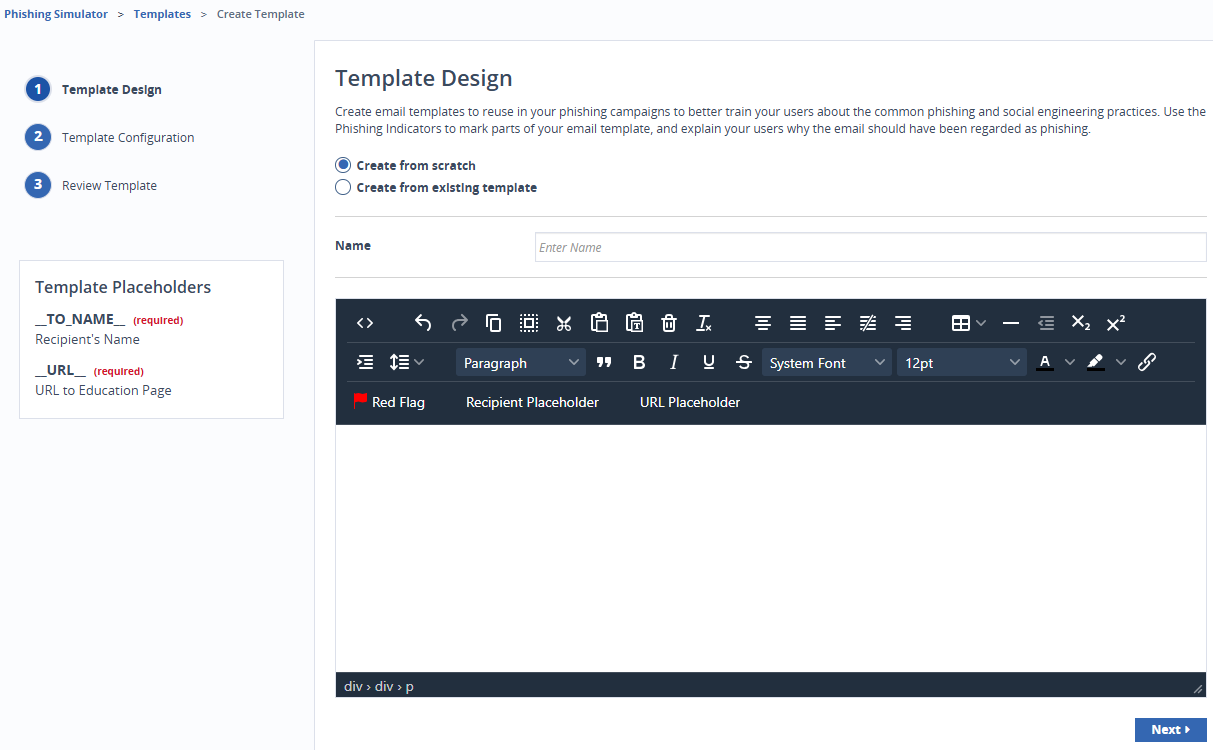
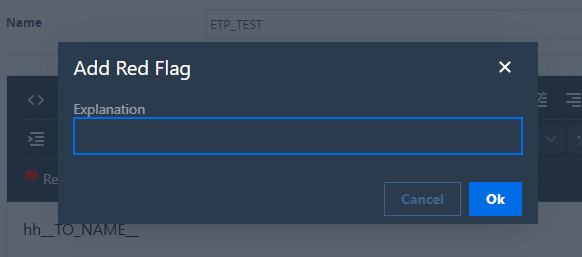
Use the Red Flag button to add phishing indicators to the body of the email. The red flags are only visible in edit mode.
You need to include Recipient and URL placeholders to your template. Otherwise you will be receiving errors on clicking Next.
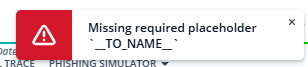
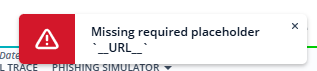
Select Next to move to the next step.
Template Configuration page: Fill in the sender’s details for your template like Subject, From, Reply-To, and so on. You can add Phishing Indicators to some fields.
Phishing indicators will help users identify the mail as a phishing attempt, such as suspicious links, email addresses, or urgent requests. This indicator will appear when the user clicks the link.
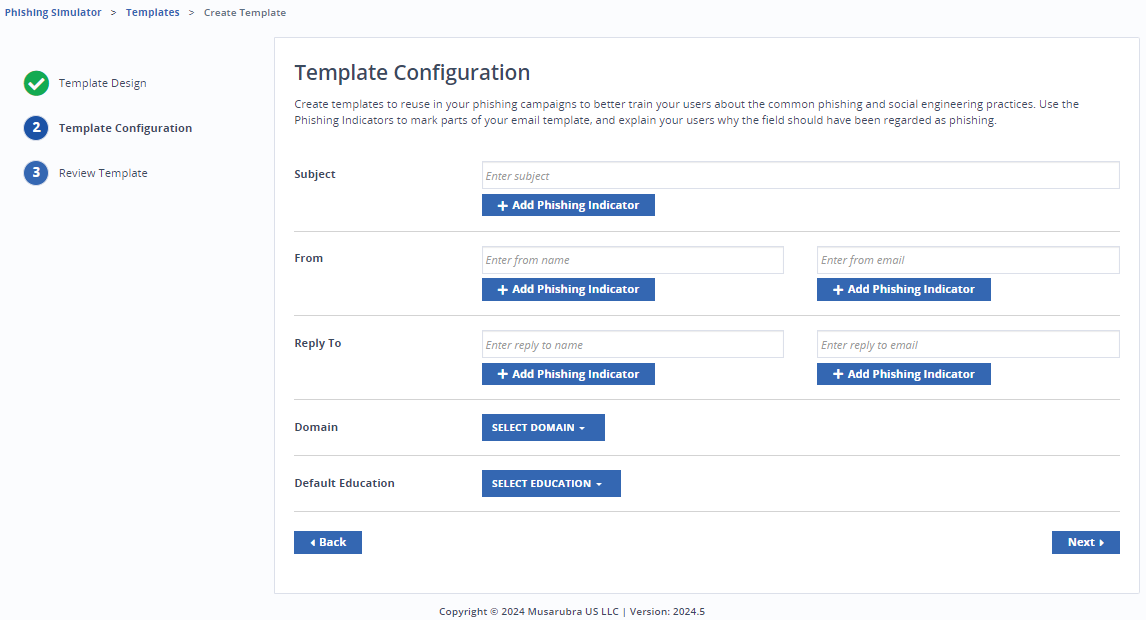
Select Next to move to the next step or Back to go to the last step.
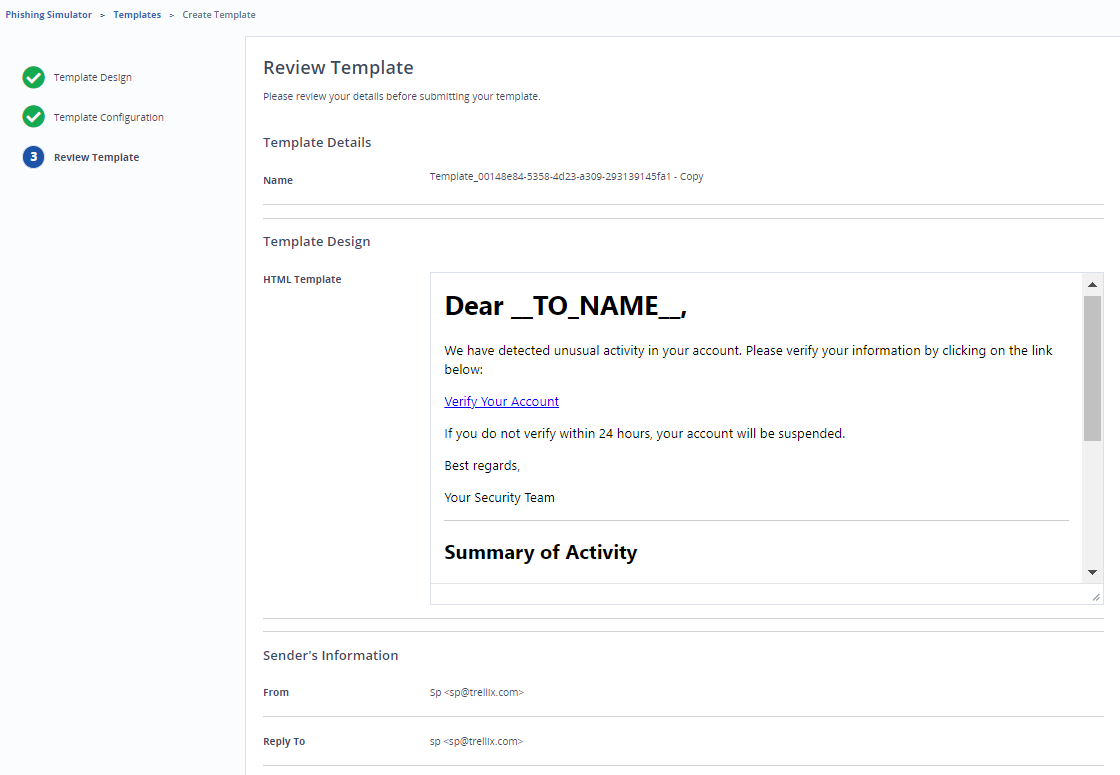
Review Template page: Review the template design and sender's details in this page. You can go back to make changes. Once you are satisfied, select Create to create the template.
Editing a template
To edit a template, click Manage on the top-left of the Template Details page. You will be redirected to the Create Template wizard.
Follow the steps stated in the creating template section to modify details of the existing template. Select Save when done.