Overview
The Education page displays a detailed list of education articles which you can create and reuse in your educational campaigns against phishing tactics.
The Education page shows two tabs:
My Education shows a table of templates created by you.
System Education shows a table of readymade templates.
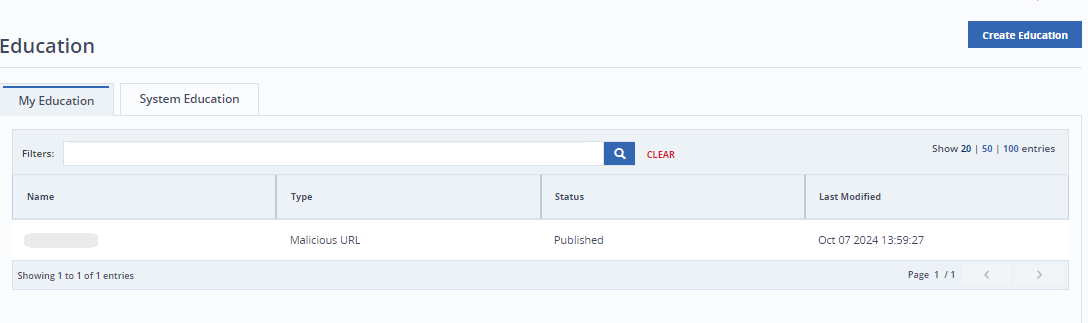
You can filter both the tables as per status or type.
The tables show the following details for each template:
Name: The name of the education template. Click the name to view the template.
Type: The type states the nature of phishing links included in the template.
Status: Publication status of the template.
Last Modified: Date and time when the template was last updated.
Education page
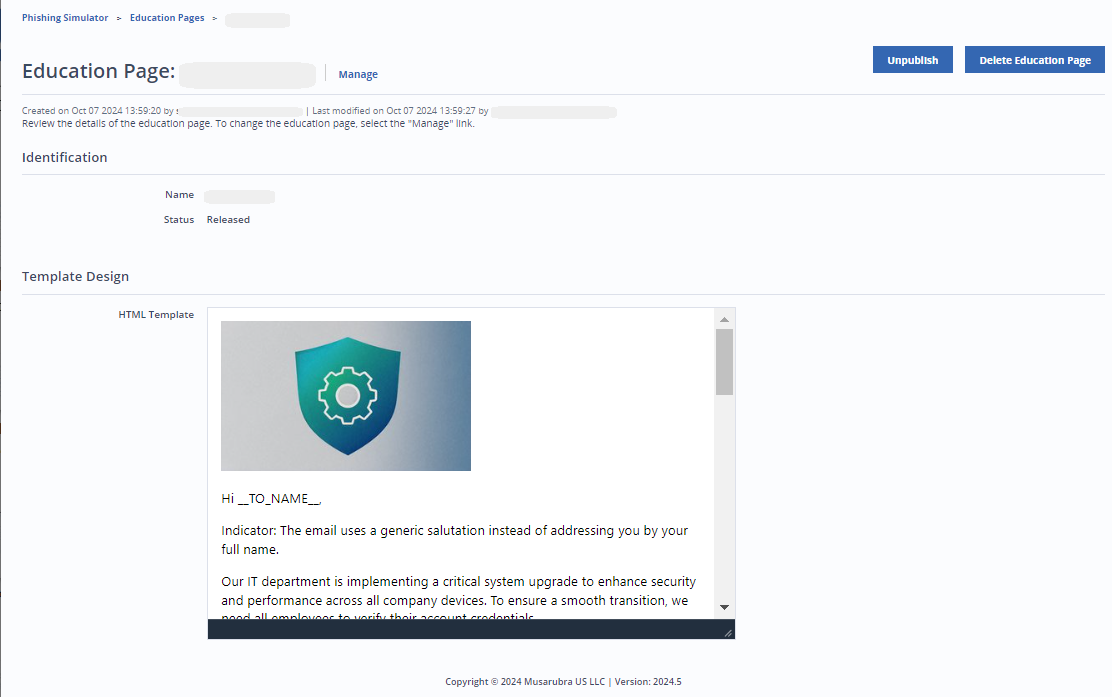
Click the name of the education template to see details and design. You will be redirected to the Education details page.
You can also Unpublish or Delete the education page.
To edit an existing education, click Manage on the top-left. You will be redirected to the wizard.
Creating an education page
To create a new education page, click Create Education on the top-right of the Education page. You will be redirected to the Create Education wizard.
Education Design: You can update an existing page or you can also create a new design.
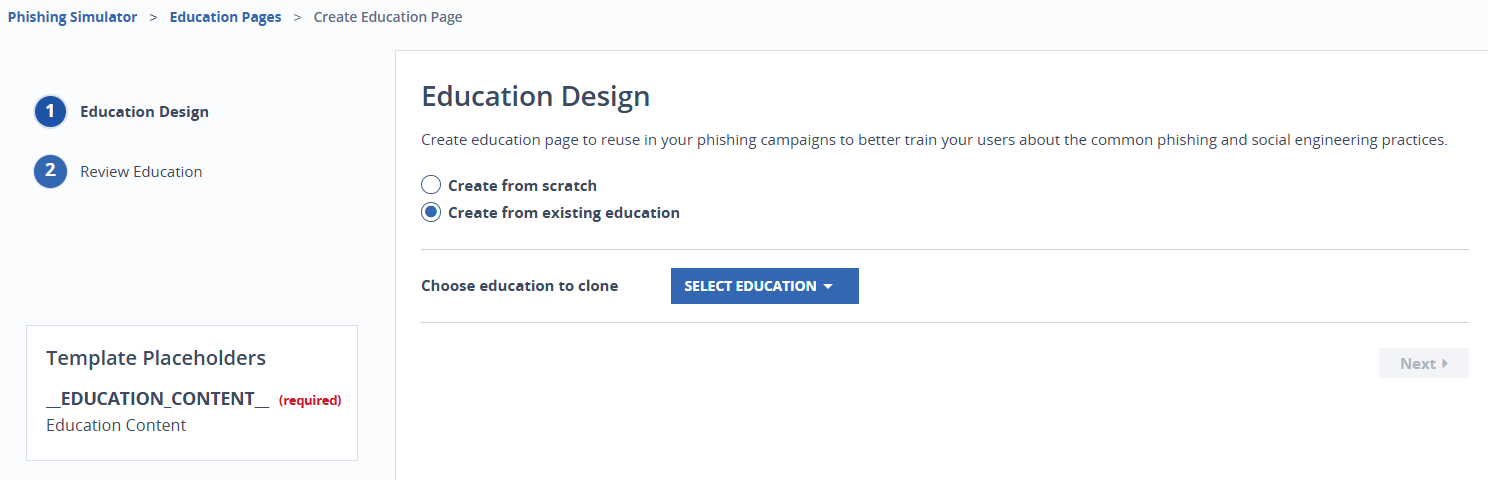
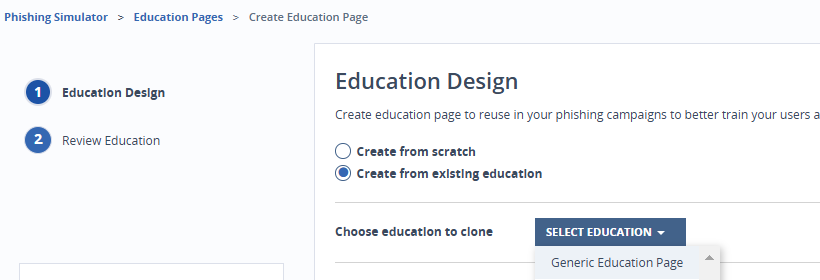
To modify an existing design, select Create from existing education. Select a template to clone from the drop down menu. You will be redirected to the Education Template Design page. You can edit the cloned template. This will not affect the original version.
To create a new template select Create From Scratch. You will be redirected to the Template Design page with a blank canvas and editing tools.
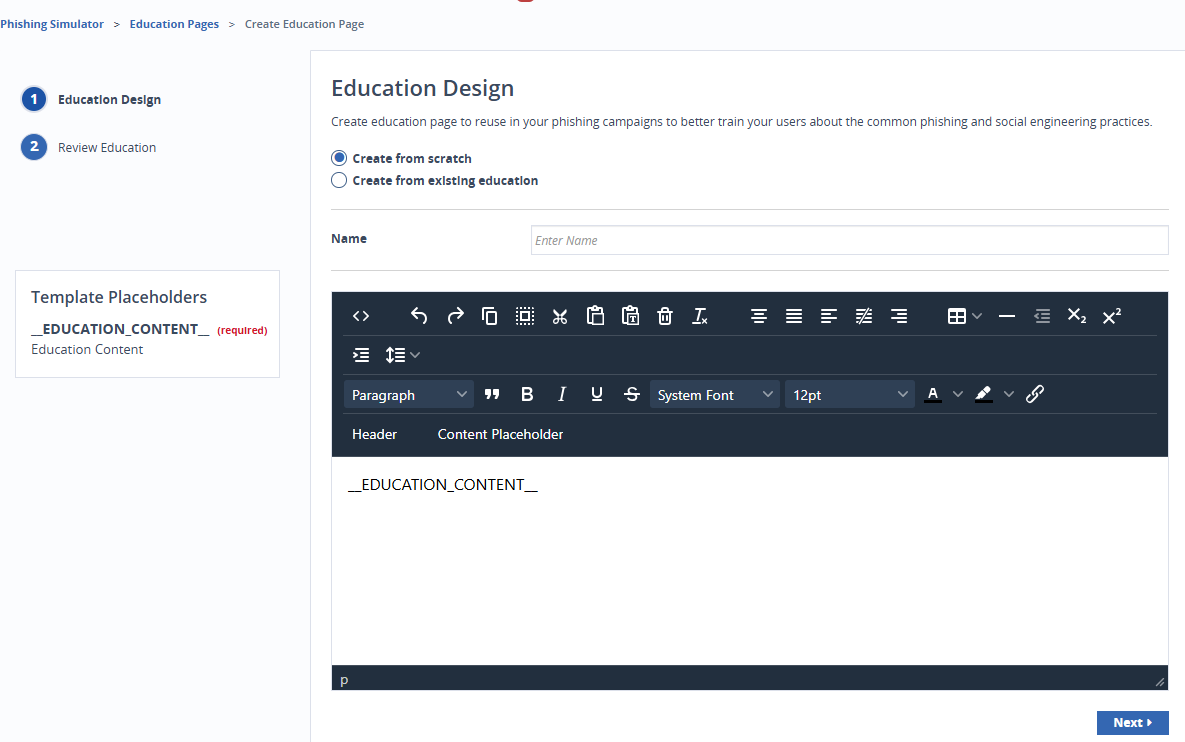
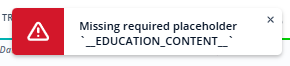
You need to use a Content Placeholder. If the placeholder is missing, an error will appear. The Header placeholder is optional.
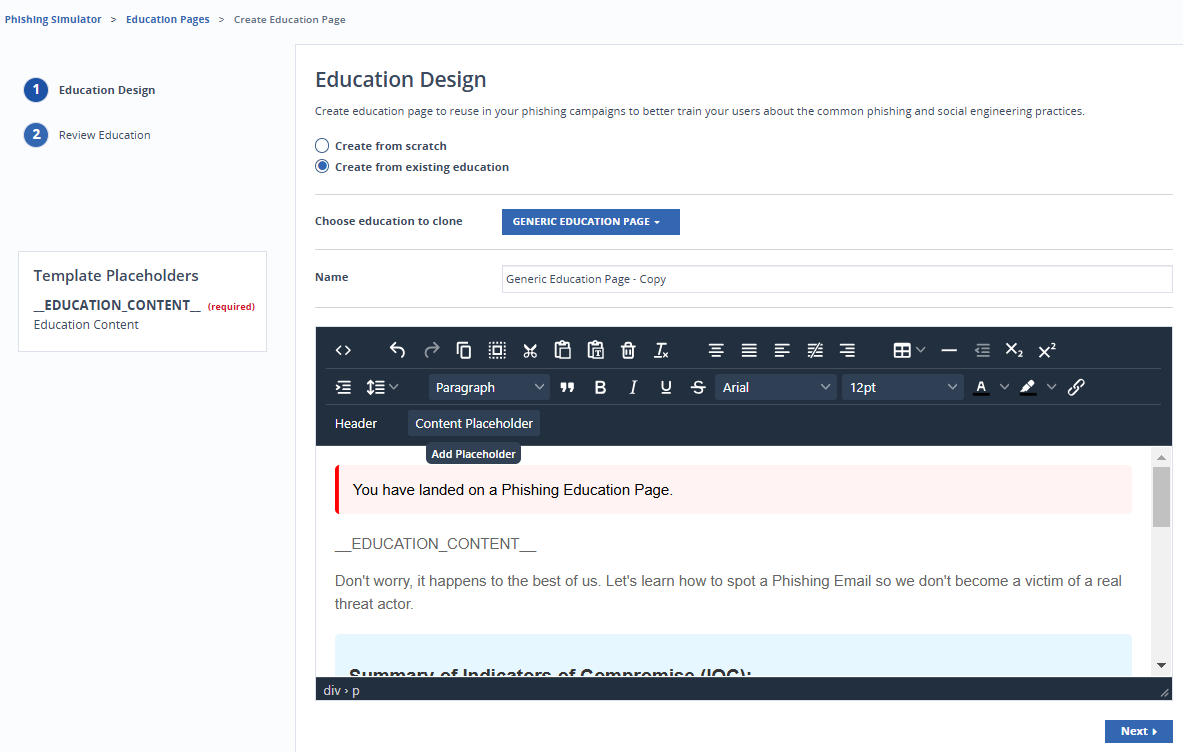
Select Next to move to the next step.
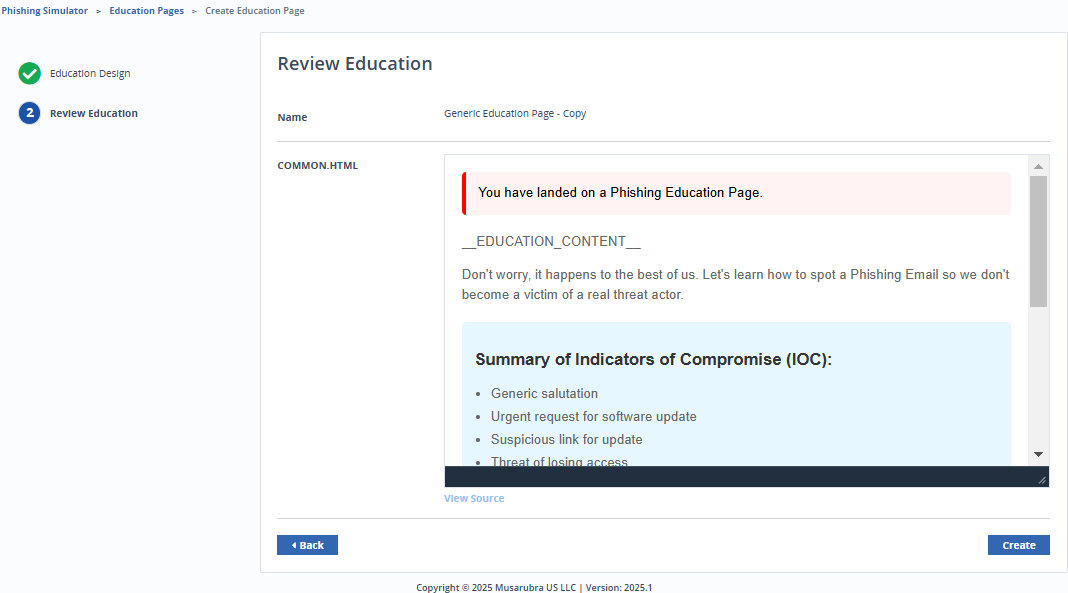
Review Education: Review all your selections in this page. You can go back to make changes. Once you are satisfied, select Create to create your design.