Use the eAlerts tab to view email alerts.
Click the eAlerts tab.
The Email Alerts page shows the email alerts.
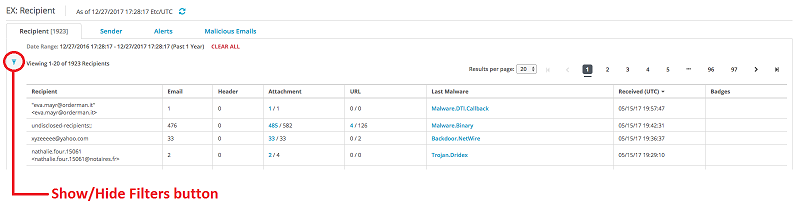
Select from the following tab and filters to view and monitor email alert information.
Click the Recipient link to view the list of email alerts sorted by recipient name.
Click the Sender link to view the list of email alerts sorted by sender name.
Click the Alerts link to view the list of email alerts sorted by alert ID.
Click the Malicious Emails link to view the list of infected emails sorted by Message ID.
In the Results per page drop-down menu, select the number of alerts you want to display on a page.
Toggle the Show/Hide Filters button on the left side to display or hide the filters.
In the Date Range drop-down menu under Filters, select the time frame the alert display will span.
Click a column title at the top of each column to re-order the list using the up/down symbol that appears when the title is clicked.