From the eAlerts page, you can perform YARA rule analysis after emails are detected as malicious.
When a malicious header or message body matches a YARA rule, you can view the email details by recipient, sender, alerts, malicious emails, or campaigns. Emails are identified by SUBJ, FROM, BODY, RCVD_FROM, ATTACH_NAME, REPLY_TO, RETURN_PATH, and XSOURCEIP as the name of the malware type that are categorized and tracked on the eAlerts page and Alert Details page.
The following example below displays the drill-down details of the alert for emails that match a YARA rule in the header or message body. The file type is ehdr. The alert displays the campaign name, YARA rule name, YARA rule description, ID number, distinguisher (UUID), malware hash, and archived objects.
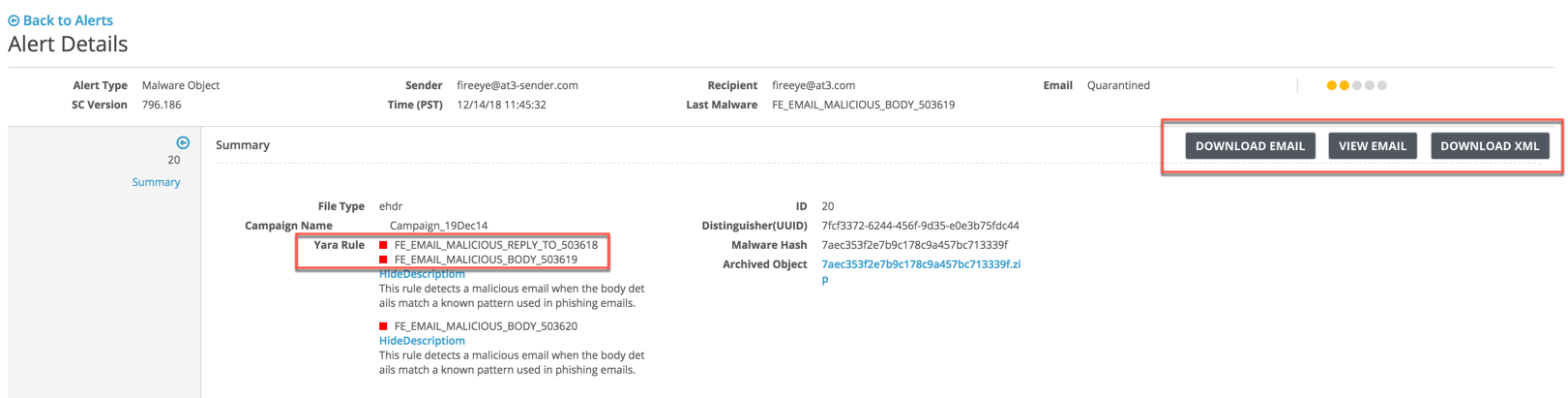
From this page, you can download a copy of the original email to your local desktop in XML or plain text.
Note
If the email has been deleted or released from the quarantine, the alert displays Deleted or Released instead of Download Email.
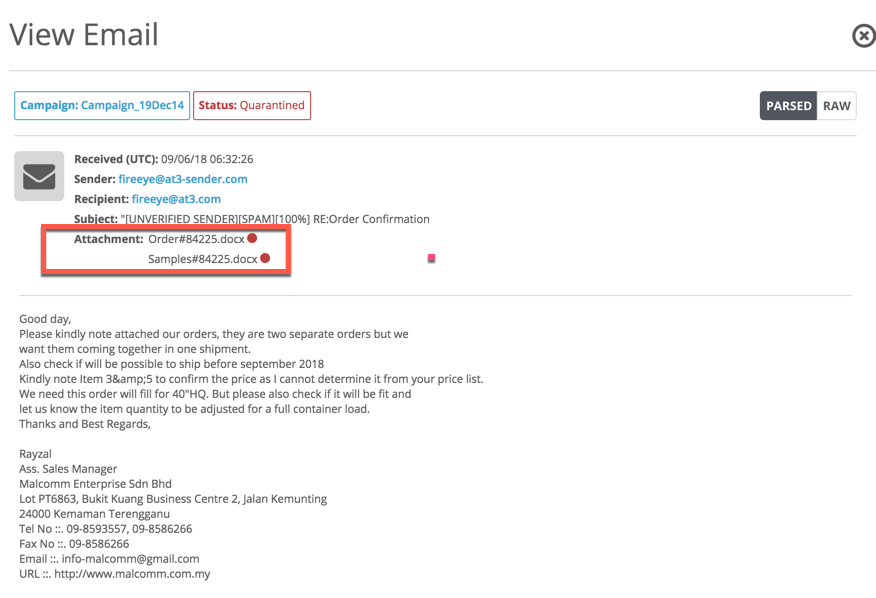
From the View Email link, you can identify the infections that triggered the alert. By default, the malicious email is displayed in parsed format. Red icons highlight the infections.
You can track the infected headers or bodies that match a YARA rule by using the What's Happening panel of the Dashboard. When an email is detected as malicious, the total number of headers or bodies are displayed for the Malicious Header/Body attack category in the What's Happening panel. You can click the Malicious Header/Body link to open the Email Alerts page to view the recipient and the total number of malicious emails that were found in a header and within an email message body.
Prerequisites
Administrator, Operator, Monitor, or Analyst, access to the Email Security - Server appliance
A connection to the DTI Cloud
A CONTENT_UPDATES license for security content updates
Administrator or Operator access to enable static analysis. For details about how to enable static analysis, see Enabling or disabling static analysis using the CLI on .
Administrator or Operator access to enable email YARA analysis. For details about how to enable email YARA analysis, see Enabling or disabling email YARA analysis using the Web UI on or Enabling or disabling email YARA analysis using the CLI on .