The eAlerts > eAlerts > Campaigns page of the Email Security - Server appliance lists the campaigns of malicious emails that were detected by the appliance. A red status indicates that the campaign is not verified. A blue status indicates that the campaign is verified.
Note
If your appliance is managed by a Central Management System appliance and you change the status of a campaign from unverified to verified on the Central Management System appliance, the status change will not be reflected on the appliance.
You can generate and download the list of campaigns as an Email Campaign List report in XML format, PDF format, CSV format, or JSON format from the appliance to your local desktop.
The following example displays the campaign entries in the Campaigns page.
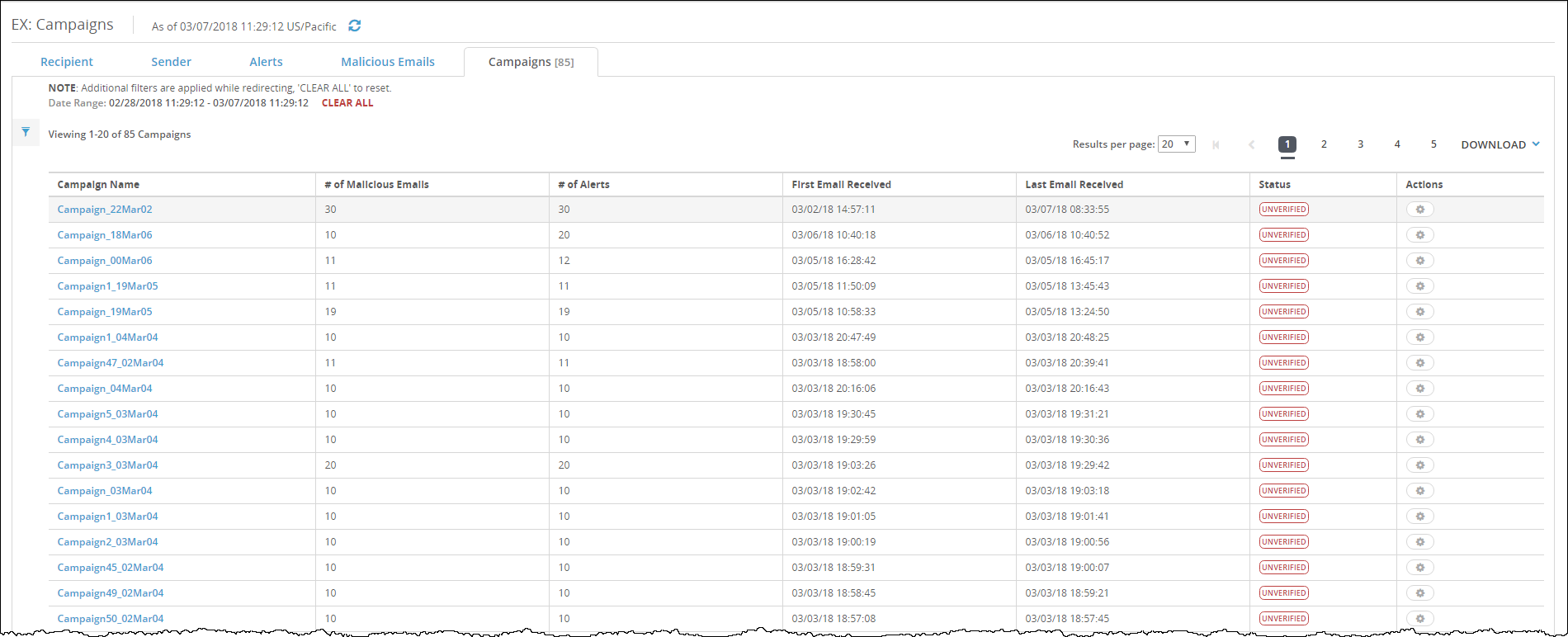
The following table describes the campaign fields.
Field | Description |
|---|---|
Campaign Name | Name of the campaign. Click the link to display details of the campaign. |
# of Malicious Emails | Total number of malicious emails that were associated with the campaign. |
# of Alerts | Total number of alerts that were associated with the campaign. |
First Email Received | Date and time that the first email was received in the campaign. |
Last Email Received | Date and time that the last email was received in the campaign. |
Status | Whether the campaign is verified. Red status indicates that the campaign is not verified. Blue status indicates that the campaign is verified. |
Actions | Action that you can take on the campaign:
|
Administrator, Monitor, or Analyst, access to the Email Security - Server appliance
Campaign detection is enabled. Use the
show ecd statuscommand.At least one campaign has been identified.