Use the Campaign Details page to view the high-level details about the campaign. You can generate and download all the malicious emails that are associated with the campaign and campaign details as an Email Campaign Detail report in XML format, PDF format, CSV format, or JSON format from the appliance to your local desktop.
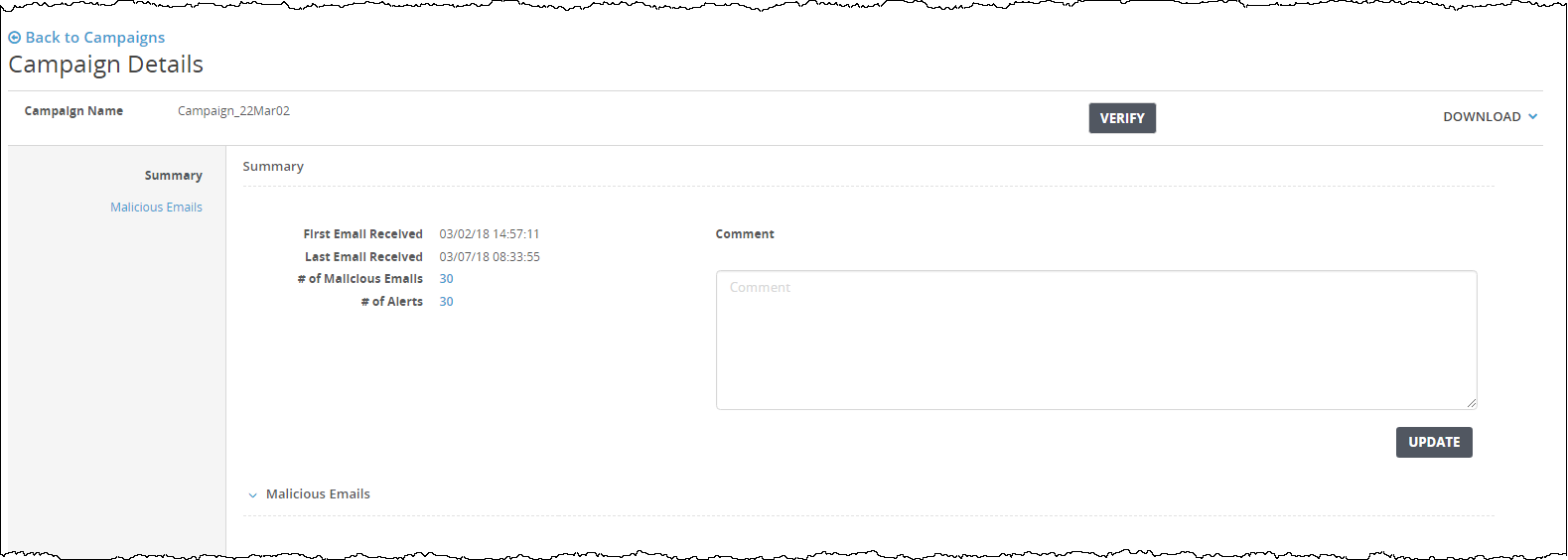
The Summary area displays the date and time that the first and last email was received in the campaign. The Summary area also displays the total number of malicious emails and alerts that were associated with the campaign.
You can click Malicious Emails to display the list of the infected emails that were associated with the campaign.
Note
In the Malicious Emails table, the Received field displays the date and time when the appliance finished processing the email, not the date and time when the last email was received.
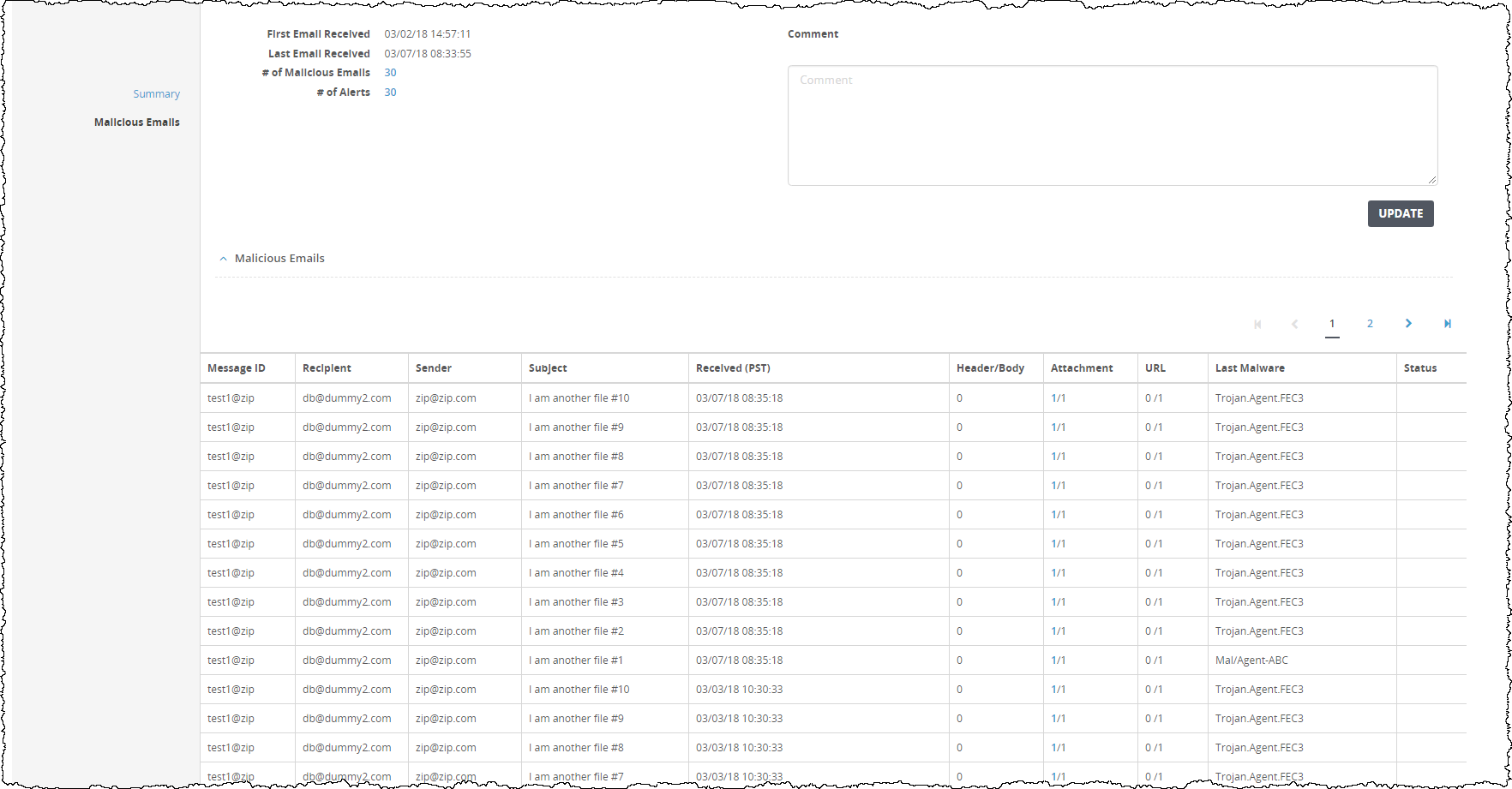
For the Malicious Emails field descriptions, see Viewing the malicious emails using the Web UI.
In the Web UI, click the eAlerts tab.
Click Campaigns.
The page lists the campaigns that have been detected.
In the list, click the name of the campaign that you want to view.
The Campaign Details page appears.
Click the total number of malicious emails link to display the Malicious Emails page. Alternatively, you can click Malicious Emails to display similar information.
Click the total number of alerts link to display the Alerts page.
(Optional) In the Comment field, enter a specific description to help you to identify this campaign. You can enter any number of characters.
Click Update.
If you know the campaign is malicious, click Verify.
If you want to remove verification from a campaign that has already been verified, click Cancel Verification.
(Optional) Select the output format from the Download menu to download the campaign details as an Email Campaign Detail report:
pdf—Write the report to a PDF file.
csv—Write the report to a CSV file.
xml—Write the report to an XML file.
json—Write the report to a JSON file.