The eAlerts > eAlerts > Malicious Emails page of the Email Security - Server appliance lists results grouped by malicious email.
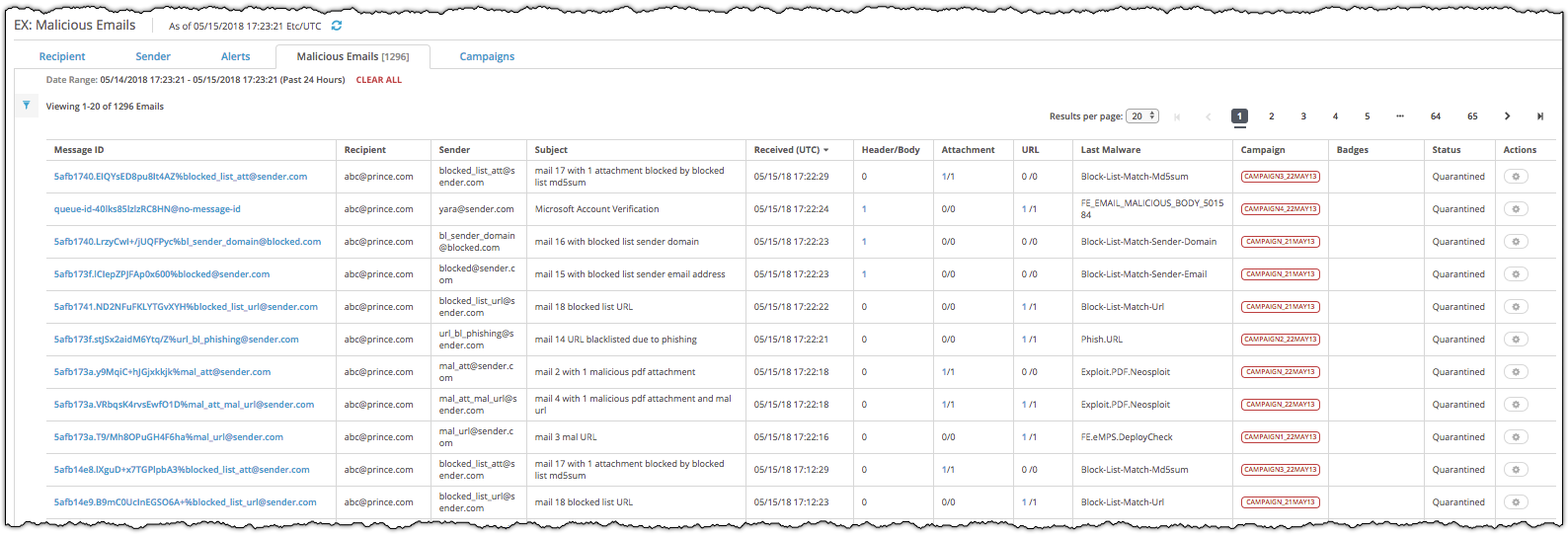
The following example displays the malicious email entries on the Malicious Emails page captured within the past 24 hours.
In the Web UI, click the eAlerts tab.
Click Malicious Emails.
The following table describes the malicious email columns.
Column
Description
Message ID
Unique identifier of the message. This field includes the domain of the sender.
Recipient
Email address of the recipient.
Sender
Email address of the sender.
Subject
Text of the subject line of the email.
Received
Date and time email was received.
Header/Body
Number of infected headers (such as sender, recipient, IP address, or domain) or bodies observed.
Attachment
Number of infected attachments observed.
URL
Number of infected URLs observed.
Last Malware
Type of malware involved in the infection.
Campaign
Name of the campaign. Click the button to display details of the campaign.
Badges
Type of threat info badge.
Status
Status is quarantined.
To show the email alert that is marked as malicious, click the message name in the Message ID column.
The Alerts page appears.
To view details about the campaign associated with the malicious email, click the button in the Campaign column.
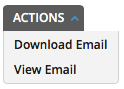
To view the malicious email details, select the checkbox for an alert. Click the Actions menu at the top middle of the page and select View Email.
By default, the malicious email is displayed in Parsed format. Red icons highlight the infections.
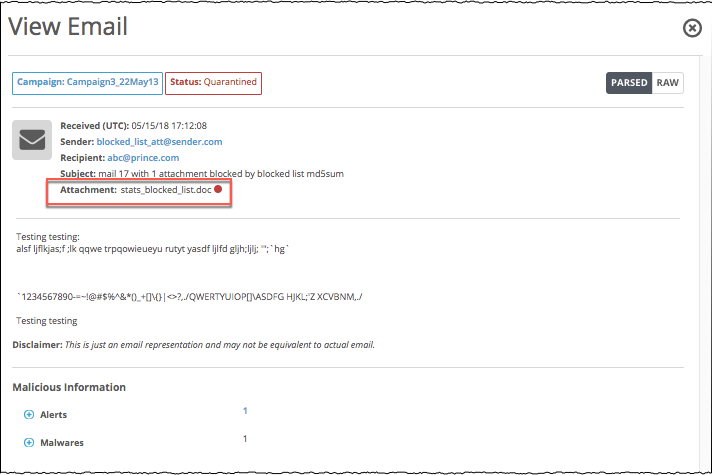
The viewer displays only a representation of the original email. Links are not active.
Malicious headers and blocked list items are not highlighted. To see them, go to the Malicious Information section of the email and click the Alerts number.
The following information describes the View Email screen.
Field
Description
Campaign
Name of the campaign. Click the link to display details of the campaign.
Status
Quarantined
Email Format
PARSED or RAW
Received
Date and time email was received.
Sender
Email address of the sender.
Recipient
Email address of the recipient.
Subject
Text of the subject line of the email.
Attachment
Attachment is highlighted if it is infected.
URL
URL is highlighted if it is infected.
Malicious Information
Total number of alerts and malware involved in the infection.
Hover over the red icon to view the details for each malicious item.
To view a summary of all the alerts or malware found in the email, click the plus symbol to expand Alerts or Malware in the Malicious Information section.
Expand entries under the expanded Alerts or Malware section to view more details, such as Malicious Attachment Alerts and Malicious URL Alerts.
To go to the Alerts tab and view the complete details, click the alert number.