In the eAlerts > Alerts page of the Email Security - Server appliance, you can drill down to identify the matched attachments in email message bodies that are detected as malicious, grouped by recipient, sender, or alert. The total number of malicious attachments are categorized and tracked on the Alerts page.
The following example displays the Summary page of the malware on the Alert Details page for an email that contains malicious attachments.
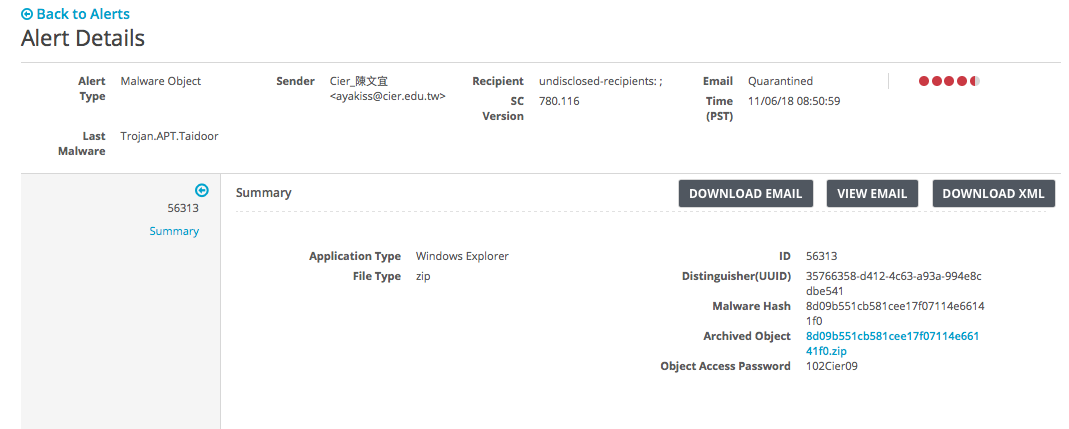
If a malicious archive attachment is detected and it is password-protected, the password is included in the Alert Details page in a field called Object Access Password. If there is no password, this field does not appear.
In the Web UI, select eAlerts > Malicious Emails.
In the Attachment column for a malicious email message, click the number link. This displays the alerts for that message in the Alerts tab.
To expand an entry for multiple alerts, click the plus sign symbol in the first column to show the individual alerts in the group.
To expand the row to show detailed results, click the ID number in the ID column.