The acquisition data types that can be requested in a data acquisition request are described here. These acquisition types request much of the same data that is collected by the EDRF Client. You can request these types of data by creating your data acquisition script using the Data Acquisition Scripts page. See Creating a script . For detailed information about each audit module, see the
Endpoint Security (HX) Audit Reference Guide
.
Selecting or deselecting options on these tabs may expand or reduce the number of options available for an acquisition type.
Acquisition data type | Endpoint Operating System support | ||
|---|---|---|---|
Windows | macOS | Linux | |
Yes | Yes | No | |
Yes | No | No | |
Yes | No | No | |
Yes | Yes | Yes | |
Yes | No | Yes | |
Yes | Yes | Yes | |
Yes | Yes | No | |
Yes | Yes | Yes | |
Yes | No | No | |
Yes | Yes | No | |
No | No | Yes | |
Yes | Yes | Yes | |
No | Yes | No | |
Yes | Yes | Yes | |
Browser data
Browser data can be requested in both Windows and macOS environments. Data is collected using the cookiehistory, filedownloadhistory, formhistory, urlhistory, and quarantine-events (macOS only) audit modules.
Select Browser in the Add an acquisition type menu to acquire data from the most popular Web browsers. The Browser tab appears. The options on this tab vary based on the operating system selected for the data acquisition script. The sample below is from a Windows script.
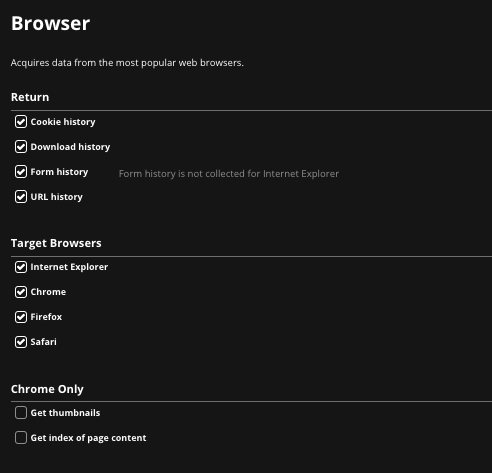
Use this tab to select the browsers for which you want data collected and the types of browser data you want to collect. Quarantine event data can be returned for macOS endpoints.
Driver data
Driver data can be requested in Windows environments only. Data is collected using the drivers-modulelist and drivers-signature audit modules.
Select Drivers in the Add an acquisition type menu to acquire a list of drivers on your host endpoint. The Drivers tab appears.
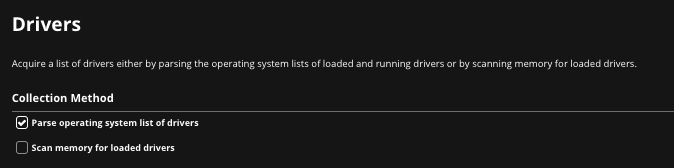
Use this tab to indicate how the list of drivers should be acquired. If you select Scan memory for loaded drivers, more options appear on the Drivers tab.
Event Log data
Event log data can be requested in Windows environments only. Data is collected using the eventlogs audit module.
Select Event Logs in the Add an acquisition type menu to acquire an extract, in XML format, of a host's Windows event logs. The Event Logs tab appears.
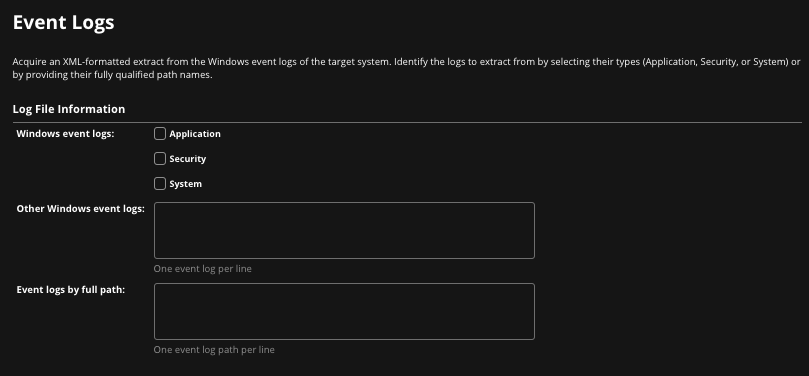
Use this tab to identify the standard event logs you want to extract. Optionally, provide the fully qualified path name of an event log you want to extract.
Understanding event logs
When working with Windows event logs, note the following information.
When the option Event logs by name is used, acquisition may fail with a warning in the issues.xml file.
When the option Event logs by full path is used, no other logs configured on the page will be collected. Event logs by full path processing will stop if an event log is not found, and an error may appear in the issues.xml file.
You can see a list of the event logs on your system with the built-in Windows
wevtutilutility. For example, the following command produces a list of all event logs:wevtutil el
If you want to see the specific path to a given event log, use the following parameters:
wevtutil gl <event_log_name>
Configuring the interval for event log data collection
To configure the time range for audits in the EventLog audit script:
The Event Logs audit mode allows you to configure time ranges for audits in the EventLog audit script in a Windows environment. This allows you to define the timeframe for event log data collection, from when the audit is initiated.
Note
This feature is only supported in a Windows environment.
Select Data Acquisition Scripts from the Admin menu.
In the Script Description tab of the Standard Investigative Details menu, select Actions.
Select Edit from the Actions menu and then select Event Logs from the dropdown Add an acquisition type menu.
Select the time interval from the Time interval options in the Event Logs menu.
Click Save.
File System data
File system data can be requested in Windows, macOS, and Linux environments. Data is collected using the files-api and files-raw (Windows only) audit modules.
Select File System in the Add an acquisition type menu to acquire a list of files and their metadata. The File System tab appears. The options on this tab vary based on the operating system selected for the data acquisition script.
Use this tab to:
Filter the type and location of the data collected. You can also specify a single Perl-compatible regular expression to identify the path where collection will begin. The expression entered will be word wrapped in the Regex path filter text box.
The Endpoint Security (HX) Web UI regular expression area operates in a different manner than editing the regex in a text editor:
When adding a backslash to the regex in the Web UI, only a single backslash needs to be specified. When Endpoint Security (HX) converts the regex to JSON, these single backslashes are converted to double-backslashes. Thus, the regex in the exported script will not match the version you see in the Web UI.
Specify
.*in a script to acquire all files.
Include files from remote locations (Linux and macOS only)
Verify digital signatures (Windows and macOS only)
Include all directory levels
Specify the depth and the minimum and maximum file sizes for collection
Enable raw mode (Windows only)
Select specific file hashes for collection
Identify the types of portable executable (PE) information you want collected(Windows only)
Indicate whether you want strings collected (Windows only)
In Windows, macOS, and Linux environments, specify a single Perl-compatible regular expression to identify other file content you would like collected. The expression entered will be word wrapped in the Regex text box.
The Endpoint Security (HX) Web UI regular expression area operates in a different manner than editing the regex in a text editor. When adding a backslash to the regex in the Web UI, only a single backslash needs to be specified. When the Endpoint Security (HX) converts the regex to JSON, these single backslashes are converted to double-backslashes. Thus, the regex in the exported script will not match the version you see in the Web UI.
You can also indicate that this data can be edited when you request a data acquisition using this script. Click the Allow edits before acquiring check box in appropriate sections of the tab to make that section editable when the script is run.
Caution
Requesting PE data or strings in your file system data acquisition (Windows endpoints only) can return more information than expected and cause performance and storage problems. Trellix recommends that you collect this information only for a single file.
A fatal error can be returned if raw mode (Windows endpoints only) is requested and the file path cannot be found. (XAGT-740)
Kernel Hook Detection data
Kernel hook detection data can be requested in Windows and Linux environments. Data is collected using the kernel-hookdetection audit module.
Note
This audit is no longer actively supported. However, it may continue to work with supported Windows operating system releases prior to Windows 10 1803.
Select Kernel Hook Detection in the Add an acquisition type menu to acquire information about potential rootkits on a host endpoint. The Kernel Hook Detection tab appears.
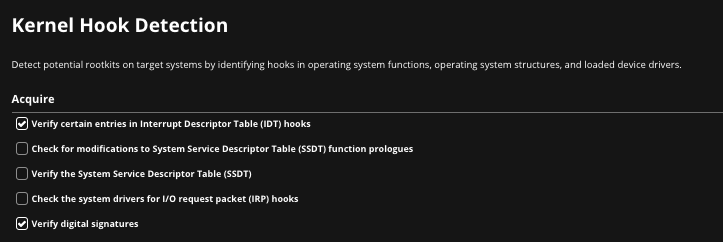
Use this tab to select the operating system functions and structures and the loaded device drivers that should be searched for kernel hooks.
Network data
Network data can be requested in Windows, macOS, and Linux environments. Data is collected using the network-arp (Windows and macOS only), network-dns (Windows and macOS only), network-route (Windows and macOS only), and ports audit modules.
Select Network in the Add an acquisition type menu to identify the network information you want to acquire. The Network tab appears. The options on this tab vary based on the operating system selected for the data acquisition script. The sample below is from a Windows script.
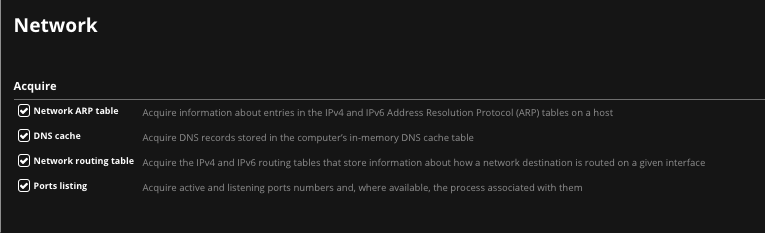
Use this tab to select the types of network information you want to collect in this data acquisition request. Only port information can be collected from Linux endpoints.
Persistence data
Persistence data can be requested in both Windows and macOS environments. Data is collected using the persistence audit module.
Select Persistence in the Add an acquisition type menu to acquire data about the files associated with each persistence key or startup item. The options on this tab vary based on the operating system selected for the data acquisition script. The sample below is from a Windows script.
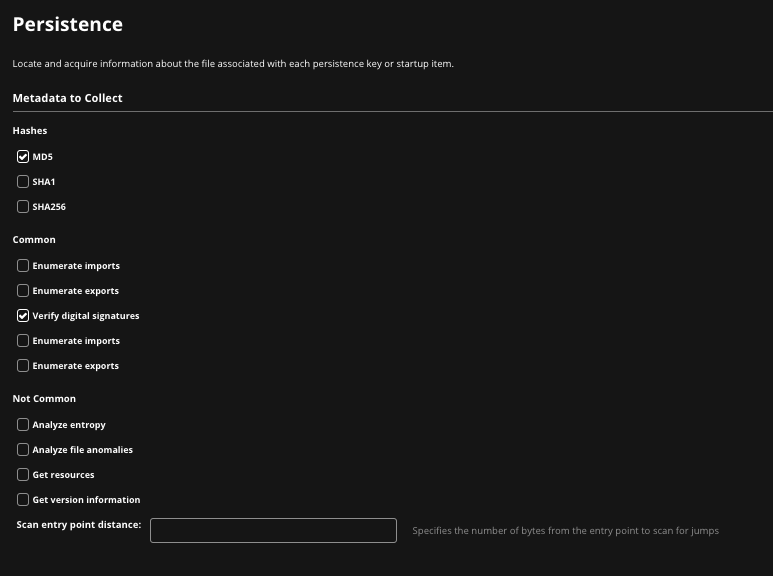
Use this tab to select the types of metadata from which persistence information should be collected for this data acquisition request. For macOS endpoints, you can request only MD5, SHA1, and hashes and digital signature verification metadata.
Process data
Process data can be requested in Windows, macOS, and Linux environments. Data is collected using the processes-api, processes-handle (Windows only), and processes-memory (Windows only) audit modules.
Select Processes in the Add an acquisition type menu to acquire process information from your host endpoint. The Processes tab appears. The options on this tab vary based on the operating system selected for the data acquisition script. None of the options are available for macOS or Linux data acquisitions scripts.
For Windows endpoints, use this tab to:
Filter how the process list is acquired
Limit the processes collected by PID (process ID) or process name
Identify the metadata to collect
Enable raw mode
Indicate whether you want strings collected
Specify a single Perl-compatible regular expression to identify other process content you would like collected. The expression entered will be word wrapped in the Regex text box.
The Endpoint Security (HX) Web UI regular expression area operates in a different manner than editing the regex in a text editor. When adding a backslash to the regex in the Web UI, only a single backslash needs to be specified. When the Endpoint Security (HX) converts the regex to JSON, these single backslashes are converted to double-backslashes. Thus, the regex in the exported script will not match the version you see in the Web UI.
You can also indicate that this data can be edited when you request a data acquisition using this script. Click the Allow edits before acquiring check box in appropriate sections of the tab to make that section editable when the script is run.
Caution
The details you can collect about processes include memory data and strings in memory for a process. You can review the data in the Audit Viewer. If you download the acquisition, the data can be reviewed in Redline.
Requesting strings in your process data acquisition could return more information than expected and cause performance and storage problems, especially if you request strings for all processes. Trellix recommends that you collect this information only for a single process.
Registry data
Registry data can be requested in Windows environments only. Data is collected using the registry-api and registry-raw audit modules.
Select Registry in the Add an acquisition type menu to acquire a list of registry keys and values from a host endpoint. The Registry tab appears.
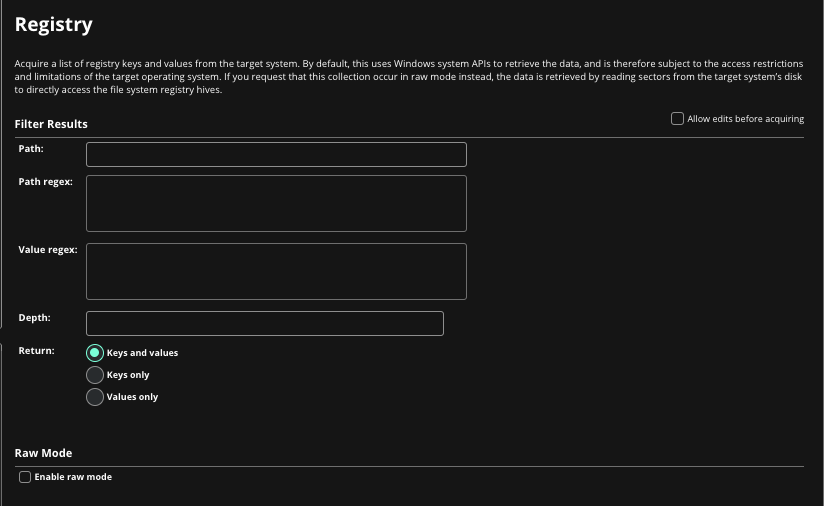
Use this tab to filter the results, identify what is returned, and enable raw mode.
Note
Regular expressions in registry scripts must be followed by a hard return to be saved. (HXEP-6084)
In addition, the Path regex and Value regex specifications must be Perl-compatible.
You can also indicate that this data can be edited when you request a data acquisition using this script. Click the Allow edits before acquiring check box in appropriate sections of the tab to make that section editable when the script is run.
Service data
Service data can be requested in both Windows and macOS environments. Data is collected using the services audit module.
Select Services in the Add an acquisition type menu to acquire a list of installed services on a host endpoint. The Services tab appears. The options on this tab vary based on the operating system selected for the data acquisition script. The sample below is from a Windows script.
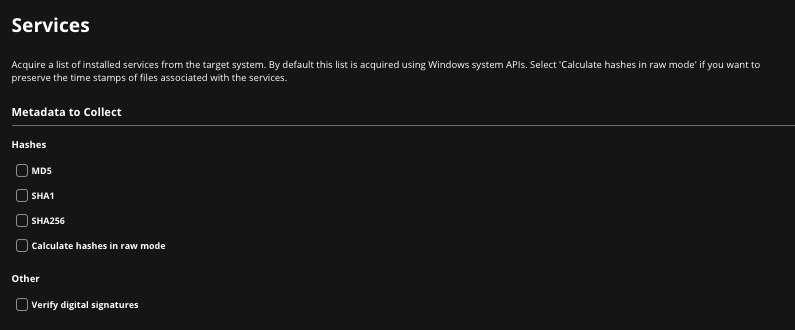
Use this tab to select the metadata you want to collect and to indicate whether hashes should be collected in raw mode and whether digital signatures should be verified. In macOS data acquisition scripts, you cannot calculate hashes in raw mode.
Shell History data
Shell history data can be requested in Linux environments only. Data is collected using the shell-history audit module. Command histories from the bash, zsh, and ksh93 Linux shells are collected.
Select Shell History in the Add an acquisition type menu to acquire system logs from a host endpoint. The Shell History tab appears.
Use this tab to filter the results.
Note
Regular expressions in registry scripts must be followed by a hard return to be saved. (HXEP-6084)
In addition, the Command regex specification must be Perl-compatible.
You can also indicate that this data can be edited when you request a data acquisition using this script. Click the Allow edits before acquiring check box in appropriate sections of the tab to make that section editable when the script is run.
System Information
System information is requested in every data acquisition script in Windows, macOS, and Linux environments. Data is collected using the sysinfo, useraccounts (Windows and macOS only), groups (macOS only), disks (Windows and macOS only), volumes (Windows and macOS only), hivelist (Windows only), prefetch (Windows only), and systemrestore (Windows only) audit modules.
You can select the types of system information that is acquired. Click the System Information tab.
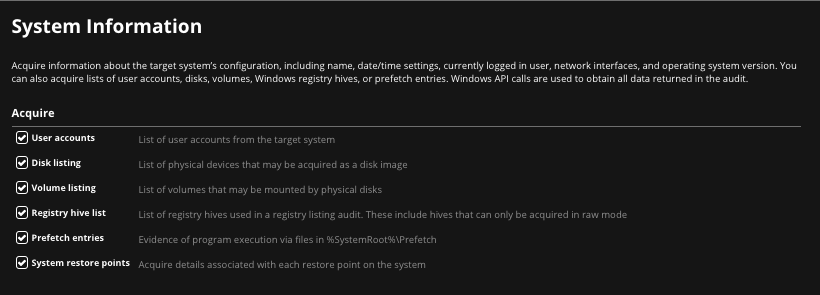
Use this tab to select the types of system information that is acquired. Depending on what you select, different audits (or parts of audits) are run. If no audit is listed in the table below (---), that data is not collected for the corresponding operating system. For complete information about the audit modules, see the
Endpoint Security (HX) Audit Reference Guide
.
Requested data | Windows audit | macOS audit | Linux audit |
|---|---|---|---|
User accounts | sysinfo useraccounts | sysinfo useraccounts | sysinfo |
Groups | --- | groups | --- |
Disk listing | disks | disks | --- |
Volume listing | volumes | volumes | --- |
Registry hive list | hivelist | --- | --- |
Prefetch entries | prefetch | --- | --- |
System restore points | systemrestore | --- | --- |
System log data
System log data can be requested in macOS environments only. Data is collected using the syslog audit module.
Select System Logs in the Add an acquisition type menu to acquire system logs from a host endpoint. The System Logs tab appears.
Task data
Task data can be requested in Windows, macOS, and Linux environments. Data is collected using the tasks audit module.
Select Tasks in the Add an acquisition type menu to acquire a list of tasks that were scheduled on the host endpoint. The Tasks tab appears. The options on this tab vary based on the operating system selected for the data acquisition script. The sample below is from a Windows script.
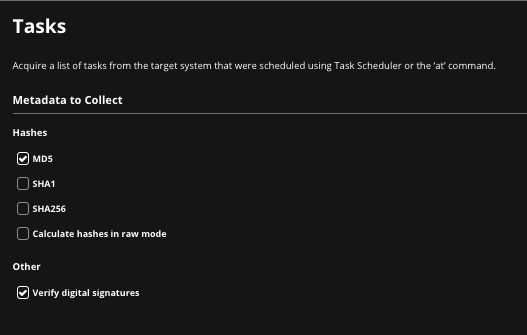
Use this tab to select the metadata you want to collect and to indicate whether hashes should be collected in raw mode and whether digital signatures should be verified. In macOS data acquisition scripts, you cannot calculate hashes in raw mode.