Applying Windows updates at the earliest is a good practice to keep your operating system secure.
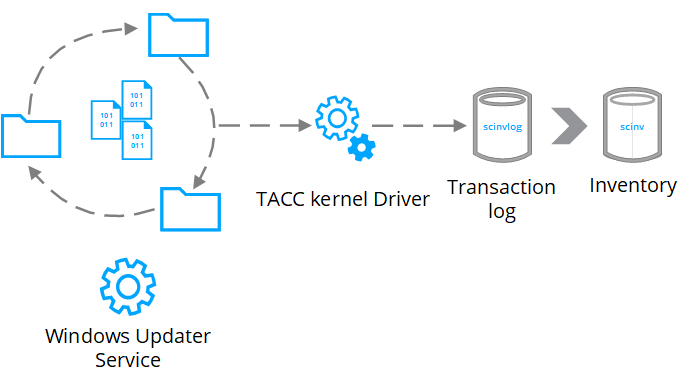
Dynamic allow listing and Windows update installation process is represented as below:
New binary files are added to the system.
Note
Temporary binaries are not solidified but tracked for security.
Processes identified as updaters are allowed to modify protected files.
Transaction log (scinvlog) is updated every time a file is modified. Some folders are ignored for solidification because Windows is not meant to execute any binary from that location.
Transaction log is merged periodically into the inventory (scinv), which is only accessed from user-space.
Here are some considerations and expected behaviors to be reviewed before applying Windows updates in your enterprise environment with Windows Update Services or third-party patching applications.
Using the latest version of Trellix Application and Change Control
Make sure you are running the latest version of the software and extensions (client 8.2.1.435 or later and extension 8.2.6.103 or later).
Hard link issues are fixed with clients and client configurations are updated for updates with latest versions.
If you are upgrading the software from an earlier version to 8.2.1.435 or later, you must first resolidify your system to fix the hard links in your inventory.
Note
Resolidification is only needed on upgrade to version 8.2.1.435 or later from an earlier version. Resolidification is not needed if you are upgrading the software from version 8.2.1.435 to a later version.
Applying Windows updates in different modes
If you are running the latest version of Trellix Application and Change Control, you can apply Windows updates in enable mode, disable mode, observe mode, update mode, or inventory mode.
Note
The inventory mode is available on version 8.3.0 or later only.
Minor security updates, get automatically installed in any mode and do not require any additional steps.
Feature upgrades need clients to be resolidified after applying major upgrades.
Note
Resolidification must be performed in update mode.
How to resolidify your system after upgrades and major releases
Create a Client Task using these commands:
Note
You need not include sadmin to run these commands.
bu
config set SoPriority=2
config set MaplCommLostRestart=0
so
config set MaplCommLostRestart=5
config set SoPriority=1
eu
Important
Resolidify the system after performing Windows updates.
Trellix Application and Change Control 8.x and Trellix Agent 5.0.3 are the minimum versions supported to run in a Windows 10 Version 1703 (Creators Update) environment. After upgrading your system with the minimum supported version of TACC and Trellix Agent, follow these steps:
Switch Trellix Application and Change Control to the Update mode.
Upgrade to Windows 10.
Run the solidification task.
End the Update mode.
Steps to be followed when upgrading to Windows 10
For information about upgrading to Windows 10 with Trellix Application and Change Control deployed, see KB86551.
Long-term Windows update integration with SCCM
In an enterprise environment with SCCM present, task sequences can be built to automate the update process including major releases. For more information, see KB93343 and KB87830.