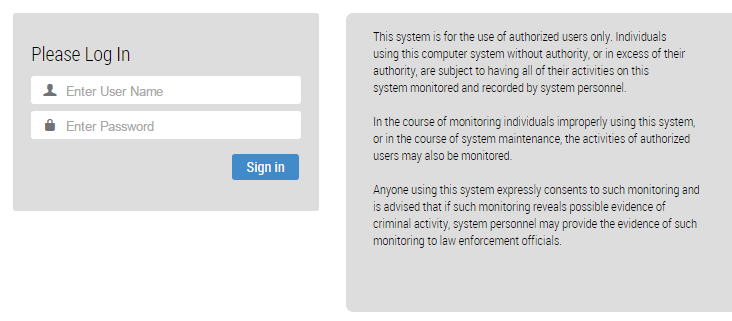
The Endpoint Security (HX) Web UI uses HTTPS to provide a secure connection for configuring the server. The Web UI functions you have access to depend on the privileges granted by your role.
You access the Web UI by directing a browser to the management port's IP address or hostname using HTTPS. The IP address and hostname are set during the initial configuration of the server. The hostname must be resolved by a DNS server if you use it to access the Web UI.
Logging in to the Web UI
To log in to the Endpoint Security (HX) Web UI, you need the server IP address or hostname, and you need the username and password that the server administrator created for you.
You must use port 3000 to access the HX Web UI.
Before the default Admin user can log in to the Endpoint Security (HX) Web UI and create other user accounts, the manufacturing default password (
admin) must be changed to a new password that is 8 to 32 characters long. This step is included in "Initial Configuration" in the Endpoint Security (HX) System Administration Guide.If you are using single sign-on, refer to your welcome email for instructions to log in to your Cloud IAM instance.
Important
There are two versions of IAM. If the URL you use to access the IAM UI ends with
fireeye.com, this document pertains to you. If the URL you use to access the IAM UI ends withtrellix.com, see the Trellix IAM Guide for information regarding IAM.
Open a Web browser and enter
https://<server>in the address line, whereserveris the IP address or hostname of the server. For example, if the configured IP address of the server is 10.1.0.1, enterhttps://10.1.0.1.In the Web UI login page, enter the user name and password for this server as provided by your administrator.