Large enterprise customers have a single managing Central Management System and managed appliances deployed in multiple data centers around the world. Appliances that are geographically far from the managing Central Management System might suffer high network latencies in downloading software updates (such as guest images, security content, and appliance images) because of bandwidth limits between the Central Management System and the appliances. In addition, the same content might have to be downloaded separately for each managed appliance.
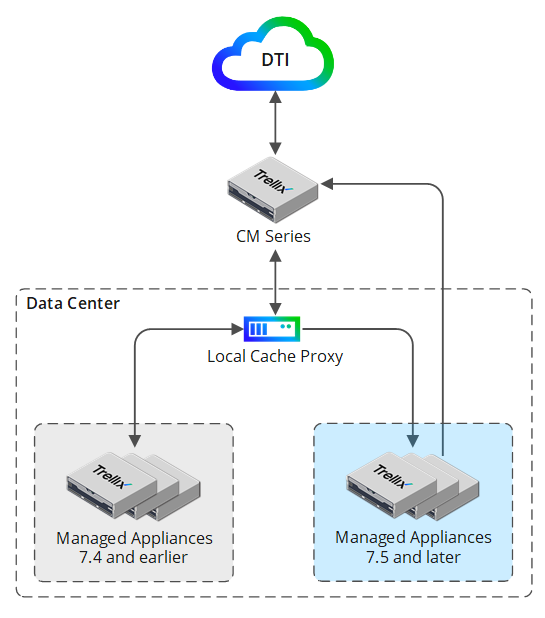
To implement a cache proxy deployment, you must have a an additional Central Management System that will serve as the cache proxy for Dynamic Threat Intelligence (DTI) updates. One cache proxy can serve one data center. You can have multiple data centers. The cache proxy resides between the managing Central Management System and the appliances in each data center. When the first DTI update request arrives at the cache proxy, it will first attempt to find the cached content. When the content is streamed back to the appliance, the content will be stored in the local cache for the next appliance that requests the same content. Subsequent download requests of the same URL are served from the cache proxy.
The following diagram shows how the cache proxy is deployed for one data center.
Note
You can configure the Central Management System as a cache proxy only using the CLI.
Usage guidelines for a cache proxy
Follow these usage guidelines when you are configuring the Central Management System as a cache proxy for DTI updates:
When an additional Central Management System is configured as a cache proxy, it functions as a standalone appliance and cannot be managed by the Central Management System.
Appliances cannot be managed by the Central Management System when it is configured as a cache proxy.
The Web UI is disabled in proxy mode.
The default cache size is 130 GB.
Task list for configuring the Central Management System as a cache proxy
Trellix enforces a strict identity certificate check between the appliances in a cache proxy setup.
Complete the steps for configuring the Central Management System as a cache proxy for DTI updates in the following order:
Log in to the CLI.
Enforce the requirements to pass the default certificate check. See Create, import, and install all certificates.
Enable proxy mode on the Central Management System that is used as the cache proxy. For details about how to enable proxy mode, see Enabling proxy mode on the CMS using the CLI.
Configure the Central Management System as a cache proxy that resides between the managing Central Management System and the appliances. For details about how to configure the Central Management System as a cache proxy, see Configuring the CMS as a cache proxy using the CLI.
Configure the managed appliances currently being managed by the Central Management System to use a cache proxy. For details about how to configure the managed appliances to use a cache proxy, see Configuring the managed appliances to use a cache proxy using the CLI.
Prerequisites
Administrator access