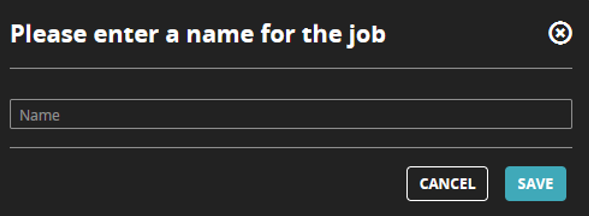
In the control area, click Create to create a new job. The New Job screen is displayed. This screen consists of three panes:
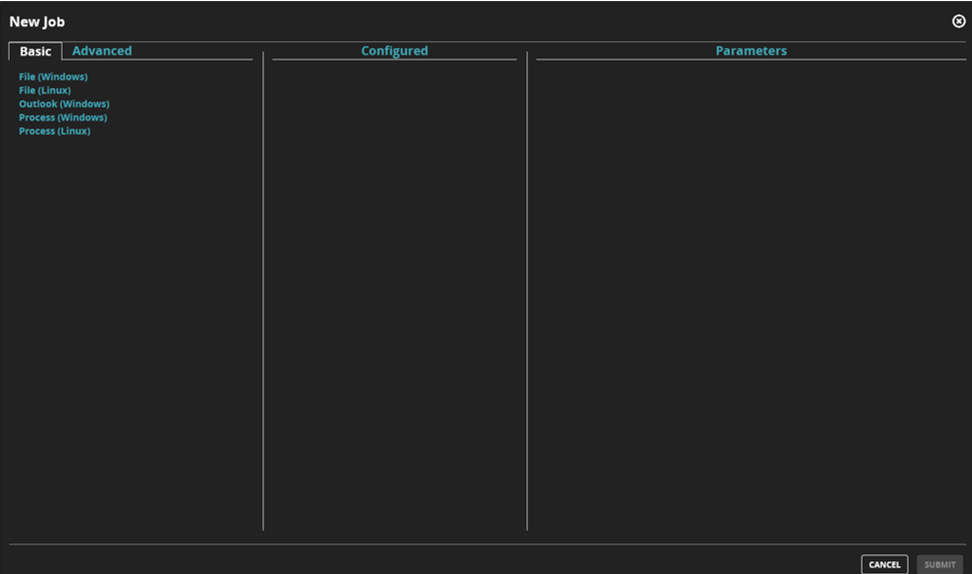
Basic/Advanced
The Basic/Advanced pane displays the current list of available forensic commands divided into basic and advanced commands.
The Basic pane contains a list of easy-to-use commands with a reduced set of parameters. The commands in this list cover common collection scenarios, such as Yara hunting or compressed archive enumeration.
The Advanced pane contains a list of all available Extended Forensics commands and parameters for each command. It is significantly more complex than the basic commands and returns metadata for forensic artifacts that have various nuances.
Configured
The Configured pane displays the commands that have been selected for the job you are configuring.
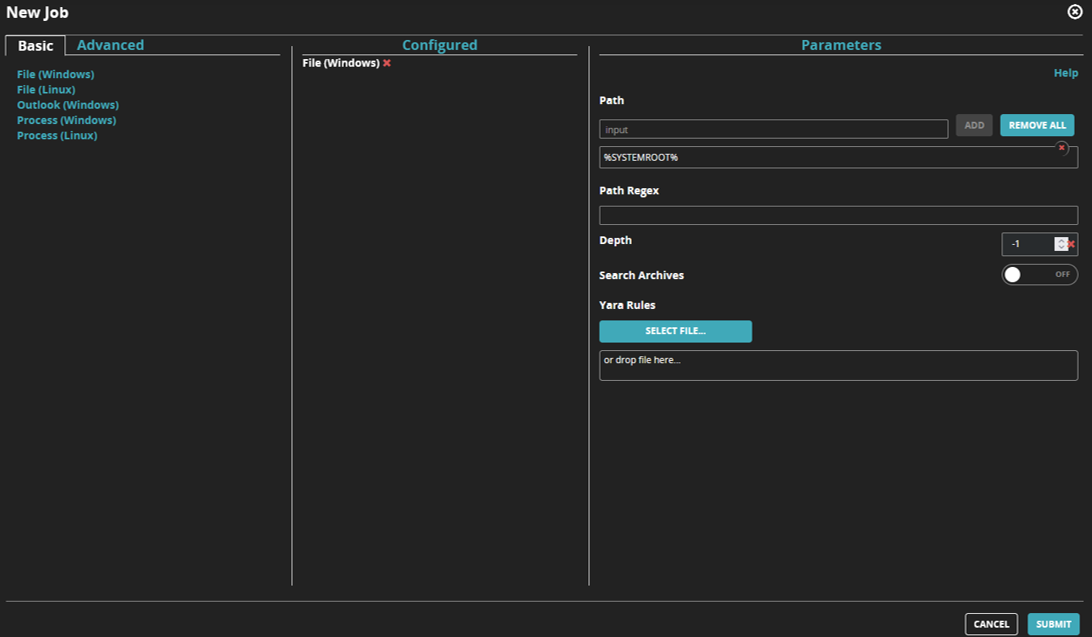
Parameters
The Parameters pane displays the parameters for the currently selected command for the job.
Hover your mouse pointer on any of the parameter to display a short description of the parameter and how it is used. You can click the Help link to know the detailed description of the job and each parameter in detail.
Saving
After configuring the job, click Submit to save the job. While saving a job, do not use names that already exists.