This topic describes how to deploy the EDRF Client using ePO - SaaS.
After logging in to ePO - SaaS, choose one of the following deployment methods.
Advanced Deployment
Watch this video to understand the steps involved in deploying EDRF using the Advanced Deployment method.
Go to Menu → Software → Advanced Deployment, then click New Deployment.
Name the task and select Current Branch.
Under Select your software, choose the EDRF Client version and the Install action.
Select target systems from the System Tree and click OK.
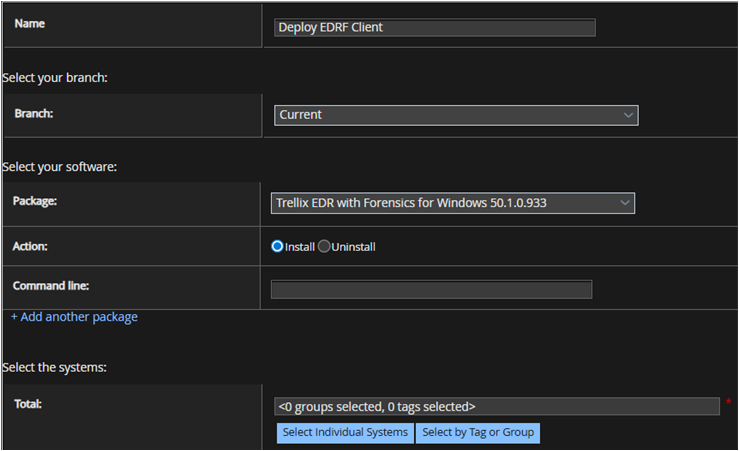
(Optional) Under Auto Update, enable Automatically deploy latest version of the products.
(Optional) To allow postponement on Windows, select Allow end users to postpone this deployment and set parameters.
Set Schedule Type to Run Immediately or another option from the drop-down menu.
Click Save.
Product Deployment (Smart Installer)
This method generates a smart installer file or URL. The Trellix Agent is included by default.
Watch this video to understand the steps involved in deploying EDRF using the Product Deployment method.
Go to Menu → Software → Product Deployment.
Enter a Group Name and select a Platform.
Under Endpoint Protection Software, select Trellix EDR and Trellix EDR with Forensics checkbox.
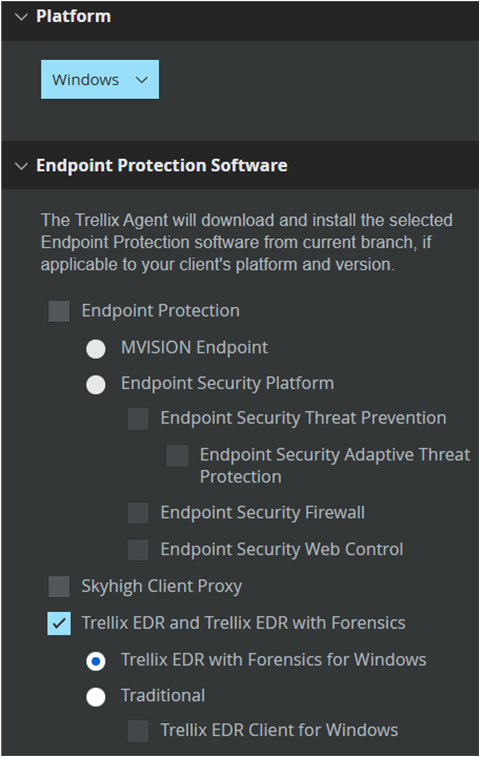
Under Trellix EDR and Trellix EDR with Forensics, make sure Trellix EDR with Forensics for <Platform> is selected.
Click Save.
Click Download Installer or Copy URL to Clipboard.
Use the downloaded file or the URL to run the installer on target endpoints. The installation window closes automatically when complete.
System Tree
This method uses the System Tree to generate a smart installer. The Trellix Agent is included by default.
Watch this video to understand the steps involved in deploying EDRF from System Tree.
Go to Menu → Systems → System Tree.
Select the Deploy tab.
Select a target system or subgroup.
Select the Trellix EDR and Trellix EDR with Forensics checkbox for the target OS.
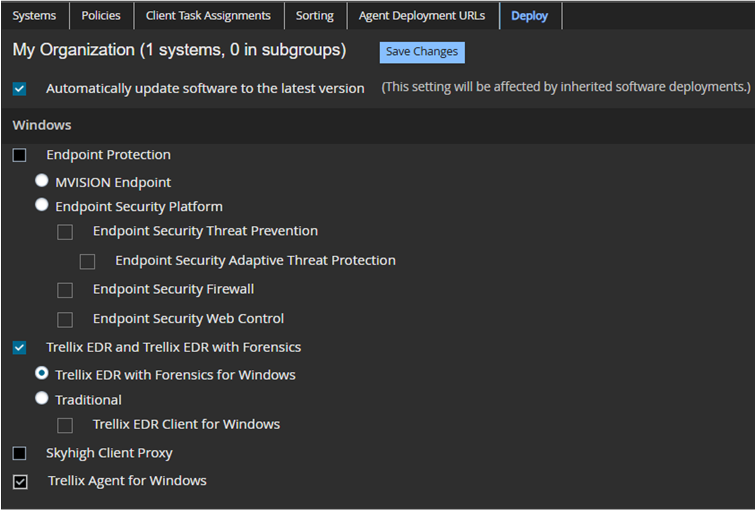
Click Download Installer or Copy URL to Clipboard.
Use the downloaded file or the URL to run the installer on target endpoints.
Verify the deployment
After deployment, confirm that the process is running.
To confirm the client is running:

Windows: Open Task Manager and verify the
XClientprocess is running.macOS: Check for the
XClientprocess in Activity Monitor.Linux: Check for the
XClientprocess using a status monitor.