The Device Guard module, when enabled, installs on specific host sets and can be configured to block USB devices currently belonging to two classes:
Mass Storage
Media Transfer Protocol (MTP)
The policy currently allows a Trellix Endpoint admin to completely block a particular class of USB devices from the ones listed above. Additionally, an admin can then proceed to configure exemptions to the class-based policy and allow corporate issued USB devices to connect to Endpoints based on device characteristics such as Product Name, Vendor Name and Serial Number.
To enable the Device Guard module from Endpoint Security Web UI:
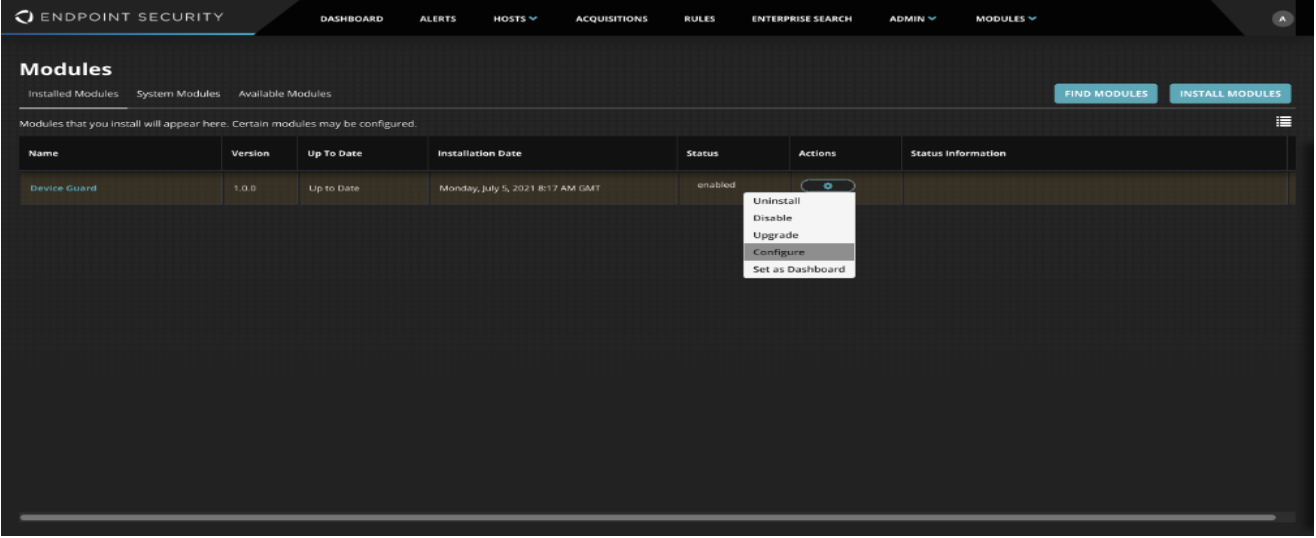 |
Log in to the Endpoint Security Web UI as an administrator.
From the Admin menu, select Policies to access the policies page.
Click the Create Custom Policy button. This will bring up the Create Policy page.
On the Create Policy page, click the Categories button and select the Device Guard from the checkbox and click Apply.
Once enabled, Trellix Endpoint admins can proceed to create a host set based policy selecting Device Guard 1.2.1 under categories.
After filling the policy name and description, admins can then proceed to configure the class level access control for these devices. The class level access restrictions are applied to the entire host set where the policy is being enabled.
The default setting for class level controls is to Allow both Mass Storage and MTP (Media Transfer Protocol) type of devices.