EDRF provides advanced forensics capabilities in the EDR workspace. These include collecting endpoint acquisitions and configuring IOC detection rules. Use the Collections dashboard to collect forensic data and the IOC Detection Rules dashboard to define detection criteria.
Prerequistes
To access the Forensics workflows in the EDR workspace, ensure that you are using the HX UI on the Trellix IAM. If you are using the HX UI on the FireEye IAM, you must migrate to Trellix IAM.
To identify the current IAM that you are using:
Access the HX login page.
Click Sign in using Single Sign On.
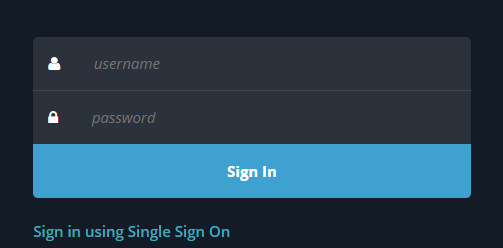
You are redirected to an IAM authentication page.
Verify the URL in the address bar.
If the URL is
https://auth.ui.trellix.com, you are using Trellix IAM.Proceed to enable Forensics workflows.
If the URL is
https://console-iam-int.fireeye.com, you are using FireEye IAM.You must migrate to Trellix IAM to access the Forensics workflow.
Note
To migrate to Trellix IAM, contact your Account Manager or Trellix Support.
How to enable Forensics workflows
Log in to the EDR workspace.
Go to Menu → Configuration → Forensics Settings.
Turn on the Enable Forensics Workflows setting.
Navigate to the EDRF Support page to view the configuration details, such as registered ePO servers, configured Endpoint Security (HX) servers, and Connectors details.
Important
EDRF enforces license limits based on endpoint usage. To access Forensics settings, you must subscribe to the EDRF SKU and register your license.
If your EDRF usage exceeds the limits of your Trellix Core license, contact your account manager to upgrade to an Enterprise license. You can view current endpoint usage on the EDRF Support page.