Endpoint Security Event Streamer Module User Guide Release 1.2.1
Last Updated: September 17, 2023

Contents
Module Overview .......................................................................................................... 4
Supported Platforms .................................................................................................... 4
Installing the Event Streamer Module .................................................................................... 5
Installing the Event Streamer Server Module .................................................................................... 5
Installing the Event Streamer Agent Module .................................................................................... 5
Verifying the Installation .................................................................................... 6
Uninstalling the Event Streamer Module .............................................................................. 7
Uninstalling the Event Streamer Agent Module .................................................................................... 7
Uninstalling the Event Streamer Server Module .................................................................................... 7
Configuring the Event Streamer Module .............................................................................. 8
Enabling the Event Streamer Module .................................................................................... 8
Enabling the Event Streamer Server Module .................................................................................... 8
Enabling the Event Streamer Agent Module .................................................................................... 8
Disabling the Event Streamer Module .................................................................................... 9
Disabling Event Streamer Server Module .................................................................................... 9
Disabling the Event Streamer Agent Module .................................................................................... 9
Configuring the Helix ID and Helix Token Service URL .................................................................................... 9
Configuring Event Streamer Agent Policy .................................................................................. 10
Destinations .................................................................................. 10
Event Log Streaming .................................................................................. 12
Configuring Event Streamer Policy Using the HX API .................................................................................. 12
General Settings .................................................................................. 13
Event Log Settings .................................................................................. 14
Updating Filters (Event Exclusions) .................................................................................. 16
Appendix A - Frequently Asked Questions........................................ 17
1 | Module Overview
Module Overview
Event Streamer is an Endpoint Security Innovation Architecture (IA) module that forwards Windows event log data and the contents of various Windows server log files to Helix and third-party servers supporting the Syslog protocol.
This module supports configurable streaming of all Windows event logs data and various Windows server feature logs to Helix or to a custom server using the Syslog protocol defined by RFC 5424. The data is recorded locally by the agent module and then streamed to the destination servers based on its configuration. It communicates with an Endpoint Security server for module settings.
Supported Platforms
This release of Event Streamer 1.2.1 is supported on Endpoint Security 5.0 with Endpoint Security Agent software version 31 or later running on Windows 7 and above. Trellixrecommends running the module with the latest Windows updates applied.
2 | Module Overview
Installing the Event Streamer Module
Event Streamer is an optional module available for Endpoint Security 5.0.0 with Endpoint Security Agent 31 or later. The module installer package (.cms file) is downloaded from the FireEye Market and then installed on your Endpoint Security Web UI. Initially, the module is disabled by default.
After the module is installed successfully, it is displayed on the Modules menu.
For more information on how to enable the server module, see Enabling the Server Module.
Installing the Event Streamer Server Module
Select one of the following options to install the module:
To install the Event Streamer Module using the Endpoint Security Web UI:
- Log in to the Endpoint Security Web UI as an administrator.
- From the Modules menu, select Endpoint Module Administration.
- Click the Available Modules tab and locate Event Streamer in the Module list.
- In the Actions column, click the gear icon, and click Install.
- Click Install on the dialog box.
To download the module installer CMS package, go to the FireEye Market, then upload the module CMS file to your Web UI. The module is disabled by default. When the module is installed successfully, it appears on the Modules menu tab.
For more information about installing the server module, see the "Installing or Uninstalling Modules" section in the Endpoint Security Server User Guide.
Installing the Event Streamer Agent Module
Note
Installing and enabling the module on the server does not automatically enable it for agent usage. You must install and configure the agent module.

- Log in to the Endpoint Security Web UI as an administrator.
- From the Admin menu, select Policies to access the Policies page.
Endpoint Security Event Streamer Module User Guide Release 1.2.15
2 | Module Overview
-
On the Policies page, in the Actions column, click the gear icon for the appropriate policy assigned to the host that you want to deploy Event Streamer to, and select Edit Policy.
-
On the Edit Policy page, click Categories, and select Event Streamer. Click Apply.
-
Click Save.
Verifying the Installation
To verify that the Event Streamer module is installed and running:
-
Log in to the Endpoint Security Web UI as an administrator.
Go to Modules > Endpoint Module Administration > Installed Modules and check if the Event Streamer module is displayed in the list.
-
Verify the status of the module using the Endpoint Server through API.
3 | Module Overview
Uninstalling the Event Streamer Module
Uninstalling the Event Streamer Module removes Event Streamer policy settings from all policies, removes the server module from the management server, and removes the agent modules from endpoints on host systems. You do not need to disable Event Streamer before you uninstall it. You can also remove the agent module from a host set without removing the module from the server.
Uninstalling the Event Streamer Agent Module
-
Log in to the Endpoint Security Web UI as an administrator.
-
From the Admin menu, select Policies to access the Policies page.
-
On the Policies page, in the Action column, click the gear icon for the policy that you want to remove the Event Streamer from, and select Edit Policy.
-
On the Edit Policy page, click Categories.
-
Clear the Event Streamer checkbox and click Apply.
-
Click Save.
Uninstalling the Event Streamer Server Module
To uninstall the Event Streamer Module using the Endpoint Security Web UI, complete the following steps:
-
Log in to the Endpoint Security Web UI as an administrator.
-
From the Modules menu, select Endpoint Module Administration.
-
Click the Installed Modules tab and locate Event Streamer in the Module list.
-
On the Modules page, locate the Event Streamer module and click the Actions icon.
-
Select Uninstall and click Uninstall in the confirmation window.
A message at the top of the page tells you that module uninstallation succeeded.
4 | Module Overview
Configuring the Event Streamer Module
The Event Streamer Module consists of a server module and an agent module. The agent module is installed and enabled on agents using the Event Streamer policy. If you disable the server module, this will automatically disable the agent module for all policies.
Enabling the Event Streamer Module
Before enabling the module, ensure that you understand the concepts of assigning a policy.
Enabling the Event Streamer Server Module
To enable Event Streamer on a host set, complete the following steps:
- Log in to the Endpoint Security Web UI.
- From the Modules menu, select Endpoint Module Administration.
- On the Modules page, click Installed Modules.
- Locate the Event Streamer module in the list.
- In the Actions column, click the gear icon, and select Enable.
Note
The "Status" column also displays the status updates as Enabled or Disabled.
Enabling the Event Streamer Agent Module
To enable Event Streamer on a host set, complete the following steps:
- Log in to the Endpoint Security Web UI as an administrator.
- From the Admin tab, select Policies.
- On the Policies page, click the appropriate policy.
- Select Event Streamer in the Configurations list.
- In the Event Streamer details panel, move the Event Streamer toggle to On, and click Save.
8 Endpoint Security Event Streamer Module User Guide Release 1.2.1
4 | Module Overview
The Event Streamer Module will be enabled the next time the configuration is updated on the agent.
Disabling the Event Streamer Module
Disabling the Event Streamer Server Module will disable the agent module in any policies it was added. The agent module will be disabled on endpoints, though it remains installed.
Disabling Event Streamer Server Module
Log in to the Endpoint Security Web UI as an administrator.
From the Modules tab, select Endpoint Module Administration.
On the Modules page, click Installed Modules.
Locate the Event Streamer module in the list.
In the Actions column, click the gear icon, and select Disable.
Disabling the Event Streamer Agent Module
Log in to the Endpoint Security Web UI as an administrator.
From the Admin menu, select Policies.
On the Policies page, locate the appropriate policy for the agent on which you want to disable Event Streamer.
In the Actions column, click the gear icon and click Edit Policy.
In the Edit Policy page, in the Configurations panel, click Event Streamer.
In the details panel, move the Enable Event Streamer on the host toggle to Off.
On the Edit Policy page, click Save.
Configuring the Helix ID and Helix Token Service URL
You have to configure a token server and an Helix ID on the Endpoint Security Server to enable the Event Streamer module to communicate with Helix. The token server must be configured separately on the DMZ, if applicable.
Manually configuring the token service URL is necessary only if you are running Endpoint Security 5.0.0 or 5.0.1. It is configured by default in 5.0.2 and above.
Endpoint Security Event Streamer Module User Guide Release 1.2.19
4 | Module Overview
To configure the token server through the command line interface:
-
Establish a SSH connection to the Endpoint Security server and log in using administrator credentials.
-
Type the command: en
-
Type the command: config terminal
-
For customers running Endpoint Security version 5.0.0 or 5.0.1 (not required for 5.0.2 and above), must send an email to request.token@fireeye.com to request the token service URL before running the following command. Note that this token service is not the same as the fenet token service required by a Virtual HX.
-
For customers running Endpoint Security version 5.0.0 or 5.0.1 (not required for 5.0.2 and above), type the command: hx server fe-token-service url <Token Service URL>, Where <Token Service URL> is the URL of the Helix token server.
To configure the Helix ID through the command line interface:
-
Establish an SSH connection to the HX server.
-
Login using administrator credentials.
-
Type the command: en
-
Type the command: config terminal
-
Type the command: helix mode cloud
-
Type the command: helix console url <Helix URL>
-
Type the command: aaa authentication oidc web policy allowed, where <Helix URL> is the URL of the Helix instance (https://apps.fireeye.com/helix/id/<HELIX_ID>).
Configuring Event Streamer Agent Policy
This section describes the various configuration settings provided in the Event Streamer policy.
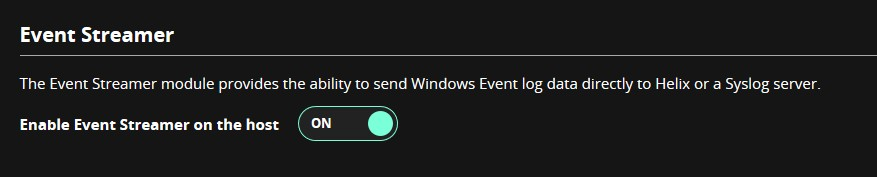
To enable Event Streamer for the current policy, move the Enable Event Streamer on the host toggle to ON and then click Save.
4 | Module Overview
Destinations
To enable event streaming for your Helix instance, move the Stream to FireEye Helix toggle to ON.
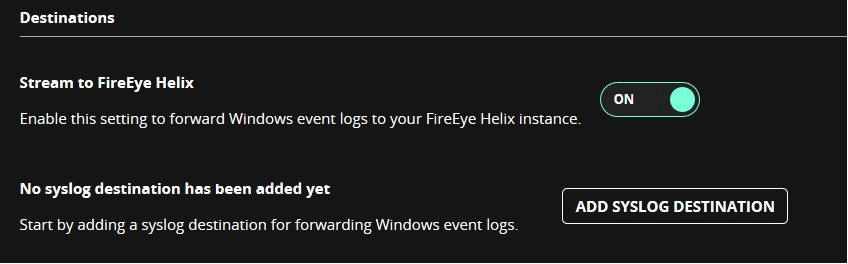
To configure a Syslog server for Event Streamer communication, add server settings under the Destinations tab.
Note
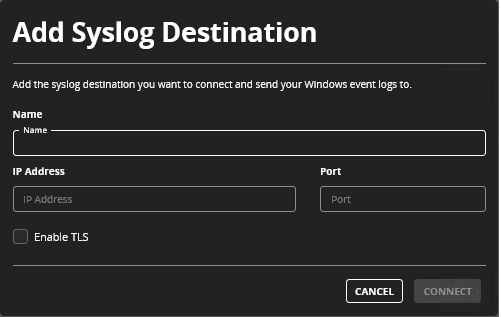
When you are enabling the TLS setting, make sure that the configured port accepts TLS connections. Event Streamer supports only TLS 1.1 and 1.2.
- Click the Add Syslog Destination button.
- Enter the following:
4 | Module Overview
- Name: The name of the server.
- IP Address : The IPv4 address of the intended server.
- Port : The port number used by Event Streamer to connect to the server.
- Enabled TLS : When enabled Event Streamer will establish a secure connection using TLS when connecting to the server.
Event Log Streaming
Event Log Streaming settings allows an administrator to configure Windows event logs that are monitored. When any of these settings are ON, Event Streamer is configured to record events from the selected event log for streaming. These settings apply to both Helix and Syslog event streaming.
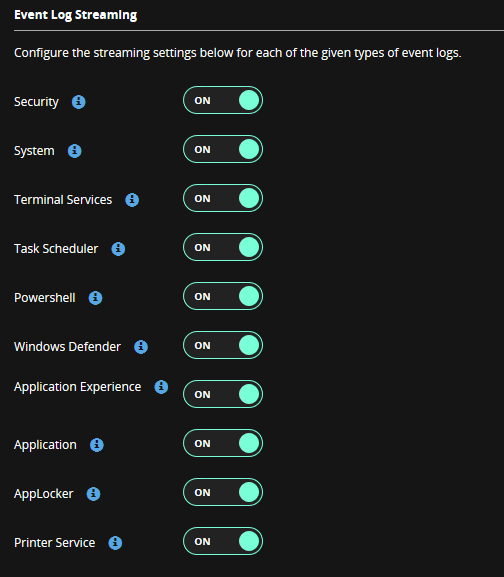
Additional settings are available only in the Endpoint Agent configuration to control monitoring for specific event IDs, advanced logging options, and event recording. These can be configured through the Endpoint Server API. See the Configuring Event Streamer Policy Using the HX API section for more details.
Configuring Event Streamer Policy Using the HX API
To allow fine tuning of event collection, Event Streamer makes use of some configurations that does not correspond to any settings currently in the User Interface. These settings can be updated using the HX API /hx/api/v3/policies/
For more information on how to use the API to update these settings, see HX API Guide
Event Streamer does not introduce any new API. It is only possible to use existing HX APIs to configure Event Streamer policy. The
4 | Module Overview
following table lists all important settings that are configured using this method.
Note
Changing any of these settings to an invalid value (such as a negative number) may cause unexpected behavior in Event Streamer .
General Settings
| Setting Name | Description | Default |
| maxEventsInDB | Maximum number of events to be stored in the cache database before being sent to a Helix instance or Syslog server. Events are removed from the database when they’re successfully sent to the server. Once the maximum number of events is hit, the oldest events are purged from the database. This value is a positive integer but must be passed down as a string. | 10000 |
| deleteBatchCount | How many events should be deleted when the cache database reaches the configured maximum. This is only used when Event Streamer hits the maximum value specified by the maxEventsInDB setting. This | 100 |
| sendEventsTimeout | How long (in seconds) Event Streamer will wait before sending a new batch of events in the database to the server. This value is a positive integer but must be | 20 |
Endpoint Security Event Streamer Module User Guide Release 1.2.1 13
4 | Module Overview
| Setting Name | Description | Default |
|---|---|---|
| passed down as a string. | ||
| maxEventsPerTimeout | Maximum number of events that will be sent to the Helix instance or Syslog server at once. If more events are in the database than this value, only the oldest entries are sent up to this limit. Together with sendEventsTimeout, this value can be used to control the maximum throughput of events sent to the server. This value is a positive integer but must be passed down as a string. | 250 |
| filters | A listing of executables and event IDs from those executables that should not be collected or sent to the Helix instance or Syslog server. This setting can be used to avoid sending data that is not useful or causing excessive noise. This is an array of string values. Refer to the section Updating Filters (Event Exclusions) below for an example. | <empty> |
Event Log Settings
| Setting Name | Description | Default |
|---|---|---|
| systemEventIds | The System event IDs, in a comma delimited list, that Event Streamer should monitor. | 7036, 7045, 104, 6, 1125, 1127, 1129, 41, 219, 100, 20, 24, 25, 31, 34, 35, 7022, 7023, 7024, 7026, |
4 | Module Overview
|
Setting Name |
Description |
Default |
|---|---|---|
|
7031, 7032, 7034, 7040 | ||
|
appExperEventIds |
The Application Experience event IDs, in a comma delimited list, that Event Streamer should monitor. |
903, 904 |
|
securityEventIds |
The Security event IDs, in a comma delimited list, that Event Streamer should monitor. |
5145, 4697, 601, 4688, 592, 4689, 1102, 4720, 4624, 540, 602, 4652, 529, 624, 517, 4768, 4769, 4732, 636, 4622, 4771, 4776, 4657, 4663, 4704, 4728, 4756, 5152, 5038, 4946, 4947, 4948, 4950, 4951, 4952, 4954, 4957, 4958, 632, 657, 660, 663, 675, 676, 680, 849, 850, 851, 852, 853, 854, 855, 857, 859, 860, 861, 5025, 5027, 5028, 5029, 5030, 5034, 5035, 5037, 6281, 4953, 5031, 5050 |
|
appLockerEventIds |
The App Locker event IDs, in a comma delimited list, that Event Streamer should monitor. |
8003, 8004, 8005, 8006 |
|
powershellEventIds |
The Powershell event IDs, in a comma delimited list, that Event Streamer should monitor. |
4103, 4104 |
|
applicationEventIds |
The Application event IDs, in a comma delimited list, that Event Streamer should monitor. |
11707, 4097, 2, 1, 1033, 8194, 1001 |
|
winDefenderEventIds |
The Windows Defender event IDs, in a comma delimited list, that Event Streamer should monitor. |
1005, 1006, 1010, 2001, 2003, 2004, 3002, 5008 |
Endpoint Security Event Streamer Module User Guide Release 1.2.115
4 | Module Overview
| Setting Name | Description | Default |
|---|---|---|
| taskSchedulerEventIds | The Task Scheduler event IDs, in a comma delimited list, that Event Streamer should monitor. | 106, 200, 203 |
| terminalServicesEventIds | The Terminal Services event IDs, in a comma delimited list, that Event Streamer should monitor. | 21, 22, 23, 24, 25, 1149 |
| printerSvcEventIds | The Printer Service event IDs, in a comma delimited list, that Event Streamer should monitor. | 307 |
Updating Filters (Event Exclusions)
Filters allows you to exclude events from processing. These filters are based on executable path and is applied to any process instance of the configured executable. For each executable, you can provide one or more event IDs that are not recorded. This can be utilized to remove noisy or unimportant events. The executable path included in a filter must be an exact match. There is currently no support for pattern matching or wildcards. Also note that these filters are not guaranteed to filter all events.
Some events triggered by a process do not contain the process executable path field, means, it is not possible to filter based on that criteria. Here is an example of a possible set of exclusions configured using the API: [ "C:\\Program Files (x86)\\FireEye\\xagt\\xagt.exe:: 7036, 7045, 104", "C:\\example.exe:: 903, 904" ]. This configuration for the filters setting will remove monitoring for the System event IDs 7036, 7045, and 104 for the FireEye process xagt.exe, as well as the Application Experience IDs 903 and 904 for example.exe at the specified path.
Appendix A - Frequently Asked Questions
-
How do I verify if Event Streamer is running after install?
To verify that Event Streamer is running and recording events for an Endpoint Agent, check for the following additional file:
%PROGRAMDATA%\FireEye\xagt\exts\EventStreamer\sandbox\events.dbAnother way to verify if Event Streamer is running is by checking the full contents of an Agent sysinfo, which can be acquired using the HX API
/hx/api/v3/hosts/<agent_id>/sysinfoor by checking the sysinfo contents using HXTool (downloaded from the FireEye Market). You must see the fields "EventStreamerStatus" as "Running". Several other fields must be populated, including EventStreamer/plugin_start which indicates the last start time of Event Streamer. This requires an account with the api_admin role. -
Does Event Streamer support streaming events to Helix and a Syslog server simultaneously?
Yes, Event Streamer can be configured to send events to only Helix, a Syslog server, or both simultaneously. If both are configured, each event generated will be sent to both Helix and Syslog. Note that events are stored separately prior to being sent to these servers, so that each event can be recorded in the Event Streamer database once for Helix and again for Syslog.
-
Is it possible for Event Streamer to miss some events?
Event Streamer sends events in batches periodically. The time period and maximum number of events sent at each iteration is controlled by configuration. If the number of events recorded exceeds the rate of events sent based on this configuration on average, it’s likely that some events will be dropped without being sent. This can be resolved by adjusting the settings that configure the time limit and maximum number of events. Note that the time period between sending batches of events is a minimum, there may be some extra time in between events being sent.
-
Will Event Streamer have a large impact on system performance?
The Event Streamer agent module should not have a significant impact on CPU, disk, or memory utilization. The number of events recorded and sent to a Helix instance or Syslog server may vary in different environments and on different systems. If the number of events is too high, you can reduce the load by disabling specific Windows Event logs (See the section Event Log Streaming above) or configuring exclusions (See the section Updating Filters (Event Exclusions) above).
-
Are there any log files created during installation on the Endpoint Agents?
The Event Streamer agent module does not create any additional log files during install, upgrade, or uninstall.
-
What processes are created when Event Streamer is installed and enabled?
After installation, Event Streamer spawns an instance of xagt.exe with EventStreamer in its command line. This is a container application to interact with agent services. This process runs under System account like any other agent instances.
-
Does Event Streamer depend on any other Endpoint Security modules?
5 | Module Overview
No, the Event Streamer server and agent modules have no dependencies.
-
What is the expected behavior if the Endpoint Security server goes offline?
Event Streamer will be unable to receive configuration updates but should continue to record events and send them to the configured Helix instance or Syslog server.
-
Can I install Event Streamer on an earlier version of the Endpoint Agent (e.g. 29, 30) and then upgrade to a supported version?
This is not a supported scenario. It’s recommended to upgrade to supported versions of the Endpoint Security server and agent prior to deploying Event Streamer.
-
How can I check if Event Streamer is sending events successfully or failing to send events?
Event Streamer will log information in the Agent logs when sending events. When attempting to send events, it will log the following lines for Helix and Syslog:
Attempting to send # events to Helix.
Attempting to send # syslog events (TCP).
Where # is the number of events it's attempting to send at once. If some number of Syslog events were successfully sent, but some failed, it will log:
Successfully sent # syslog events. Failed to send # syslog events.
As Helix sends many events all at once, any failure will mean that none of the events are delivered. If all events failed to send, it will log:
Failed to send events to Helix, error: #
Failure to send syslog data, will try again at next timer callback
Additionally, you can view Event Streamer Sysinfo data to check how many events have been sent successfully or failed within the last Sysinfo period. Using the HX API /hx/api/v3/hosts/<agent_id>/sysinfo or HXTool (downloaded in the FireEye Market), you can view the following Event Streamer fields:
Fields | Description |
events_in_db | Number of events remaining in the Event Streamer database. |
total_helix_events_sent | Total number of events sent to Helix since the last Sysinfo. |
5 | Module Overview
|
Fields |
Description |
|---|---|
|
total_helix_events_failed |
Total number of events that failed when being sent to Helix since the last Sysinfo. Note that these are not unique events. A batch of events failing to send multiple times will count towards this total for each failure. |
|
total_syslog_events_sent |
Total number of events sent to the Syslog server since the last Sysinfo. |
|
total_syslog_events_failed |
Total number of events that failed when being sent to the Syslog server. |
|
last_helix_try |
Time indicating the last attempted communication with Helix. |
|
last_helix_success |
Time indicating the last successful communication with Helix. |
|
last_syslog_try |
Time indicating the last attempted communication with the Syslog server. |
|
last_syslog_success |
Time indicating the last successful communication with the Syslog server. |
|
total_events_generated |
Total unique events generated since the last Sysinfo. |
|
total_events_dropped |
Total number of events that were dropped without being sent since the last Sysinfo. |
-
How can I check if Helix is receiving events from Event Streamer?
You can search for Event Streamer events in Helix by running the following query:
program=EventStreamer | groupby source
-
Why does the “Module Administration” page in the Endpoint Security Server UI show the “State” of the plugin as “Failed”?
5 | Module Overview
When this occurs, the Status Information column for the module will show a more detailed error message indicating the cause of the failure. This could occur for several reasons, including (but not limited to):
Attempting to re-upload an already installed package. Attempting to upload a corrupted package. Network connection issues, in which case re-attempting install may resolve the failure.
-
How can I control the rate of events being streamed?
Event Streamer has several configuration options which are not controllable via the Endpoint Security Server Web UI. Several of these settings can be used to control the frequency and number of events that are streamed. These settings are controllable using the HX API. For more information, refer to the section Configuring Event Streamer Policy Using the HX API.
-
Can I filter out unnecessary or unimportant events?
Aside from the ability to monitor specific events logs, it’s also possible to control the monitored event ID’s, and to configure filters to drop events coming from specific processes (See the section Updating Filters (Event Exclusions) above).
-
Why do some Syslog events show up broken into smaller portions?
Events may appear in several smaller portions due to limitations on message size defined in the Syslog protocol, or message size settings configured for a Syslog server.
-
How does Event Streamer record events when you have both Helix and Syslog enabled and how does this impact the setting maxEventsInDB?
When both are enabled, Event Streamer records each event twice – once for Helix, and once for Syslog. This does not impact the setting maxEventsInDB, so any event recorded will still count as two events towards the maximum limit. When events are sent, the limit set by maxEventsPerTimeout applies to Helix and Syslog separately, so Event Streamer should send up to maxEventsPerTimeout to Helix and the same amount to Syslog.
-
What versions of TLS does Event Streamer support?
Event Streamer supports TLS 1.1 and 1.2. It does not support communication using TLS 1.0.
-
Do I need to whitelist any URL in my firewall?
Make sure to whitelist the Helix Token Service URL for your Endpoint Security server. The Endpoint Security server must be able to reach this Token Service URL for any events to be sent to a Helix instance. For the Endpoint Security Agent, you must whitelist the Helix Ingest URL (<helixid>.ingest.apps.fireeye.com) and Syslog server address, depending on whether the Agent is configured to send events to a Helix instance, a Syslog server, or both.
-
Does Event Streamer need to communicate with Helix directly or can it go through a Commbroker or Cloud Collector?
Once configured, Event Streamer sends Windows Event Log events directly to Helix. No other component is needed between the Endpoint Agent and Helix. Sending via a Commbroker or Cloud Collector is not supported.
-
Is there a limit to the number of event IDs Event Streamer can monitor?
5 | Module Overview
Windows limits the number of event IDs you can monitor from a single event log to 80. This means that you cannot include more than 80 event IDs in a single category. This is not a limit on the total number of event IDs monitored, only for each category (e.g. securityEventIDs).
-
Does Event Streamer support streaming to IBM QRadar?
No, Syslog streaming through Event Streamer cannot be configured for use with IBM QRadar SIEM.
Endpoint Security Event Streamer Module User Guide Release 1.2.1
21
COPYRIGHT
Copyright © 2026 Musarubra US LLC.
Trellix and FireEye are the trademarks or registered trademarks of Musarubra US LLC, FireEye Security Holdings US LLC, and their affiliates in the US and /or other countries. Other names and brands are the property of these companies or may be claimed as the property of others.