We can then proceed to create an exemption to the Device Guard class policy restrictions by clicking on the Add Exemption button. This button will bring up the following form:
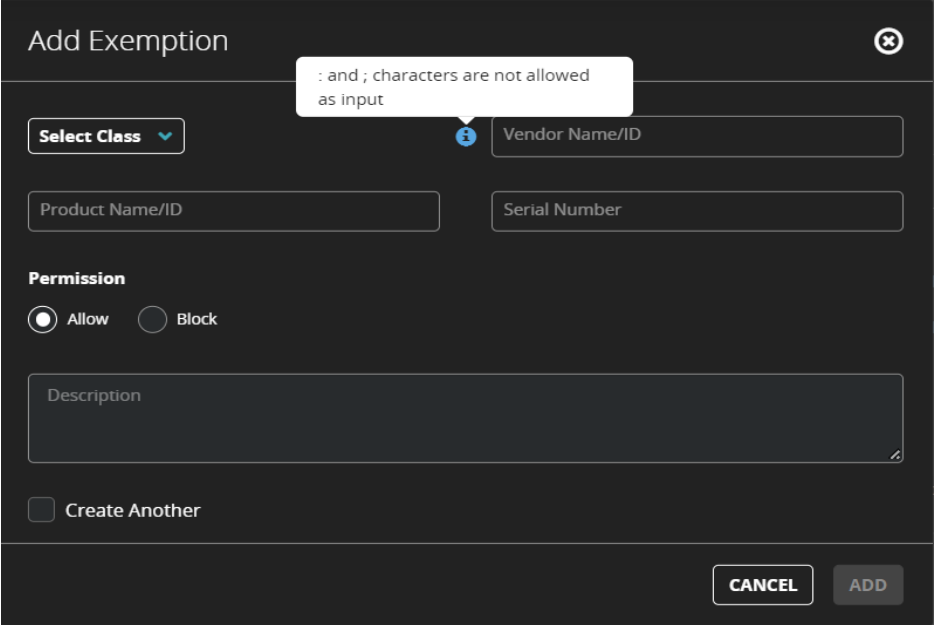 |
Add the device specific exemption by filling in the device details like Device Class Vendor Name or ID, Product Name or ID and Serial Number. You can choose to fill one or more fields on this form making it a Vendor or Product Name based exemption, however the following rules apply while filling this form:
Selecting a Device Class is mandatory.
For creating a Product based exemption, adding the Vendor name or ID is mandatory.
For creating a Serial Number based exemption, both Vendor and Product names or IDs are mandatory.
Use of “;” and “:” is prohibited in all exemption config fields. Admins can use Vendor ID/Product ID instead of Vendor Name/Product Name or vice-versa in case these characters appear in these field’s values. The same information has also been mentioned for admins in info tooltip in Add Exemption form.
Conflicting exemptions will not be accepted by the system. Also, all textboxes are single input boxes and any comma separated string will be treated as single value not as multiple values.
If multiple exemptions are applicable to a device being plugged in, the exemption with most specific details (e.g., all Vendor, Product and Serial information all filled) will be given priority over less specific exemption (e.g., only Vendor & Product details filled, Serial Number left unfilled).
After you provide the required information, you can select the permission toggle switch to Allow or Block and add a description to the exemption. You can also enable the checkbox to bring up a new form to add another exemption immediately rather than returning to the Exemption Settings tab. After the exemptions are added, they show up in the Exemption Settings tab.
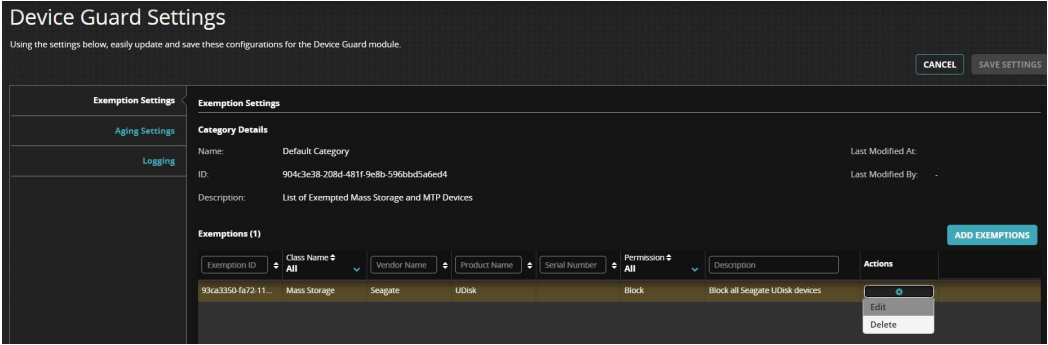 |
The exemptions can further be edited or deleted from the Actions button (gears icon) .