First-time installation in a new environment
Follow the standard installation procedure to install a DXL Broker in a new environment. For more information, see Install DXL using ePO - On-prem.
Upgrade DXL to a newer version
Prerequisites:
To ensure optimal data throughput, upgrade all DXL Brokers to version 6.1.3 or later. Verify the current DXL Broker version to determine the upgrade path:
Upgrade from DXL Broker 6.1.2 or earlier: If you have DXL Broker 6.1.2 or earlier installed, perform the following steps:
Delete the registered server: If you have an EDR Telemetry Store registered server, delete the registered server before you proceed with the upgrade.
Note
If you do not have an EDR Telemetry Store registered server, proceed to step 3.
To delete the existing registered server:
Log in to the Trellix ePO - On-prem.
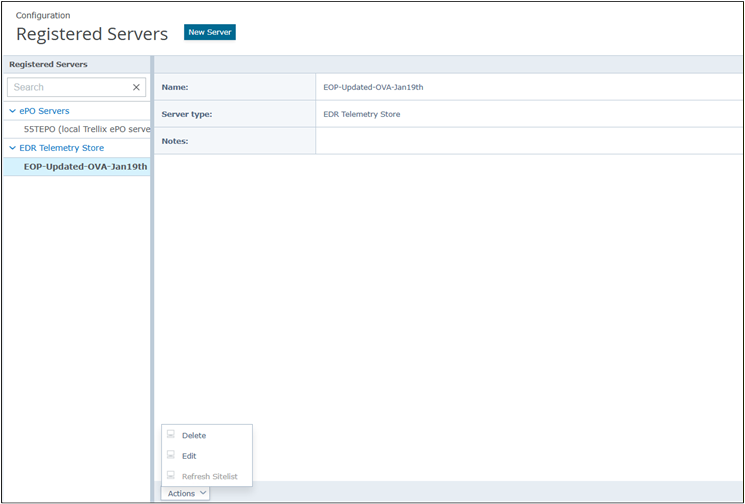
Select Menu → Configuration → Registered Servers.
In the left pane, under EDR Telemetry Store, select the registered server name.
Select Actions → Delete and click OK.
Remove the EDRF policies: Ensure that the existing EDRF policies are removed. If the policies remain, use the
remotecommand to force removal.Upgrade DXL Broker and add the EDR Telemetry Store registered server: Upgrade the DXL Broker to version 6.1.3 or later. After the upgrade is complete, add the EDR Telemetry Store registered server.
Upgrade from DXL Broker 6.1.3 or later: If DXL Broker 6.1.3 or later is deployed to all DXL Brokers and no EDR Telemetry Store server is registered, perform the following steps:
Install the EDRF ePO extension version 2.1.2.
Register the EDR Telemetry Store server.
Follow the standard upgrade procedure to upgrade an existing DXL Broker to a newer version. For more information, see Upgrade the DXL Broker to a newer version.