Use the Indicators of Compromise (IOCs) Detection Rules dashboard to review, filter, and manage Indicators of Compromise (IOCs) detected across your server appliances or endpoints. By using this dashboard, which is now integrated with the EDR workspace, you can take immediate action on IOCs from either the EDR or Forensics workspace. This ensures that any IOC changes you make are reflected in both workspaces, giving you unified visibility and control.
How to manage IOC Detection Rules
Log in to the Trellix EDR.
Go to Menu → IOC Detection Rules.
To filter and sort IOC data:
Use quick filters (for example, Server ID, Operating System, Category) to narrow down results.
Use column-level filters or Global Search to sort and refine the data in the AG Grid.
To delete IOC Rules:
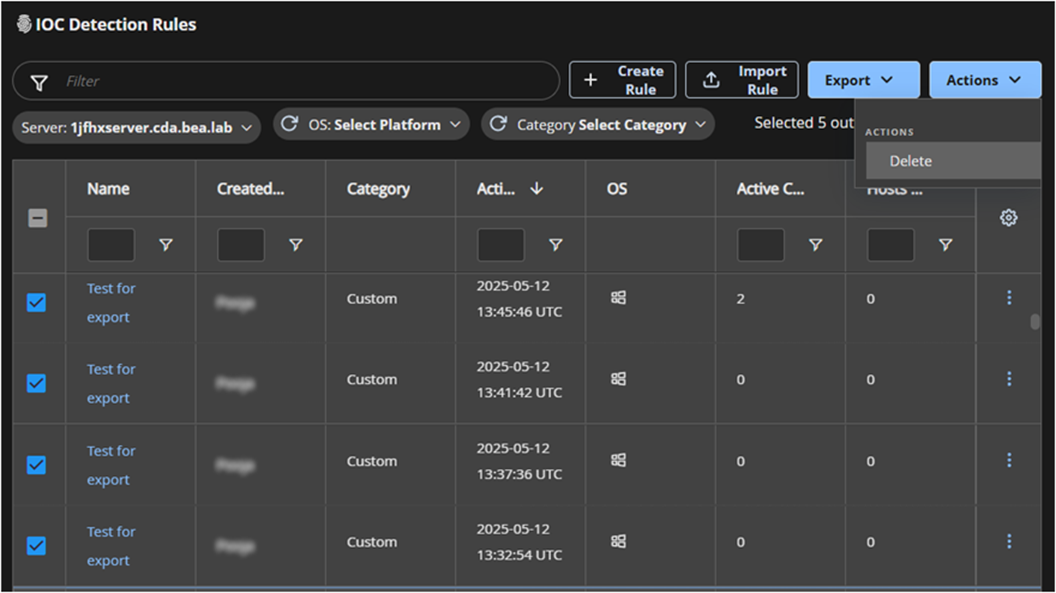
Select the applicable IOC rules using checkboxes. You can select up to 50 IOC rules.
From the Actions drop-down menu, select Delete.
Note
System-generated IOCs categorized as Mandiant Intel or Mandiant Unrestricted Intel cannot be deleted. These records are retained to maintain security, compliance, and operational requirements.
To perform single row actions:
Click the Settings icon at the end of a row.
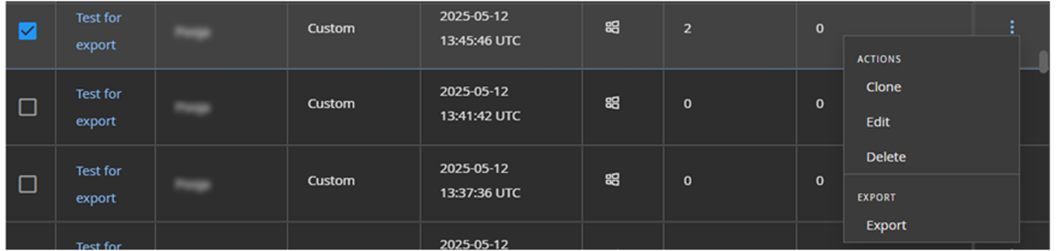
Select any of the following actions.
Edit an IOC rule
Clone a rule
Delete a rule
Export a rule (CSV or XLSX)
To import custom IOC rules:
Click Import Rule and provide the following details.
Server ID
Operating System(s)
Rule file (JSON or Rule format)
Note
Ensure that the rule file size does not exceed 1 MB.
Click Import.
To export IOC data:
Click the Export button to export the full table in CSV or XLSX format.
To export an individual rule, use the Settings menu on the respective row and click Export.