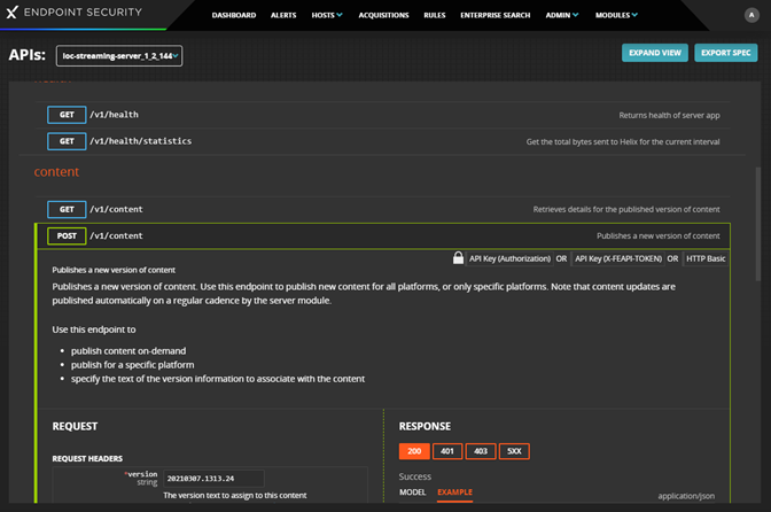
A high-level overview of the API provided by the IOC Streaming module is listed in the following table. This API provides the ability to add/modify/remove indicators and conditions that are published to your endpoints, according to your detection needs. The pre-configured ,Trellix rules can be disabled/enabled at the indicator level. You have the full capability to customize the rules you created.
Theme | Detail | Verb / Operation |
|---|---|---|
health | Return the health of this endpoint server module |
|
Get the total bytes sent to Helix for the current interval |
| |
content | Retrieve the details for the published version of content |
|
Publish a new version of content |
| |
conditions | Return a list of streaming conditions |
|
Return a specific condition |
| |
Update a specific condition |
| |
Remove a specific condition |
| |
indicators | Return a list of streaming indicators |
|
Create one or more indicators |
| |
Return a specific indicator |
| |
Update a specific indicator |
| |
Remove a specific indicator |
| |
Disable a specific indicator |
| |
Enable a specific indicator |
| |
Intel | Return information about the latest DTI package applied |
|
The typical lifecycle operations are as follows:
Create: For a new set of conditions to collect under an indicator you must:
Create a new indicator using POST /v1/indicators, setting the enabled state to false. This will return an ID for the new indicator in the response
Create the one or more conditions that align under this indicator using POST
/v1/indicators/{ID}/conditions. Note that an ID will be returned in the response for each condition that you create. This ID we will denote as IDc, below.
Update the indicator, setting the enabled state to true using POST /v1/indicators/{ID}/enable. This will make the new indicator available to your endpoints.
Change: To modify the metadata:
For an indicator, use PUT /v1/indicators/{ID}
For a condition, use PUT /v1/condition/{IDc}
To add another condition to an existing indicator, use POST /v1/indicators/{ID}/conditions
To remove a condition that is associated to an indicator, use DELETE /v1/indicators/{ID}/conditions/{IDc}. Once the association is removed, mark it for deletion/cleanup using DELETE /v1/conditions/{IDc}
Remove: To remove an indicator and its associated conditions
Update the indicator setting the enabled state to false using POST /v1/indicators/{ID}/disable
List the conditions attached to the indicator using GET / v1/indicators/{ID}/conditions
For each condition that exists in the list of the response, remove it using step (4) under the Change- section.
Remove the indicator using DELETE /v1/indicators/{ID}
The operations discussed affect the indicators and conditions that is published to your endpoints. The IOC Streaming Server module will pick up these changes and publish the updated content automatically. If you prefer to have finer grained control over the publication, either to publish on demand, or to control the version ID assigned to the published content, use the POST /v1/content operation.
The most up to date documentation of the API is available via the API Documentation module on the Endpoint Security Server. This module provides documentation for all the API available on the Endpoint Security Server, including the IOC Streaming module. It uses the Swagger/OpenAPI format to explain the parameters and data models that are used to interact with this module.