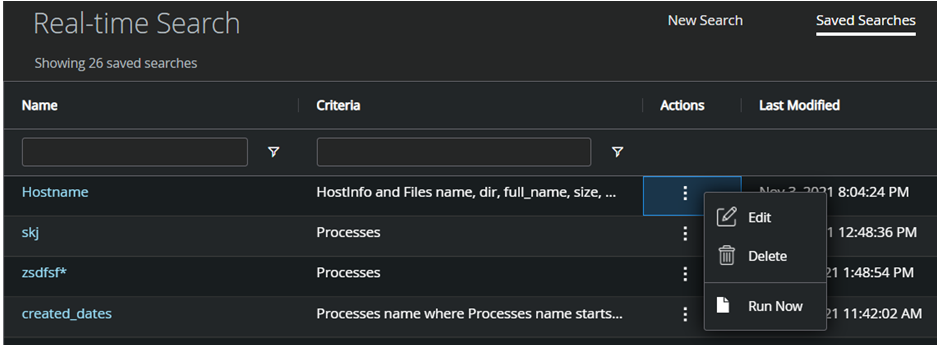
When you are investigating or hunting for a threat on managed endpoints, you can see and run if there are already saved search expressions or queries within EDRF to search real-time data. The saved search feature helps to save your time in creating a search expression if it already exists.
Log on to Trellix EDR.
Go to Menu → Real-time Search → Saved Searches.
All saved searches appear on the grid.
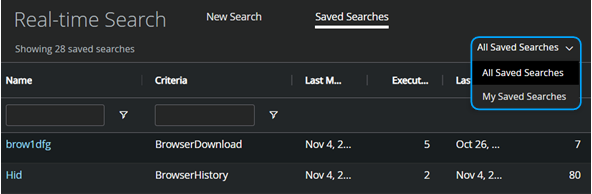
On the right side, you can either select All Saved Searches or My Saved Searches.
Based on the selection, saved searches appear on the grid. Then you can click the saved Name or Run Now option from Actions to search real-time data.
Important
Only the owner of the saved search expression can edit or delete the expression.
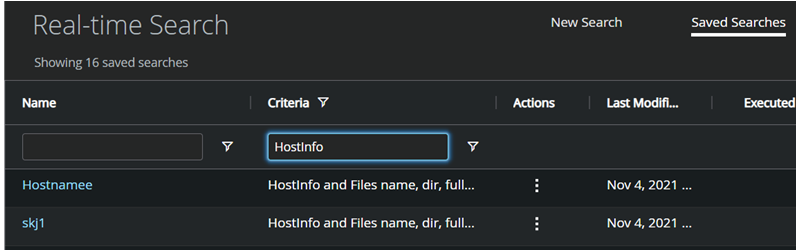
On the grid or results table, you can hover over the column headers and click on the menu icon to perform these activities:
Pin Column — Pin a column to the left or right. You can click No Pin to unpin a column.
Reset Columns — Reset columns to the default view.
Filter... — Filter Name, Criteria, and Owner in the respective columns.
The available options for Name, Criteria, and Owner columns — Contains, Equals, Not equal, Starts with, and Ends with.
Search... — Search and add or remove available columns to the grid.
Name, Criteria, Last Modified, Executed Count, Last Run, Records Returned, Owner, and Actions are the default columns displayed. However, you can add the Created Date column to the grid using Search....
Run, edit, or delete a query using these options:
Name — Click the name of the saved search expression to run.
Actions — Click on the respective saved search action icon and options to perform these activities:
Edit — You can edit the saved name and search criteria.
Delete — You can delete the saved search expression.
Run Now — You can run the expression to collect real-time data.
Important
Any user can run the saved search expression using Run now or by clicking the name but only the owner of the saved search expression can edit or delete the expression.