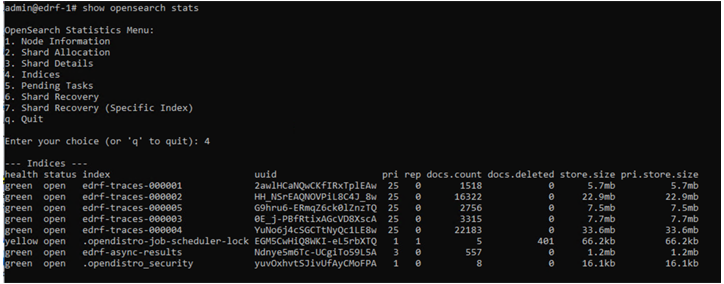
After you complete the Trellix ePO configuration, verify the end-to-end data flow to confirm that endpoints are successfully sending trace data to the EDR Telemetry Store.
Verify data flow in DXL fabric
In Trellix ePO, navigate to Menu → Systems → Data Exchange Layer Fabric.
Select an active DXL Broker that has connected endpoints that run Trellix EDR with Forensics.
Click the Extensions tab.
Locate the Last Message Time and Messages Processed columns.
Click Refresh and verify that the Messages Processed count increases.
An increase in the count confirms that trace data flows from the endpoints to the EDR Telemetry Store.
Verify endpoint communication in ePO
Check the endpoint's product properties in Trellix ePO to verify that it is actively sending trace data to the ePO Broker.
In Trellix ePO, navigate to the System Tree.
Select an endpoint where Trellix EDR with Forensics is installed.
Click the Products tab and select Trellix EDR with Forensics.
In the properties list, find Last Trace Communication.
Verify that the date and time are recent, which confirms the endpoint is successfully delivering its trace data.
Verify data ingestion on the EDR Telemetry Store
Connect to the EDR Telemetry Store and enter configuration mode. Enter the password when prompted after each command.
ssh admin@<EDR Telemetry Store_IP_address> enable
Run the following command to view the EDR Telemetry Store statistics.
show opensearch stats
From the OpenSearch Statistics menu that appears, type
4and press Enter to select Indices.Verify the document count: In the output table, find the index named edrf-traces-000001 and check the value in the docs.count column. This number should increase over time, confirming that new trace data is being ingested.