If alerts are triggered by valid traffic, you can use the Add Whitelist Combination dialog box to add a combination of conditions for whitelisting SmartVision alerts.
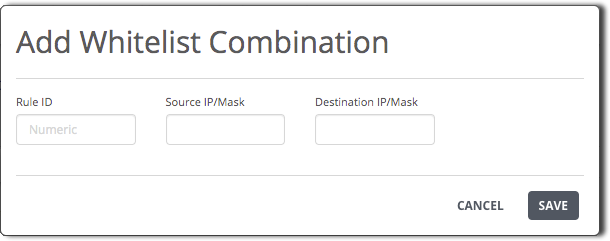
If a SmartVision event matches all conditions specified by any entry in the whitelist, the appliance does not generate an alert for that event.
Each entry in the whitelist specifies one or more of the following conditions:
Rule ID
To eliminate false-positive alerts triggered by a particular SmartVision rule, specify the rule ID.
Source IP / Mask
To eliminate false-positive alerts triggered by traffic sent from a particular network host or range of IP addresses, specify the IPv4 or IPv6 source address in classless inter-domain routing CIDR format (<ipAddress>/<prefix>).
Destination IP / Mask
To eliminate false-positive alerts triggered by traffic sent to a particular network host or range of IP addresses, specify the IPv4 or IPv6 source address in CIDR format.
Prerequisites
Click SmartVision Alerts Configuration.
Go to the SmartVision Alerts Whitelist panel and click Add.
Specify one or more of the following conditions:
Rule ID
Source IP/Mask
Destination IP/Mask
Click Save.