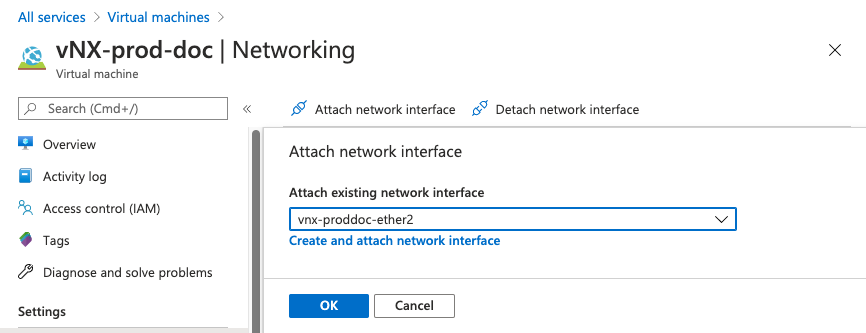
You must attach network interfaces you create in Azure to the Network Security virtual machine.
Important
Attach the interfaces in numeric order. For example, attach ether2, pether3, and then pether4.
To attach an interface:
Select All services > Virtual Machines.
Select the virtual machine.
If the virtual machine is running, click Stop.
Select Networking under Settings.
Click Attach network interface.
Select the first network interface and click OK.
Repeat the previous step for each network interface.
Select the virtual machine and click Run.
Note
Network interfaces are placed in the following VRF namespaces:
ether1, ether2—vrf0
pether3, pether4—vrfA
pether5, pether6—vrfB
pether7, pether8—vrfC
pether9, pether10—vrfD
For details about virtual routing and forwarding (VRF), see the "Layer 3 Forwarding Using VRF Instances" information in the Network Security System Administration Guide.