The Application Settings > Notifications page allows you to configure email notifications for alerts, events per second (EPS) oversubscription, and observable feed sharing failures.
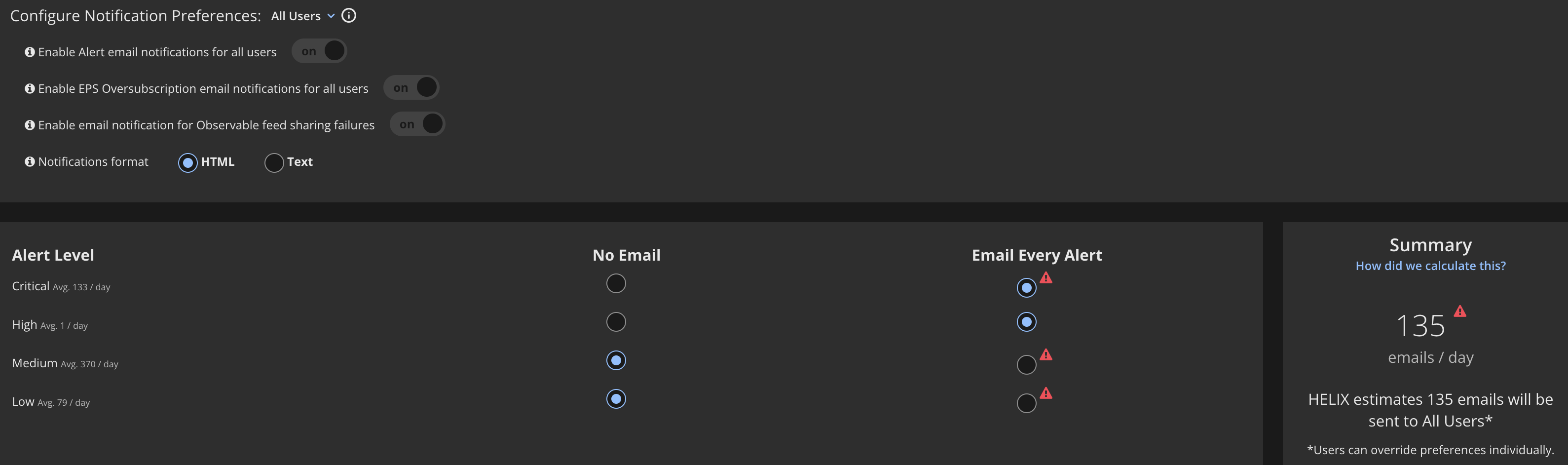
Alert notifications—You can configure email notifications for all alerts or fine-tune the settings so you will not be overwhelmed by notifications. For example, you can disable email notifications for low and medium alerts, while enabling notifications for high and critical alerts. Alert notifications for the organization are enabled by default.
The average number of alerts generated each day for each alert level is displayed in the Alert Level column. The Summary section gives an estimate of the number of emails that will be sent to all users each day with the current settings.
URLs in email notifications are rewritten as non-clickable text to prevent accidental clicking of malicious links and to bypass additional Email Security — Server and Email Security - Cloud analysis. For example:
Original URL: https://www.malicious.com/uri_part_of_url/id?-123
Rewritten URL: hXXps://www[.]malicious[.]com/uri_part_of_url/id?=123
Note
Trellix recommends that you add the Helix Enterprise sender address to the Allowed List on the Email Security — Server appliance. To do so, log in to the Email Security — Server CLI and run the
email-analysis allowed-list sender-email-address <helix-sender-email-address>command. Your onboarding email contains the address.EPS oversubscription notifications—You can enable email notifications to be sent when the average events per second (EPS) in your environment exceeds your contracted EPS during the past hour. Another email is sent after seven days. EPS oversubscription notifications for the organization are enabled by default.
By default, notifications are sent when the ingested EPS exceeds the contracted EPS by 110% during the past hour on all days. You can configure custom EPS notifications with high and low threshold percentages that can be enabled for any or all days of the week. See Custom EPS notification thresholds.
Observable feed sharing failures—You can configure email notifications to be sent when feed propagation fails for any reason. The failure reason is included in the email so you can take corrective action. If federated feed sharing is enabled, the notifications are sent only to users in the parent or child organization that attempted to propagate the feed.
Notifications format—You can choose the format of email notifications to be either HTML or text. This is a global setting which applies to all email notifications. The default setting is HTML.